How to Set Catalog Rules in Bagisto
A catalog rule allows customers to purchase products at admin set discounts from the backend.
It is applied to products before they are added to the shopping cart.
Managing discounts manually for each product can be time consuming and difficult to maintain.
To solve this, the platform offers an easy way to manage discounts.
In this guide, we will show you how to set catalog rules in Bagisto quickly and efficiently.
Add New Catalog Rule
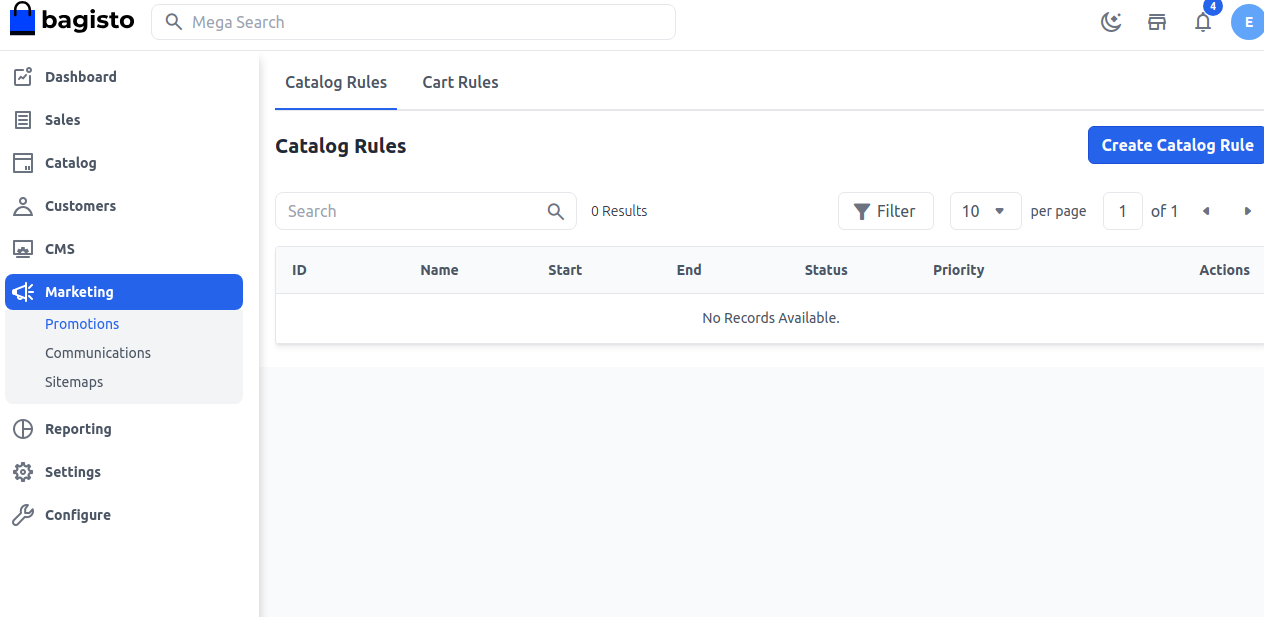
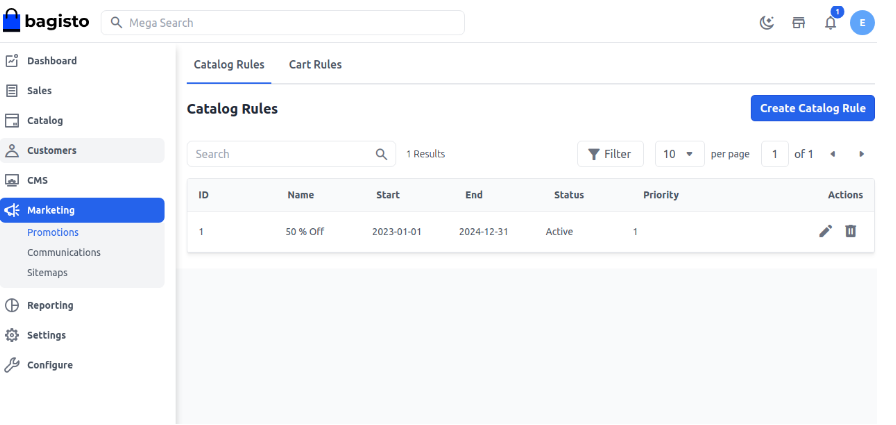
a) On the Admin panel, go to Marketing >> Promotions >> Catalog Rules
b) On the upper right side, click on the Create Catalog Rule button as shown below.
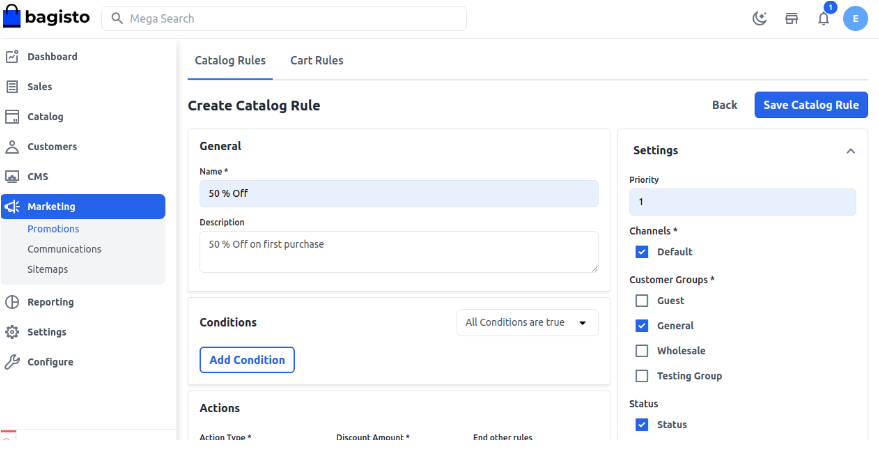
Enter the following details in the Rule Information section.
- Name: Enter a name for the catalog rule (for internal reference only).
- Description: Add a brief description of the rule (for internal reference only).
- Status: Set the rule status to active.
- Channels: Select the channel where the rule will be applied.
- Customer Group: Choose the customer group to which the rule should apply.
- From and To Dates: Define the date range during which the rule will be active.
If no dates are set, the rule will apply immediately after saving. - Priority: Specify the priority level for this rule.
Set Conditions
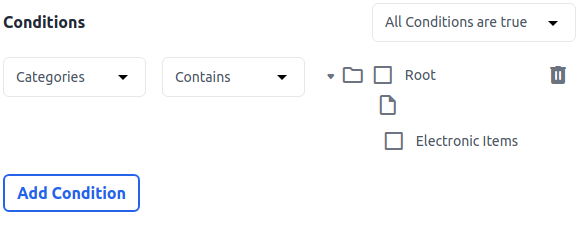
All conditions in a catalog rule are based on product attributes.
If you want the rule to apply to all products, you can leave the conditions empty.
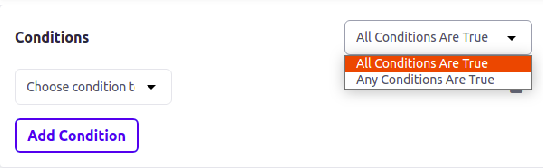 Click on Add Condition to define the rule criteria.
From the list of product attributes, select the attribute you want to use for the condition.
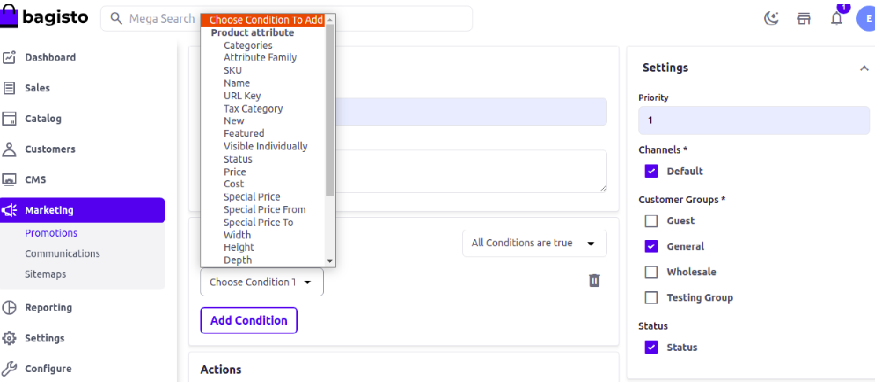
To remove any condition, simply click the delete icon.
Set the Actions
In the Action section, we have to set the action so that we want to apply the rule to the product.

- Action Type: Choose whether to apply the discount as a percentage or a fixed amount.
- Discount Amount: Enter the value of the discount.
- End Other Rules: Set this to “Yes” to stop any other rules from applying after this one.
This helps control multiple discounts on the same product.
Note: If you want multiple rules to apply to a product, set this option to No.
In that case, the rule with the highest priority will be applied first.
Front End
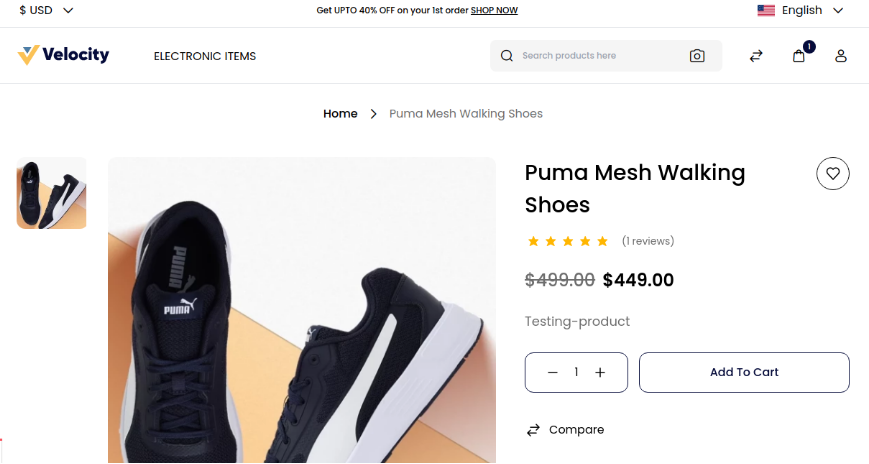
By this, you can easily create a Catalog Rule in Bagisto.
Final Thoughts
Catalog rules make it easy to manage product discounts without handling each item manually.
By using set catalog rules in Bagisto, you can apply discounts efficiently across products.
With the right configuration, this feature helps improve pricing strategies and save time in managing promotions.
Thank you for reading this blog. If you have any questions, feel free to leave a comment below.
You can also hire Laravel developers for your custom projects.
We hope this guide is helpful. If you face any issues, please raise a ticket through our Support Portal.


Be the first to comment.