Promotions Rules in Bagisto
Looking to boost conversions and sales? Learn how to create promotions in Bagisto using its powerful Marketing > Promotions > Cart Rules.
This guide covers applying conditions for discounts, free shipping, and targeted offers.
Cart Rules for Promotions in Bagisto
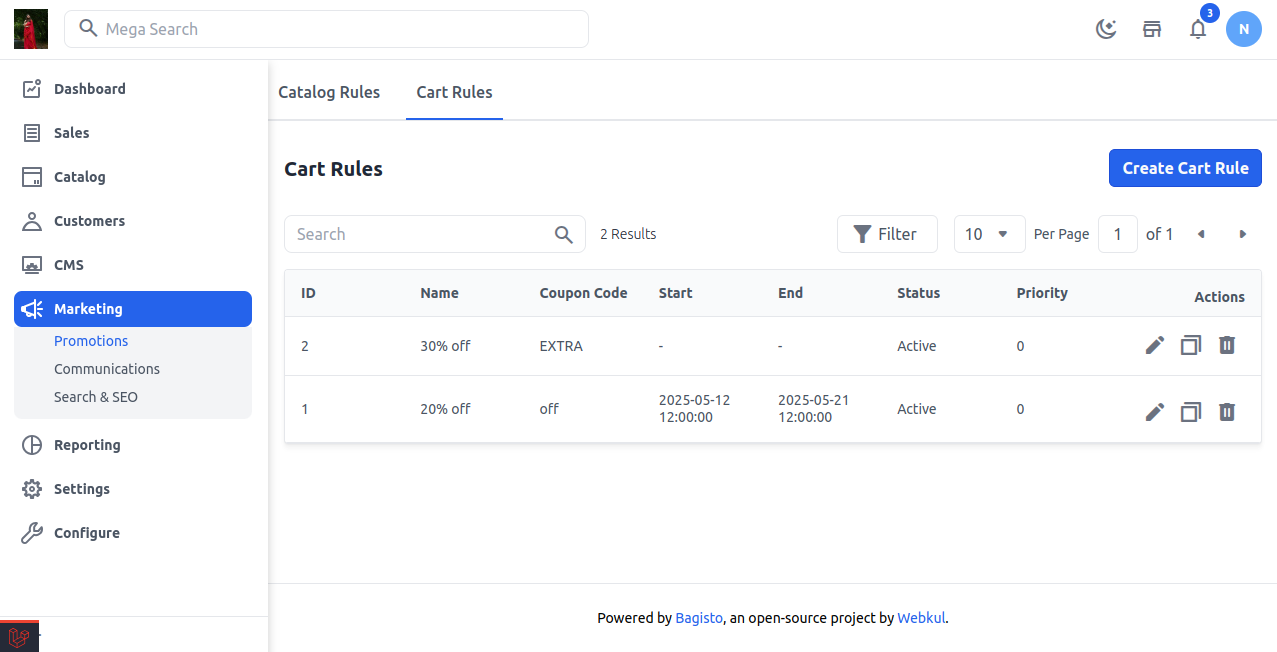
Step 1: Navigate to Cart Rules
Go to your admin panel:
Marketing →Promotions→ Cart Rules → Create Cart Rule
Step 2: General Information
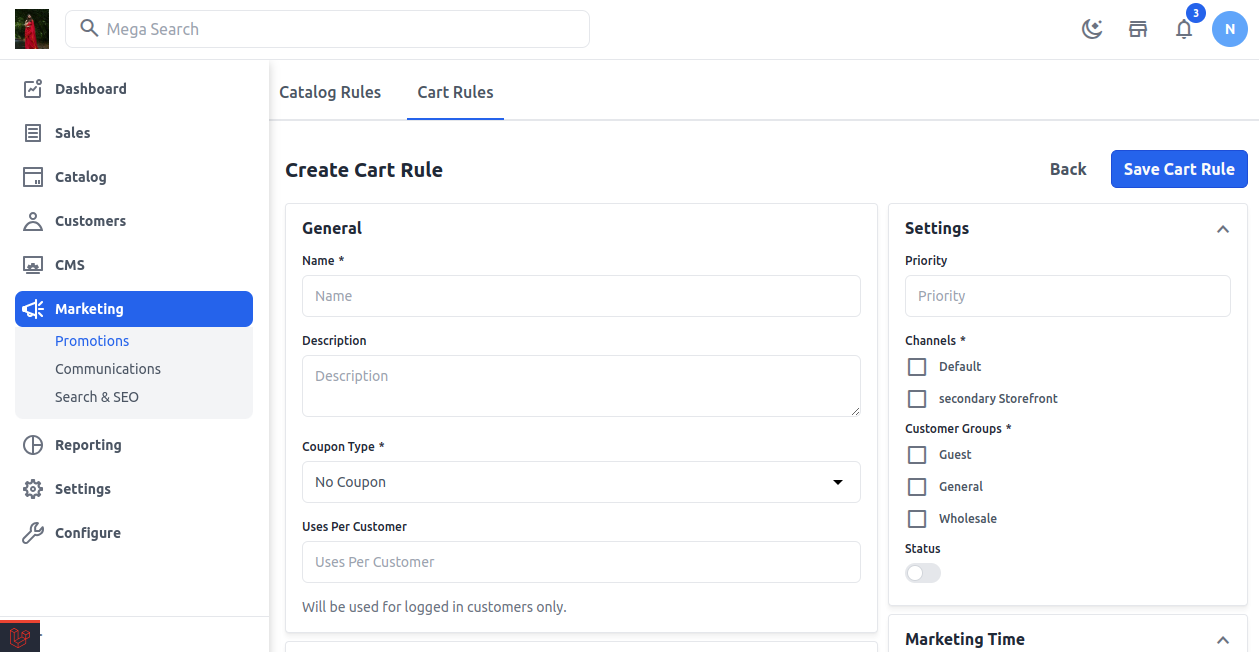
Fill in the basic details:
-
Name: (e.g., “30% Off on Orders Above $500”)
-
Description: Optional, for admin use
-
Coupon Type: Select whether it’s automatic or requires a code
-
Uses Per Customer: Limit usage if needed
-
Customer Groups: Choose eligible user groups
-
Status & Timeframe: Enable and define the validity period
Step 3: Set Conditions
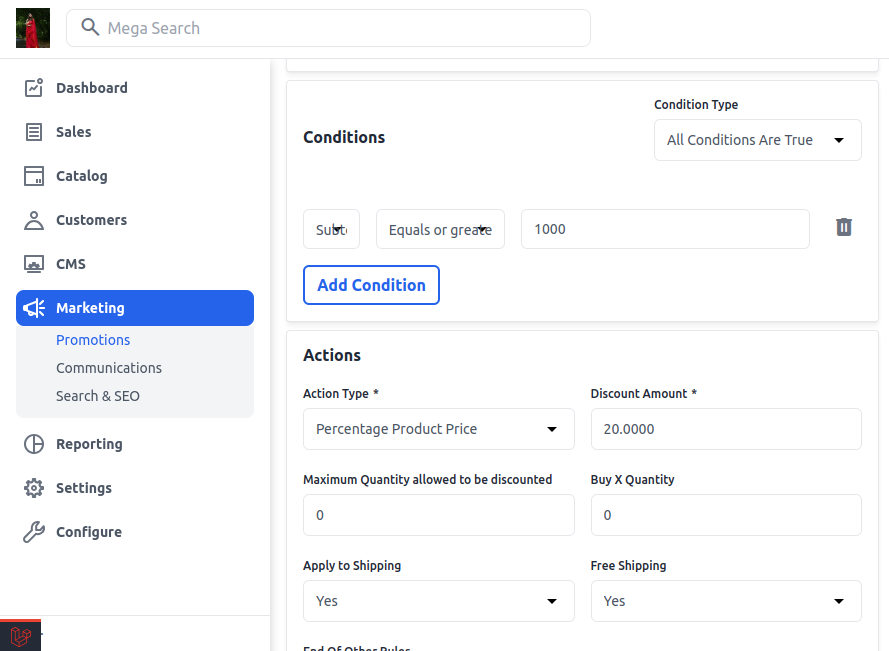
Now comes the powerful part: Conditions. Choose how the rule applies:
Condition Type:
- All conditions are true
- Any condition is true
Add Condition: Choose from multiple attributes:
Cart Attribute
To select Cart Attributes in Bagisto, go to Marketing > Promotions > Cart Rules > Conditions tab, click “Add Condition,” then choose your desired attribute (like subtotal, shipping method, or quantity in cart) from the dropdown.
-
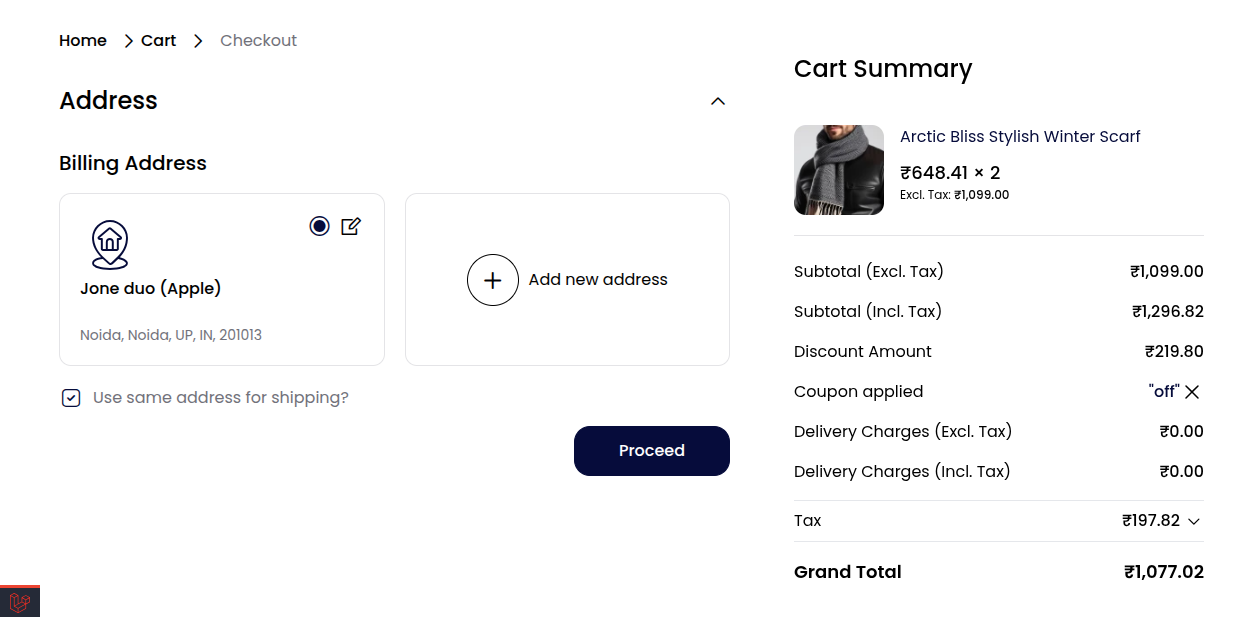
Subtotal – Use this to apply offers when the total cart amount before tax meets a specific value.
1) Product View on Storefront
-
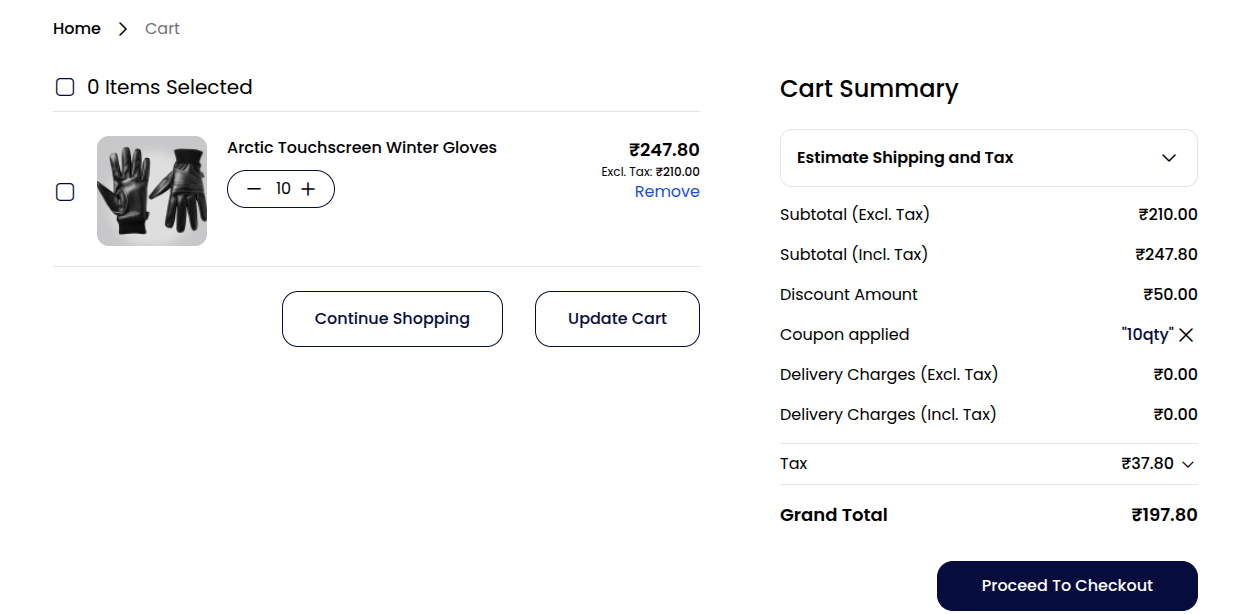
Total Items Qty – Set conditions based on the total number of products in the shopping cart.
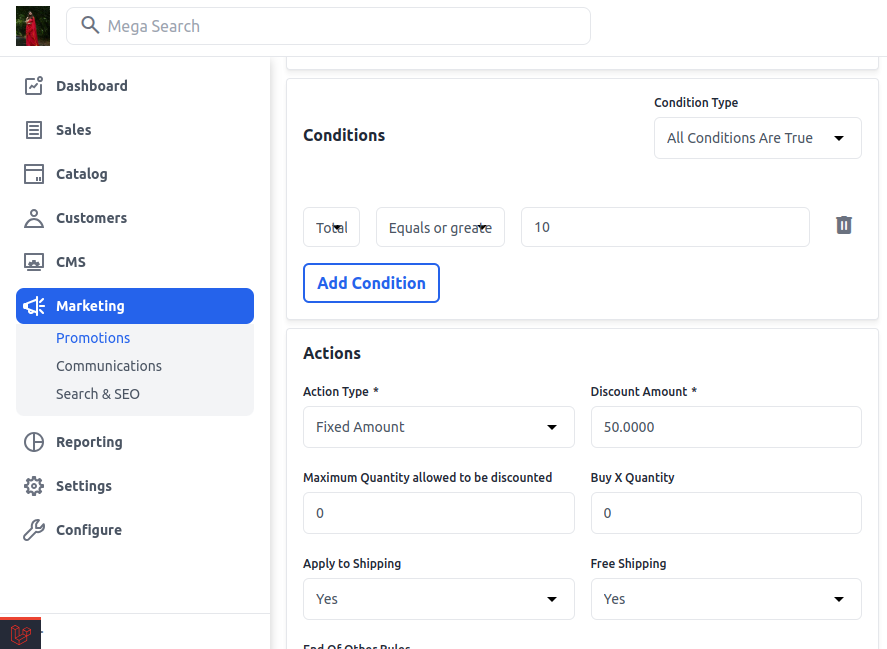
2) Product View on Storefront
-
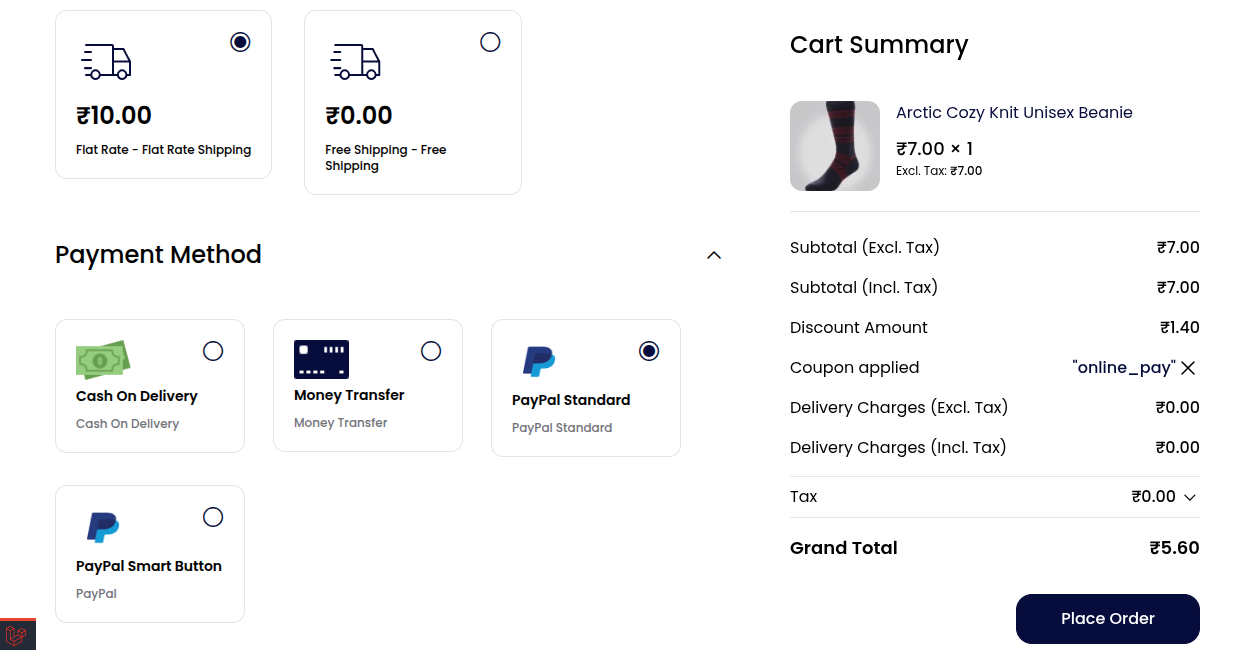
Payment Method – Restrict promotions to specific payment options selected during checkout.
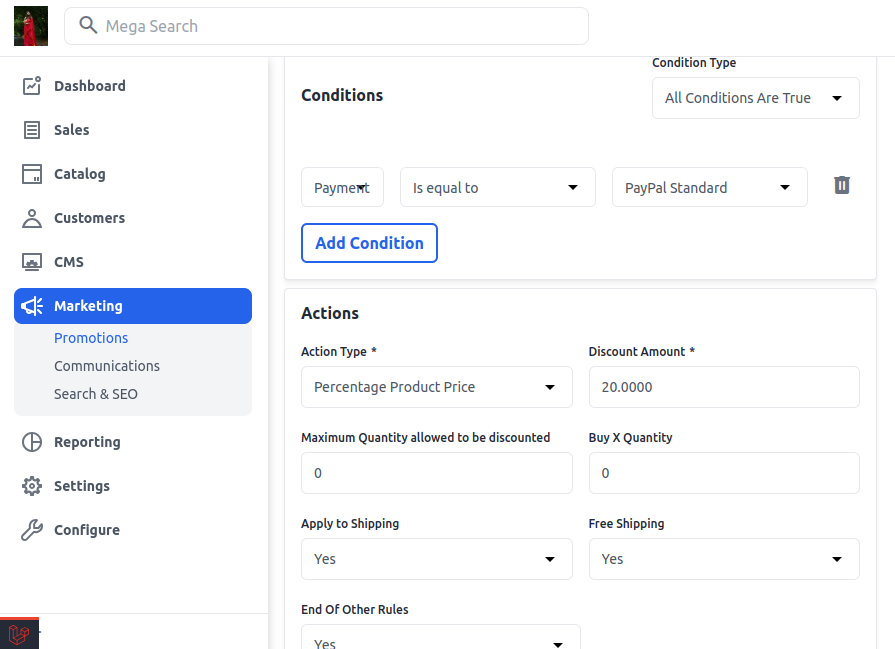
3) Product View on Storefront
-
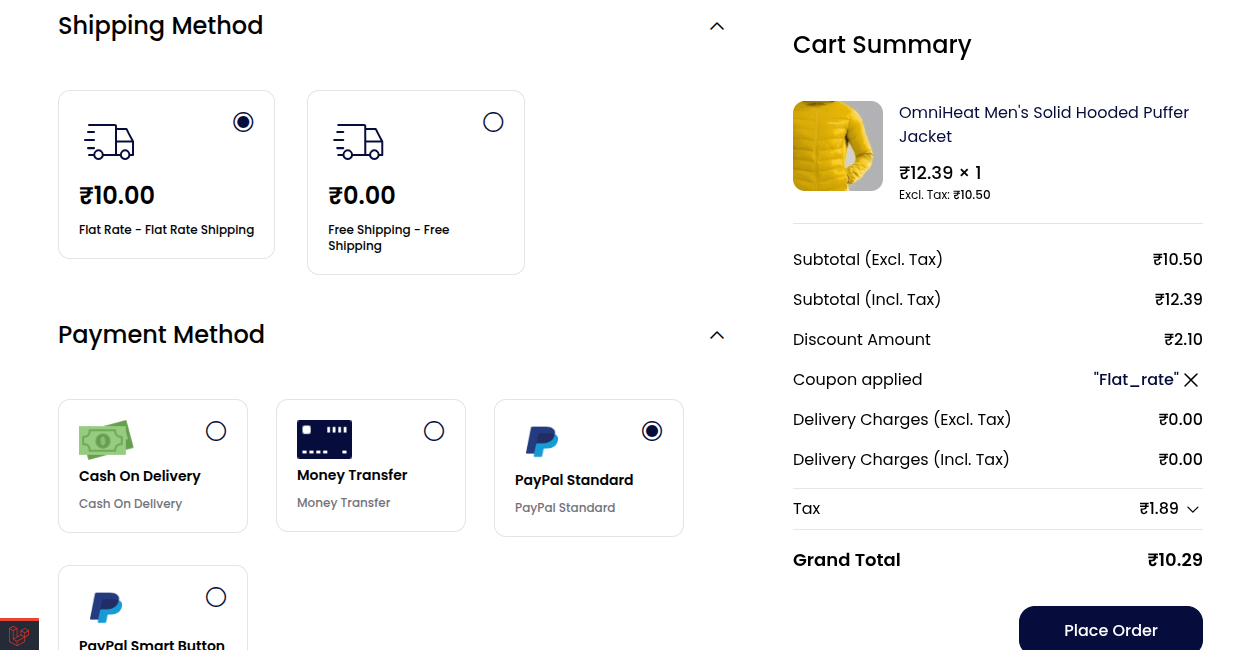
Shipping Method – Enable discounts depending on the selected delivery method.
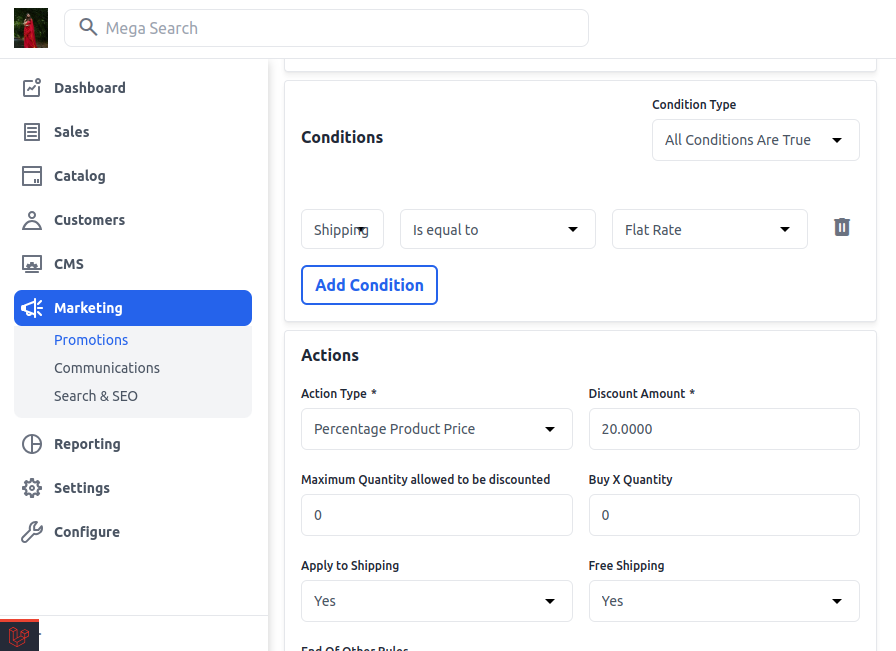
4) Product View on Storefront
-
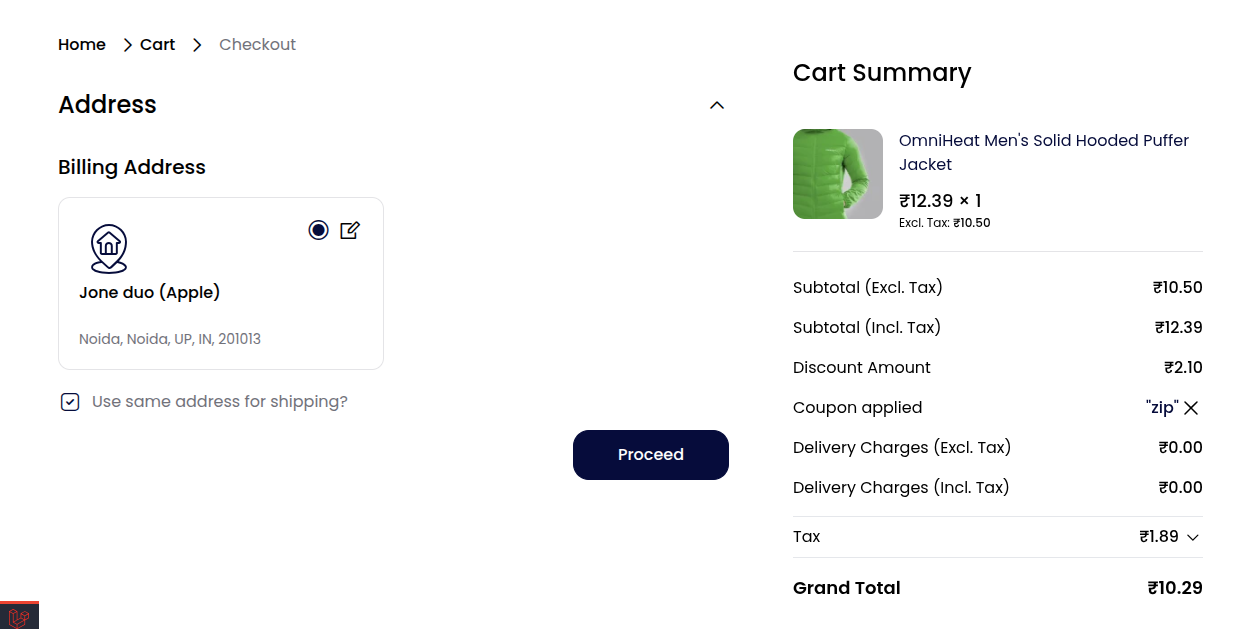
Shipping Postcode – Target users by their entered postal or ZIP codes.
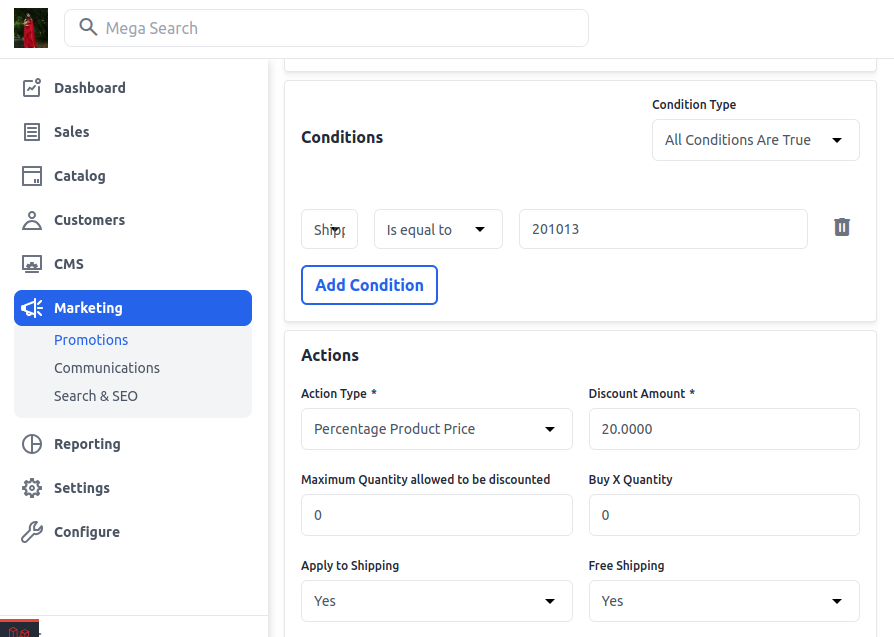
5) Product View on Storefront
-
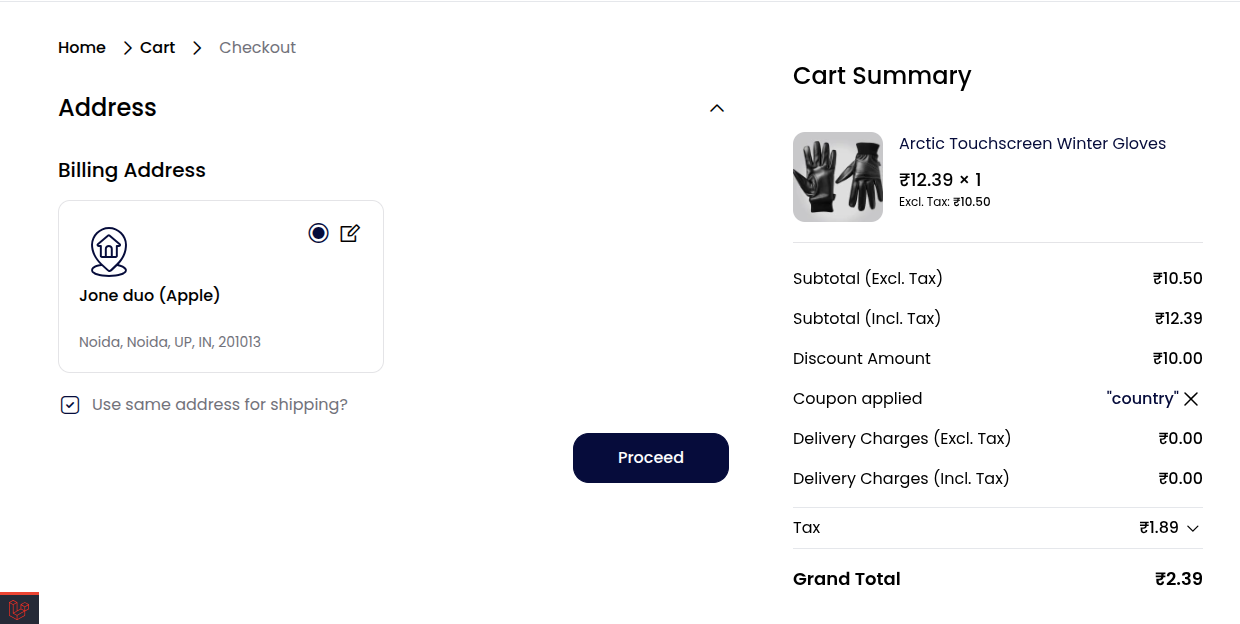
Shipping Country – Limit or trigger offers for specific countries during shipping.
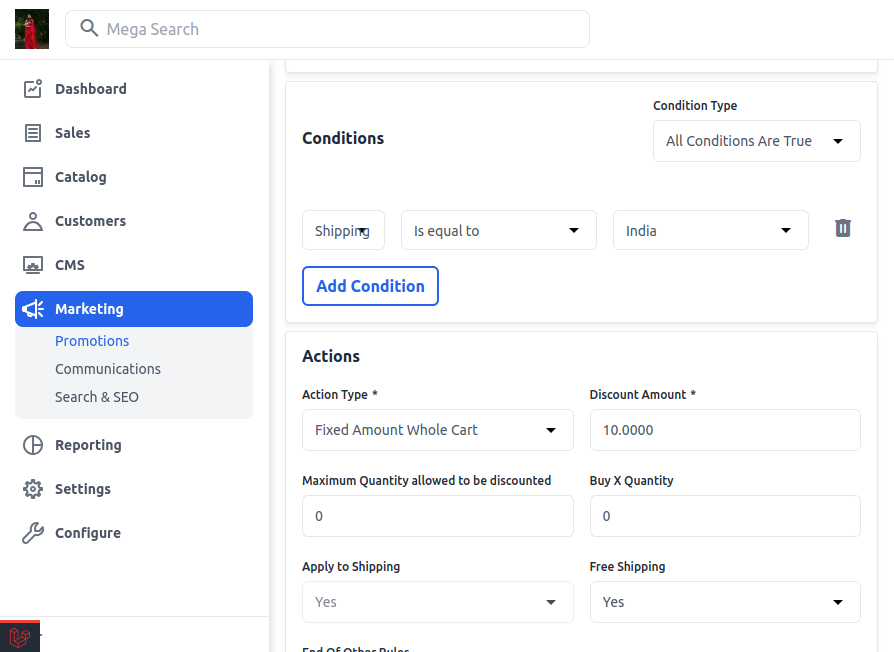
6) Product View on Storefront
Cart Item Attribute
To select Cart Item Attributes in Bagisto, go to Marketing > Promotions > Cart Rules > Add Rule > Conditions tab, click “Add Condition,” then choose your desired attribute (like subtotal, total weight, price in cart) from the dropdown.
-
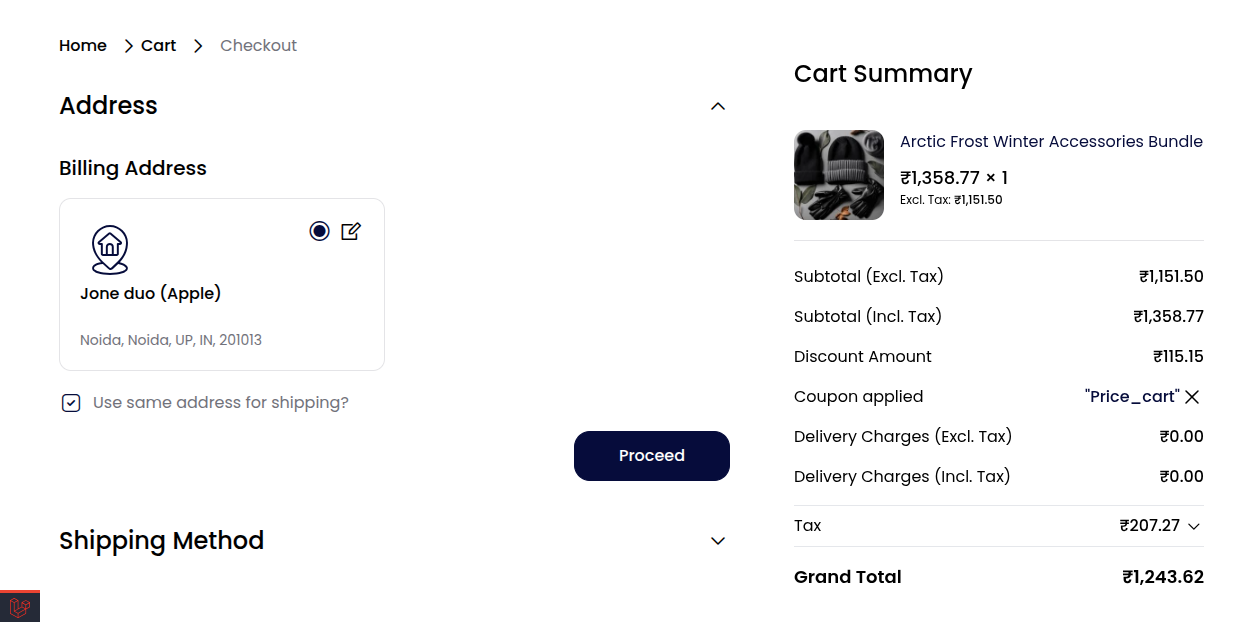
Price in Cart – Trigger offers based on the item price after applying any discounts.
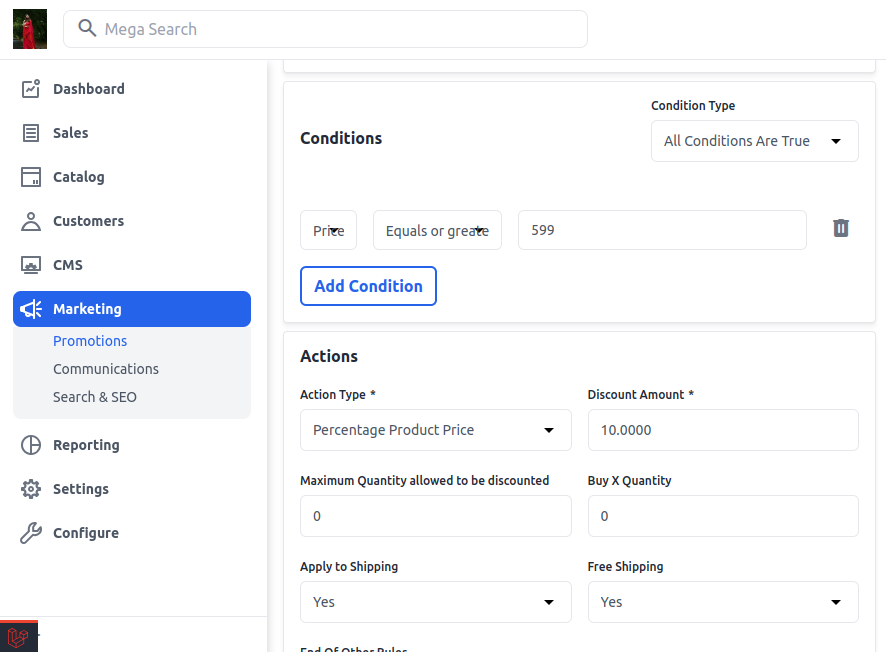
7) Product View on Storefront
-
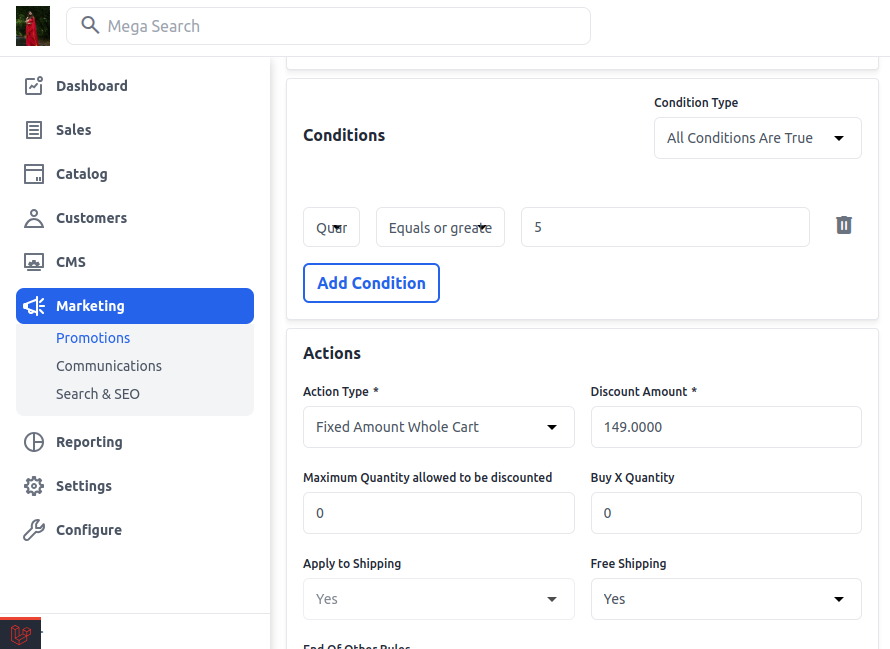
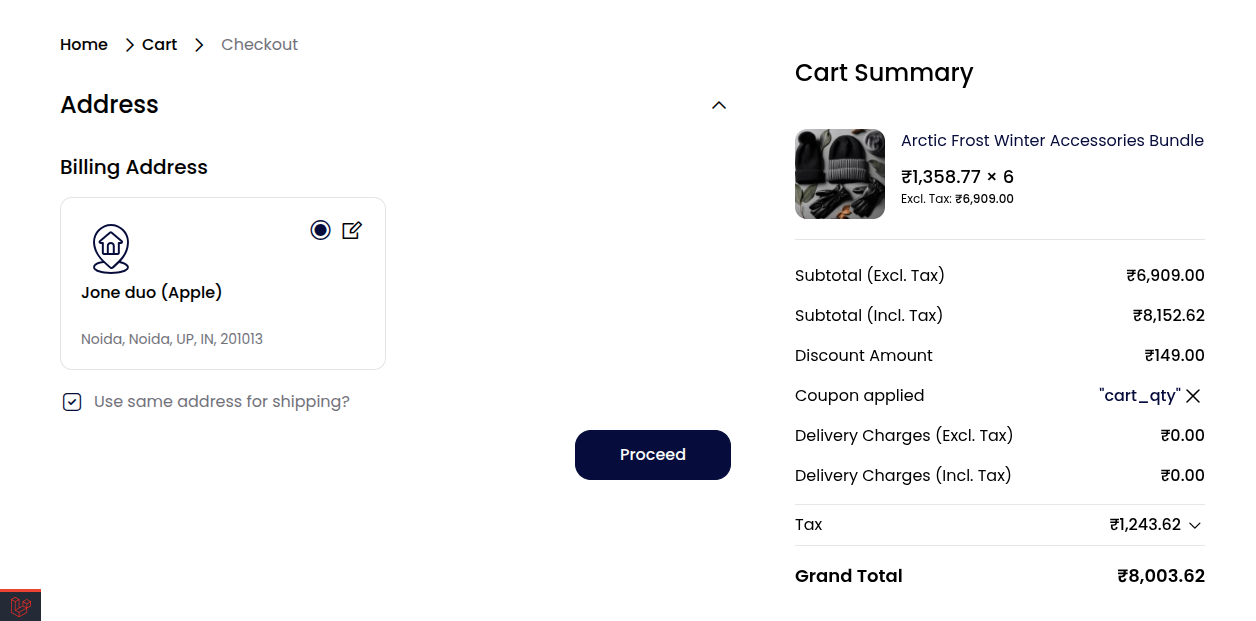
Quantity in Cart – Set up conditions that require a minimum or maximum quantity of specific products.
8) Product View on Storefront
-
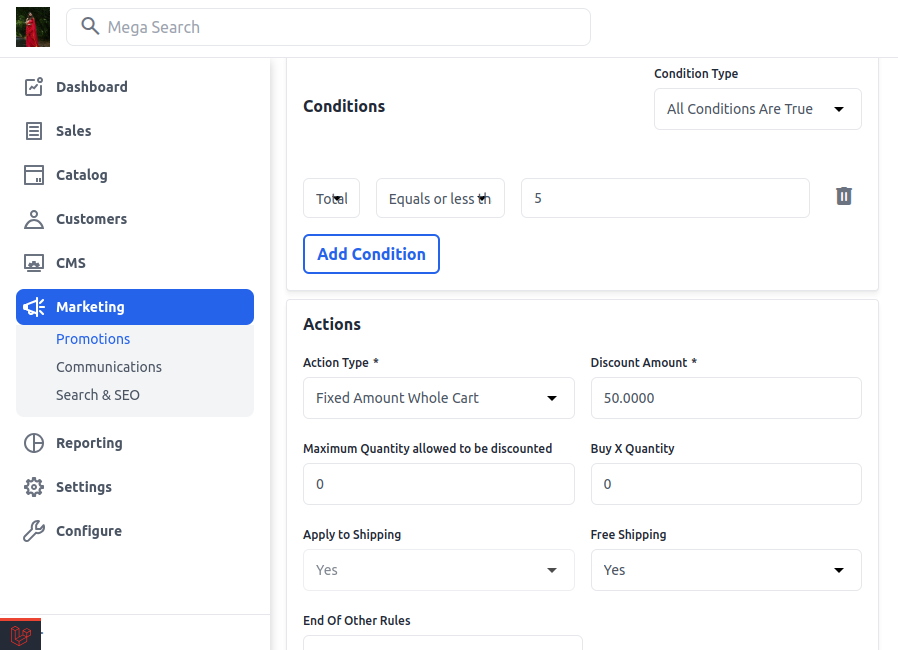
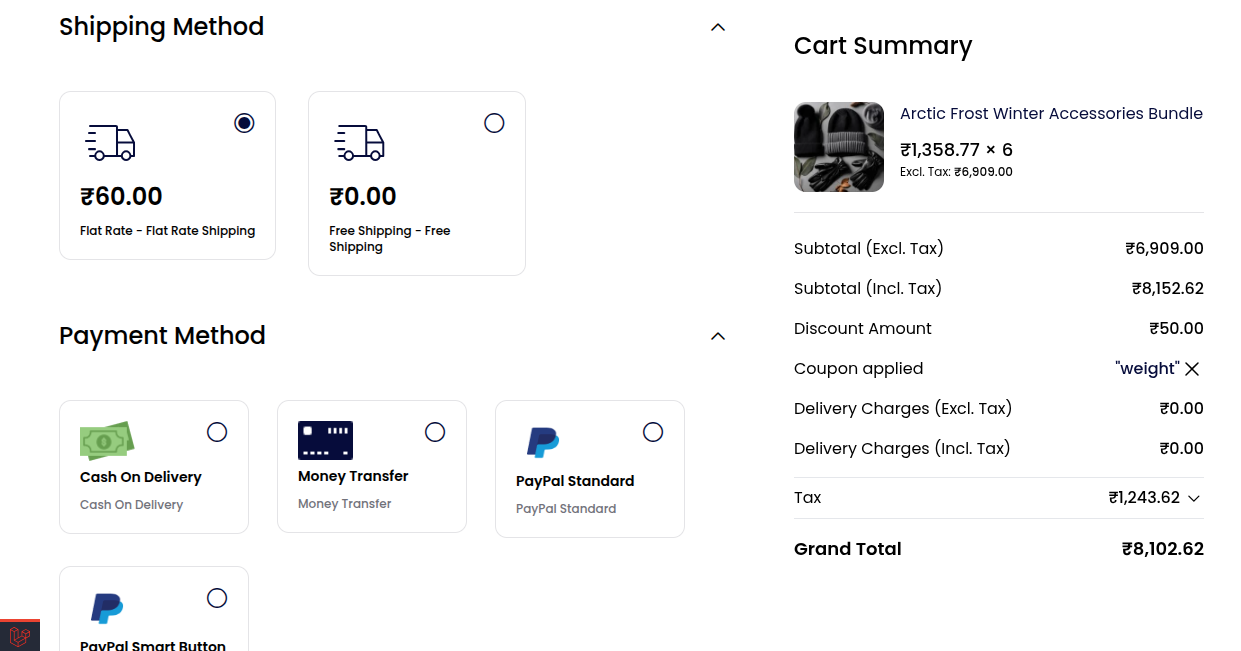
Total Weight – Apply rules when the total weight of items in the cart reaches a defined threshold.
9) Product View on Storefront
-
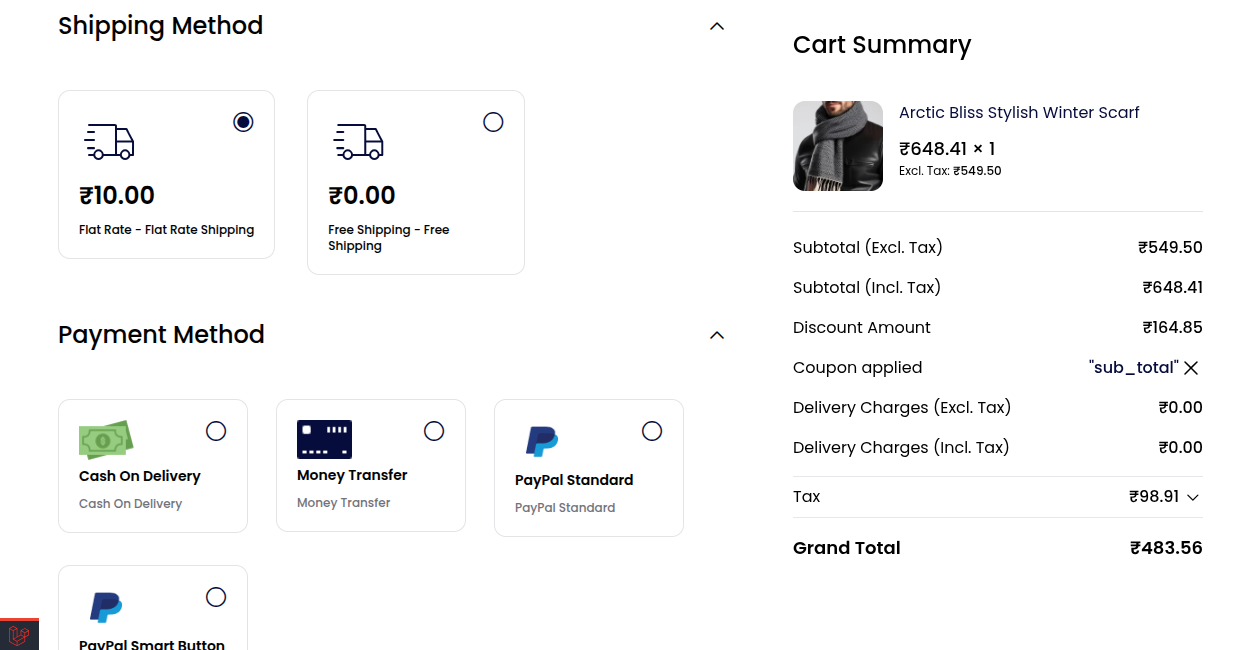
Subtotal – Use to target discounts based on the subtotal value of selected products.
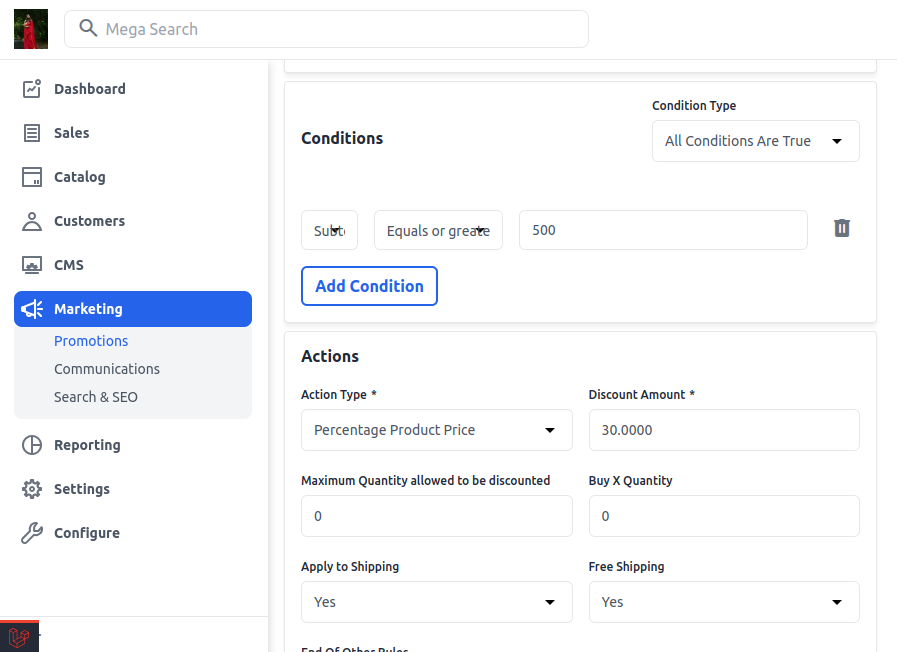
10 ) Product View on Storefront
Using Product Attributes to Create Promotions in Bagisto
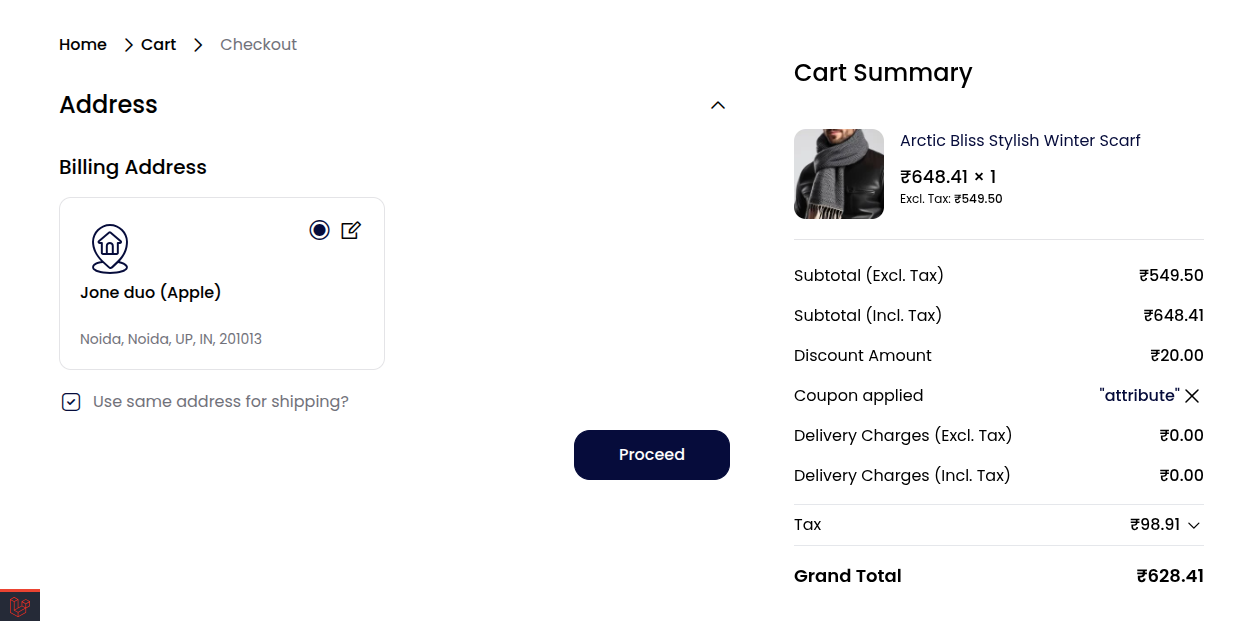
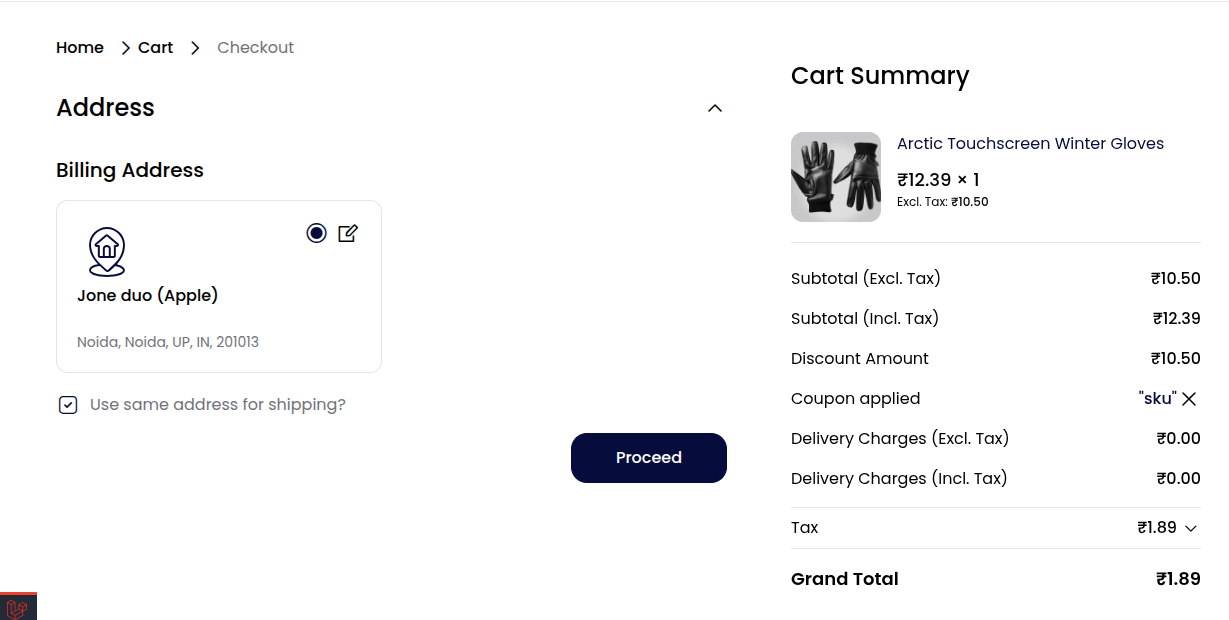
To select Product Attributes in Bagisto, go to Marketing > Promotions > Cart Rules > Add Rule > Conditions tab, click “Add Condition,” then choose your desired attribute (like categories, name, SKU, price) from the dropdown.
-
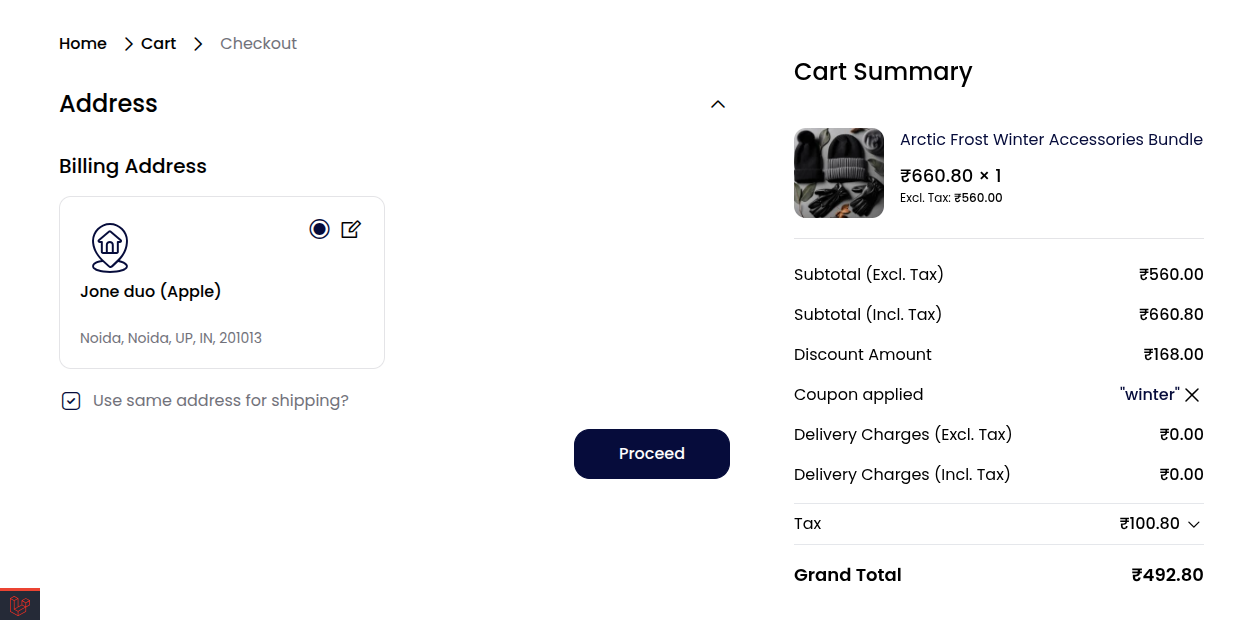
Categories – Organize your product by assigning it to relevant categories, improving site navigation, and filtering.
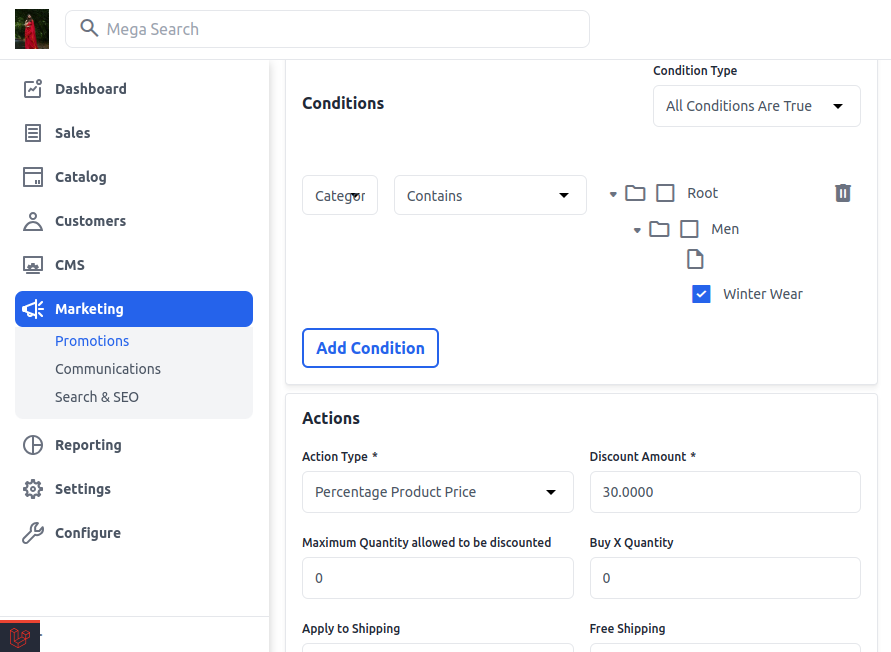
1) Product View on Storefront
-
Attribute Family – Groups related attributes under a single product type to maintain consistent product data.
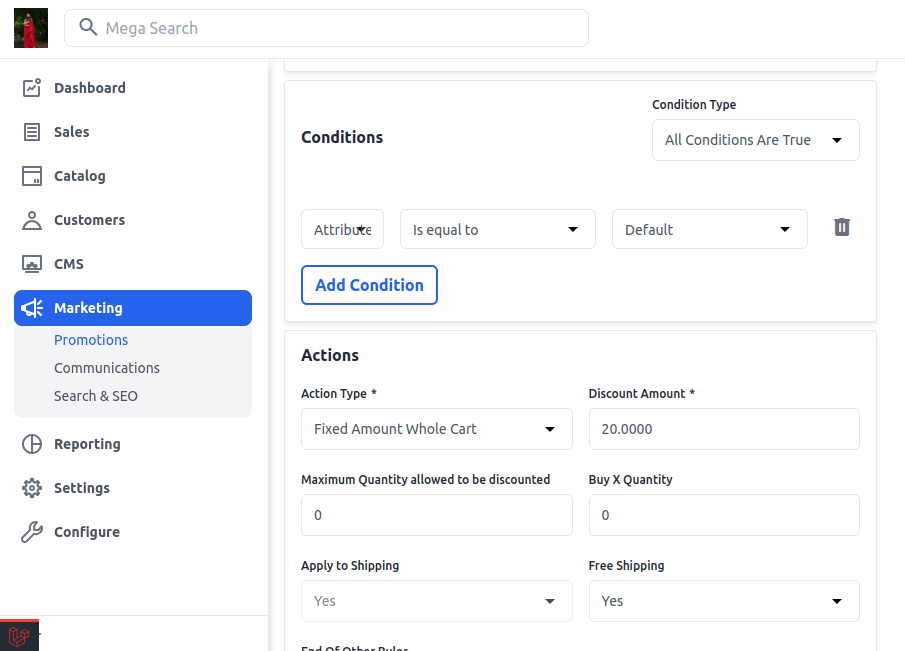
2) Product View on Storefront
-
SKU – A unique code used to identify and manage each product in inventory and backend systems.
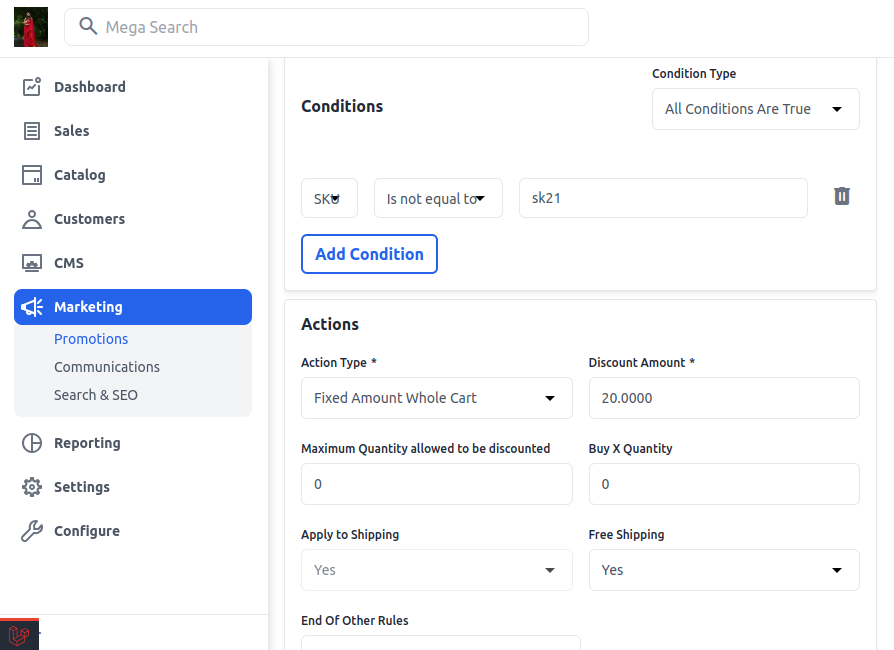
3) Product View on Storefront
-
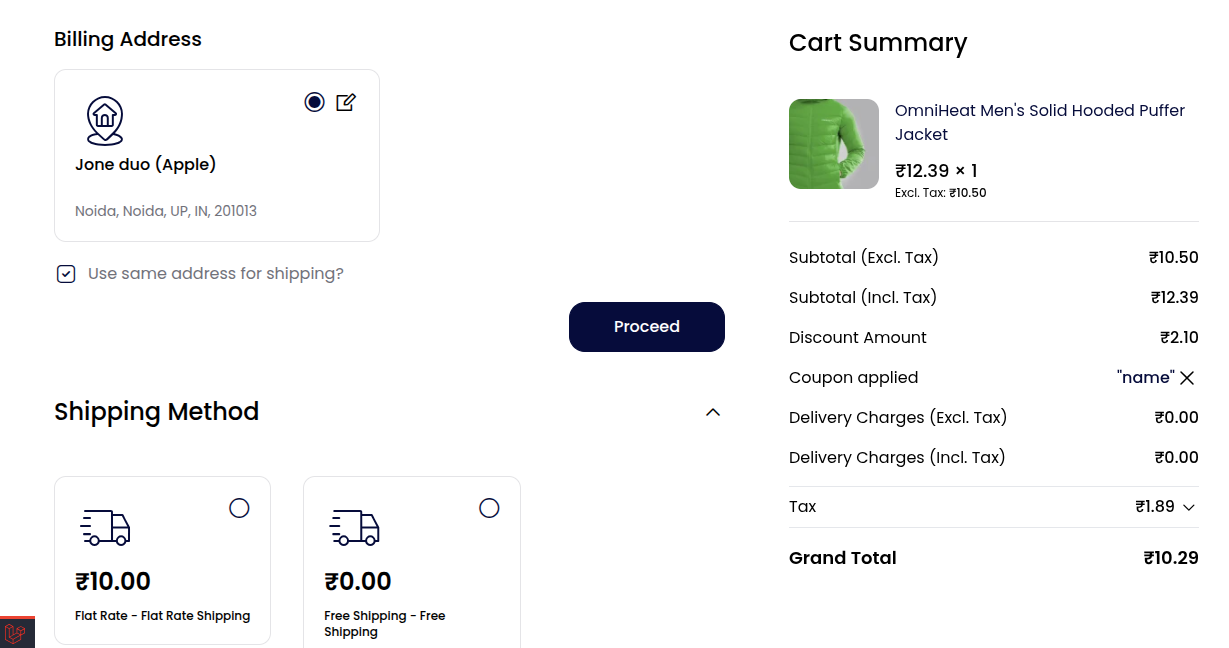
Name – The product’s title shown on the storefront and in search results; essential for customer recognition and SEO.
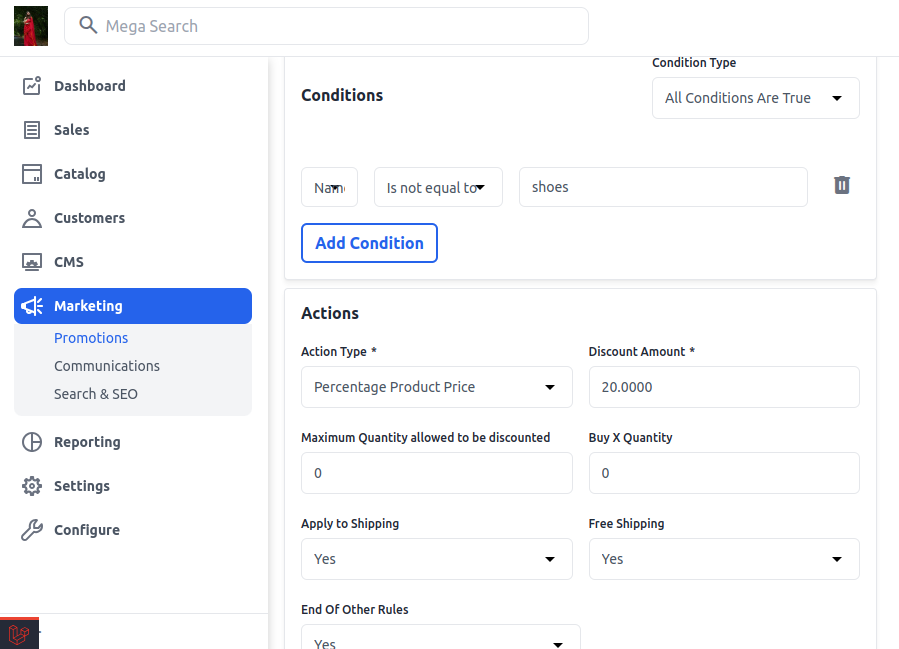
4) Product View on Storefront
-
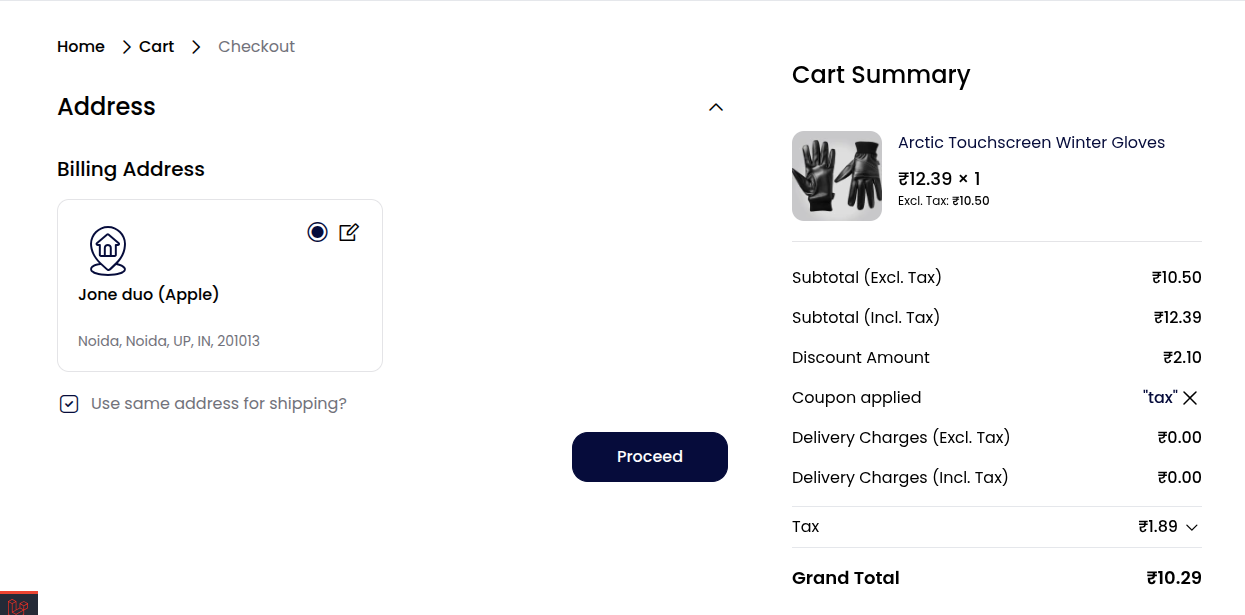
Tax Categories – Assign regional tax rules to the product to ensure accurate tax calculation during checkout.
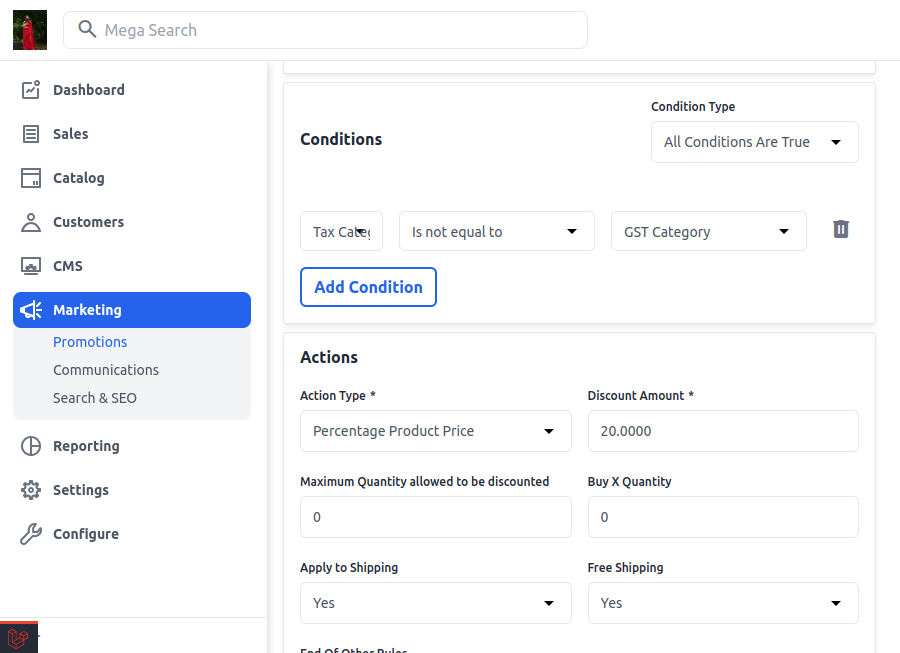
5) Product View on Storefront
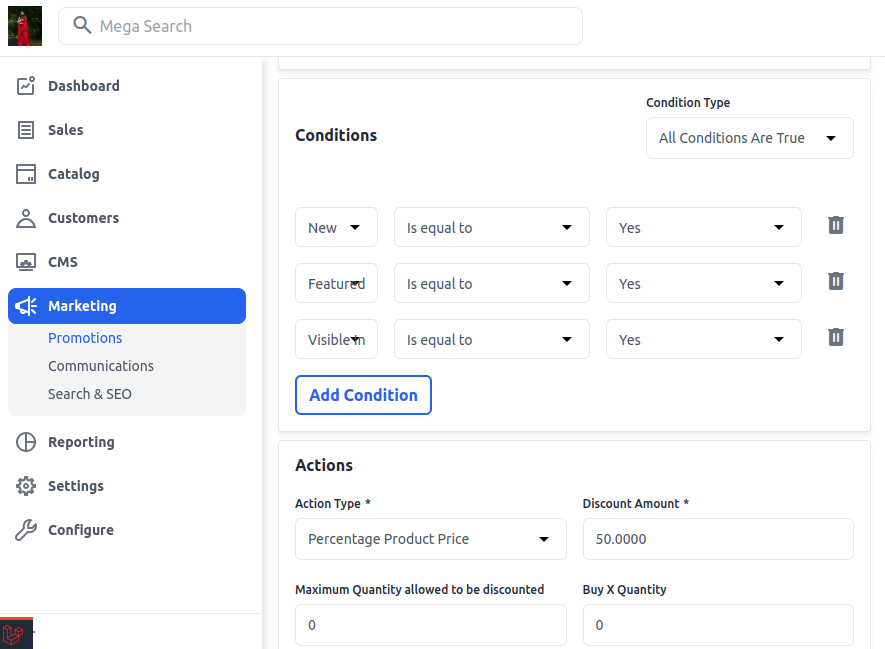
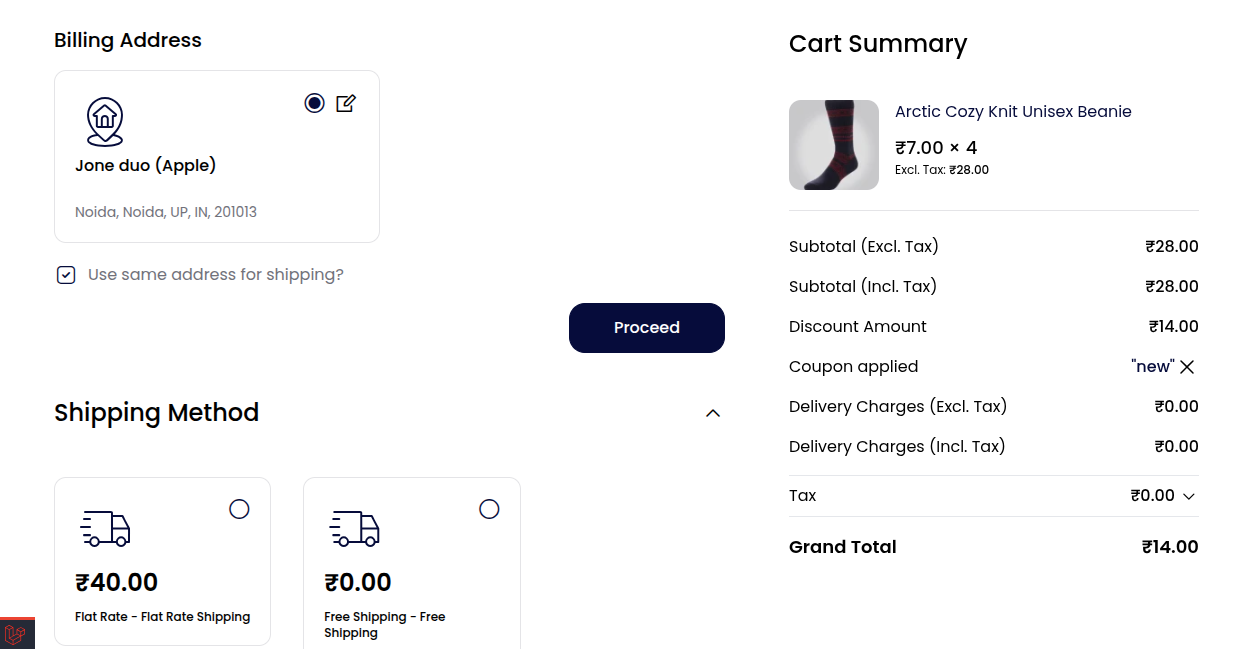
- New, Featured, and Visible Individually settings help manage how a product appears on the storefront marking it as a new arrival, highlighting it in the featured section, or making it available for direct purchase.
6) Product View on Storefront
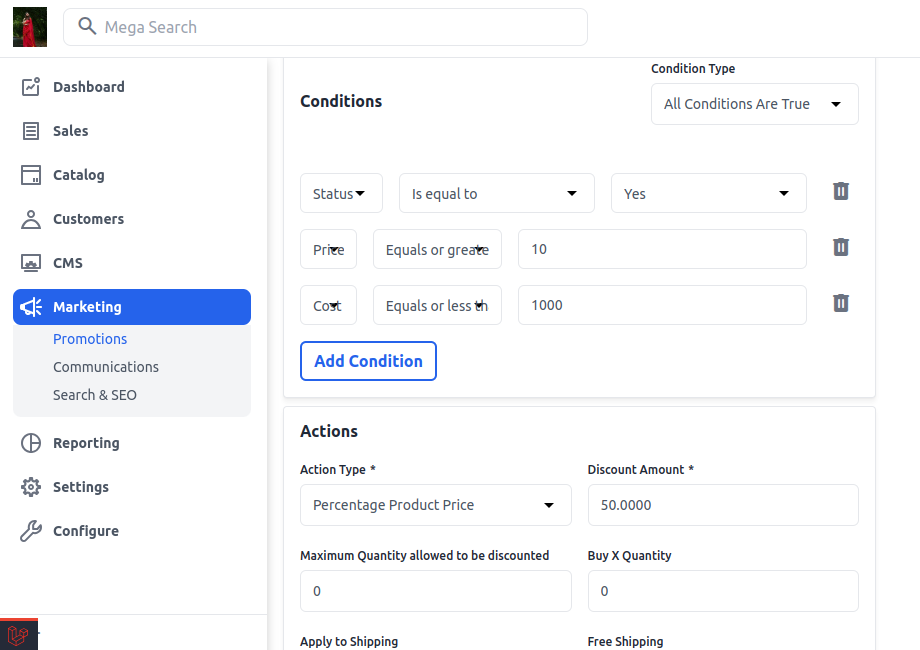
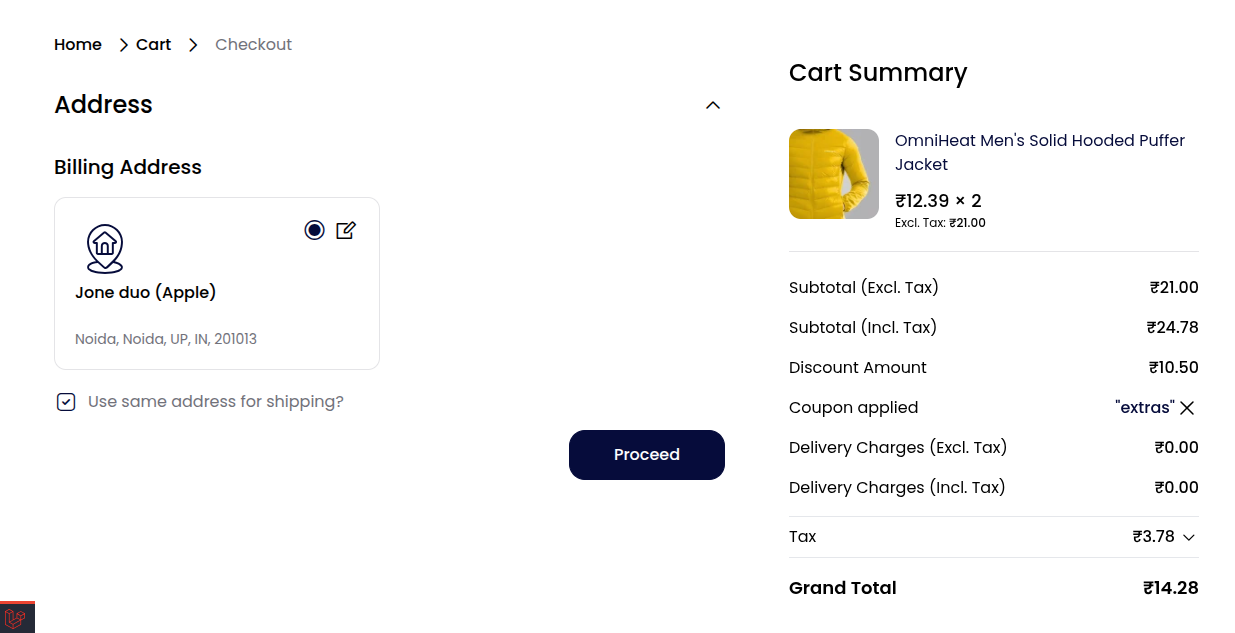
- Status determines if a product is active or inactive on the storefront. Price is the selling amount visible to customers, while Cost is the internal value used for profit analysis and is not shown publicly.
7) Product View on Storefront
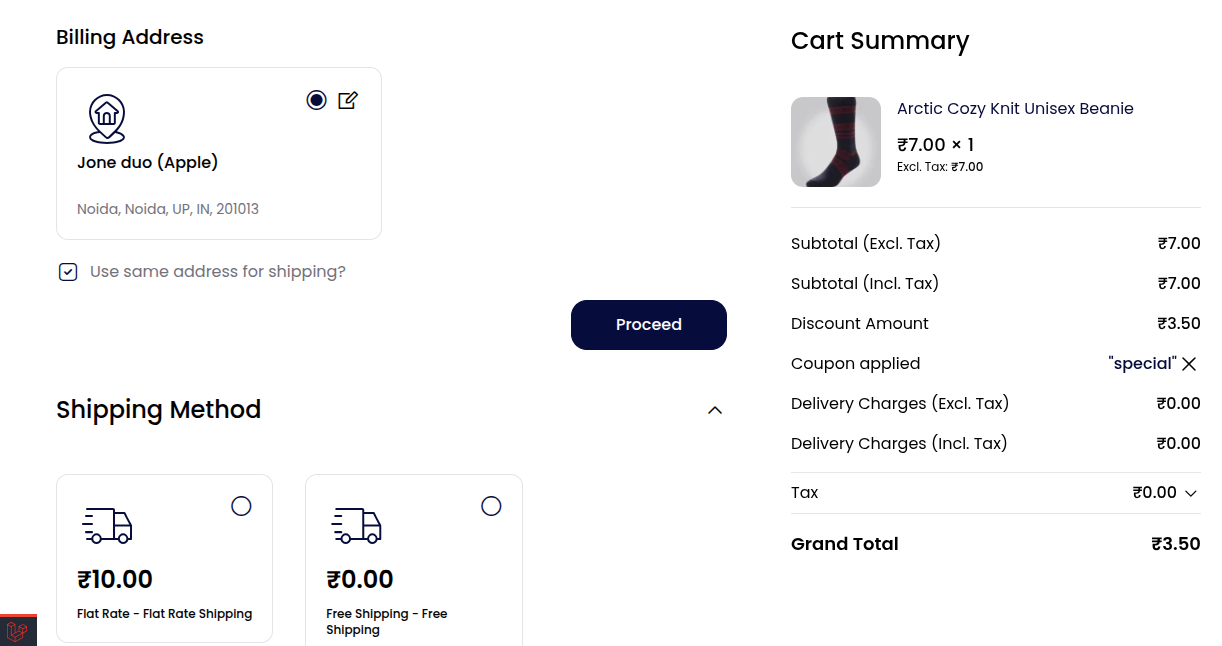
- Special Price is a discounted rate that temporarily replaces the regular price during promotions, with From/To dates defining the active period for the offer on the storefront.
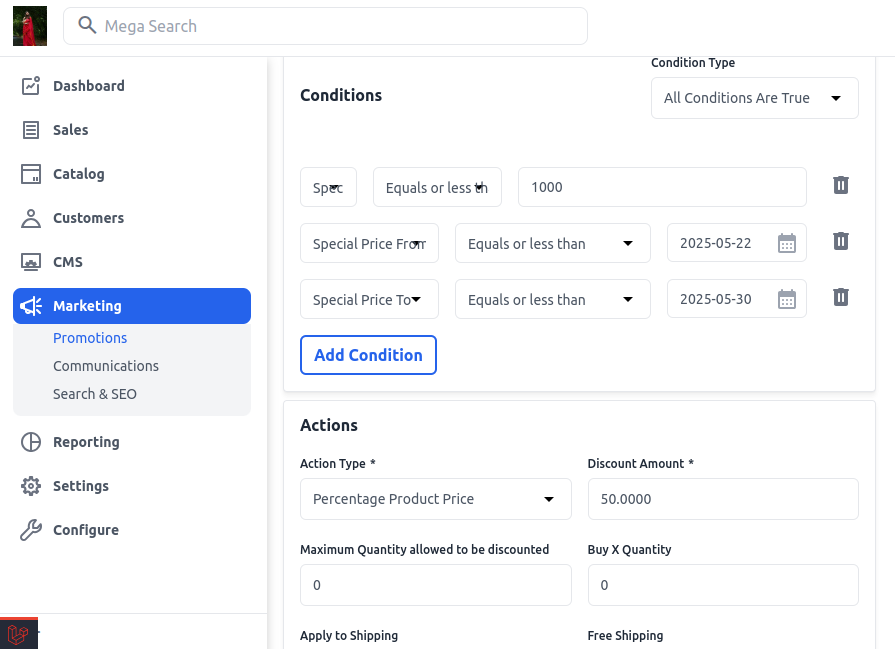
8) Product View on Storefront
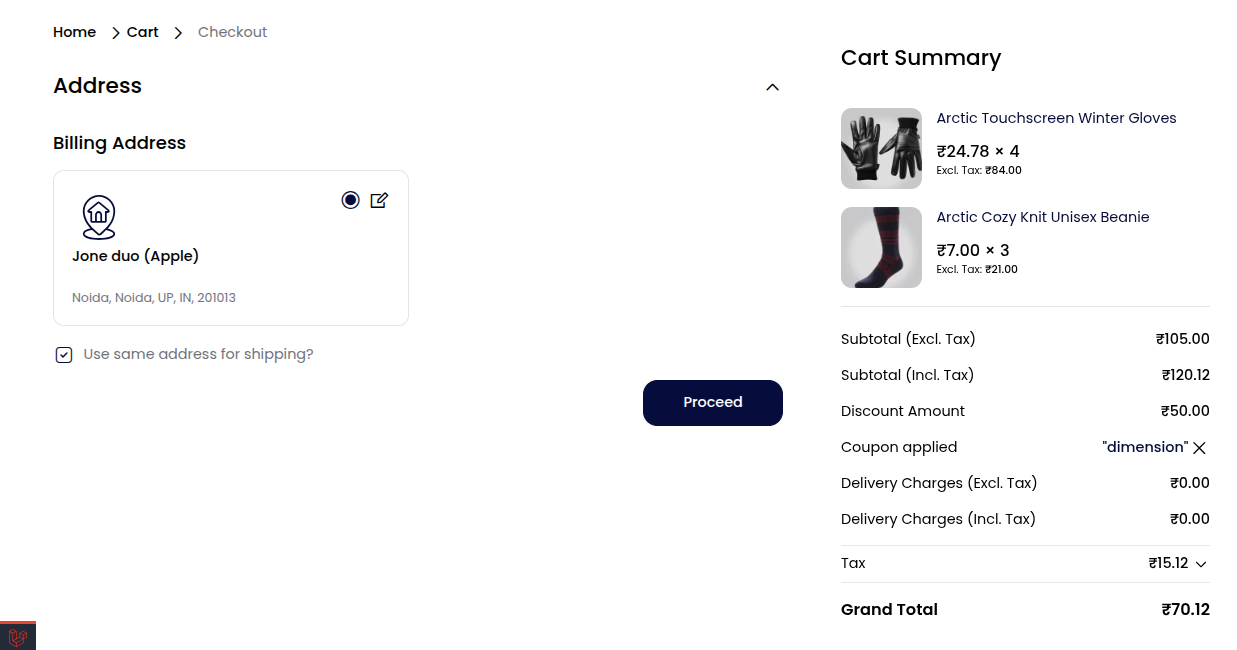
- Length / Width / Height – Defines the physical dimensions of the product for shipping and packaging purposes.
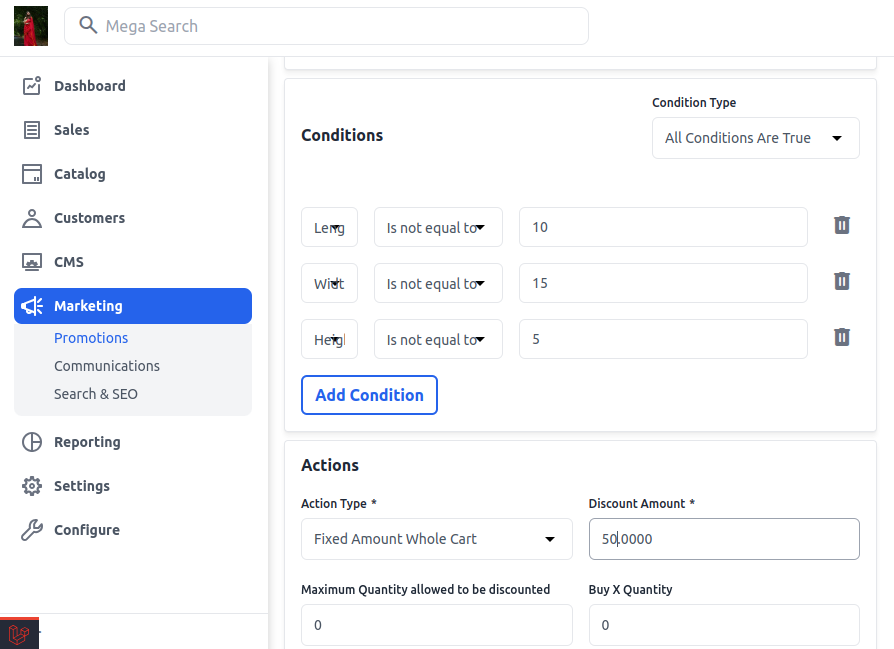
9) Product View on Storefront
- Weight, Color & Size – Define key physical attributes of the product: weight is used for shipping cost calculation, while color and size help customers choose variants and improve filtering, especially in configurable products.
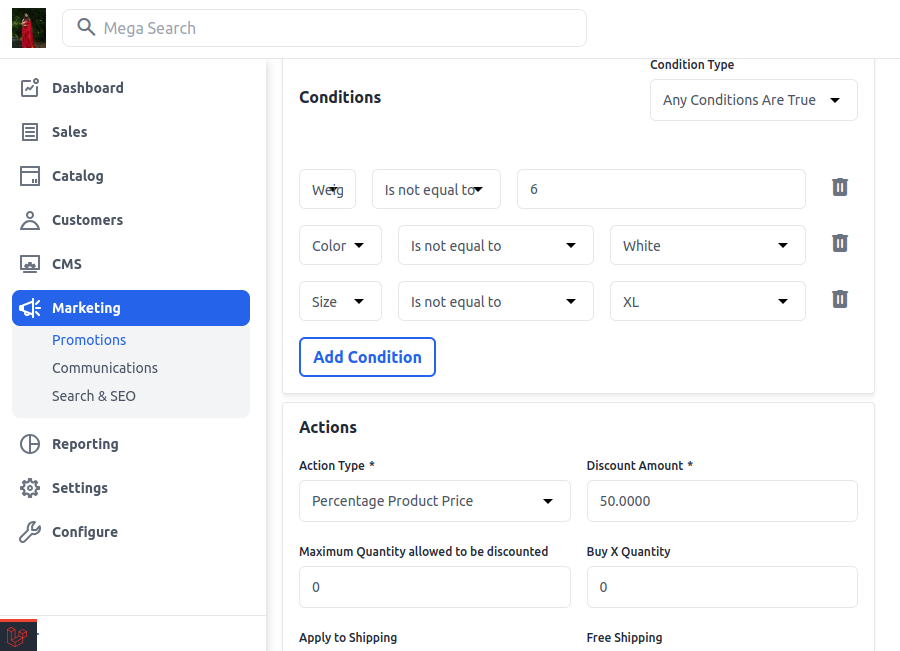
10) Product View on Storefront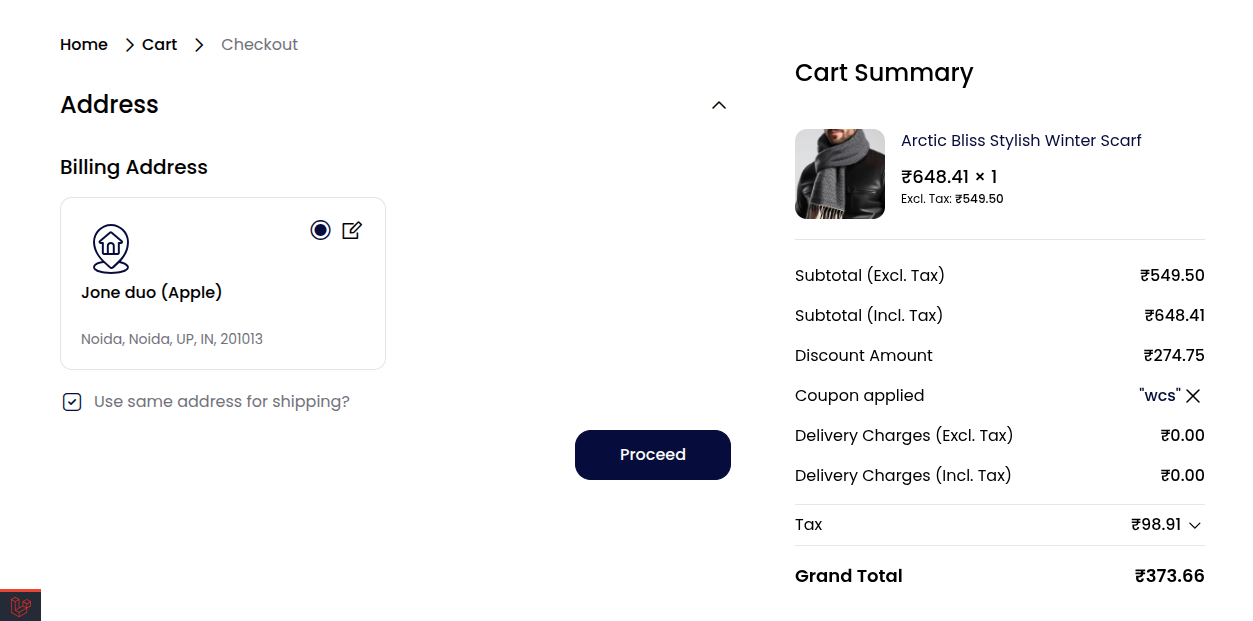
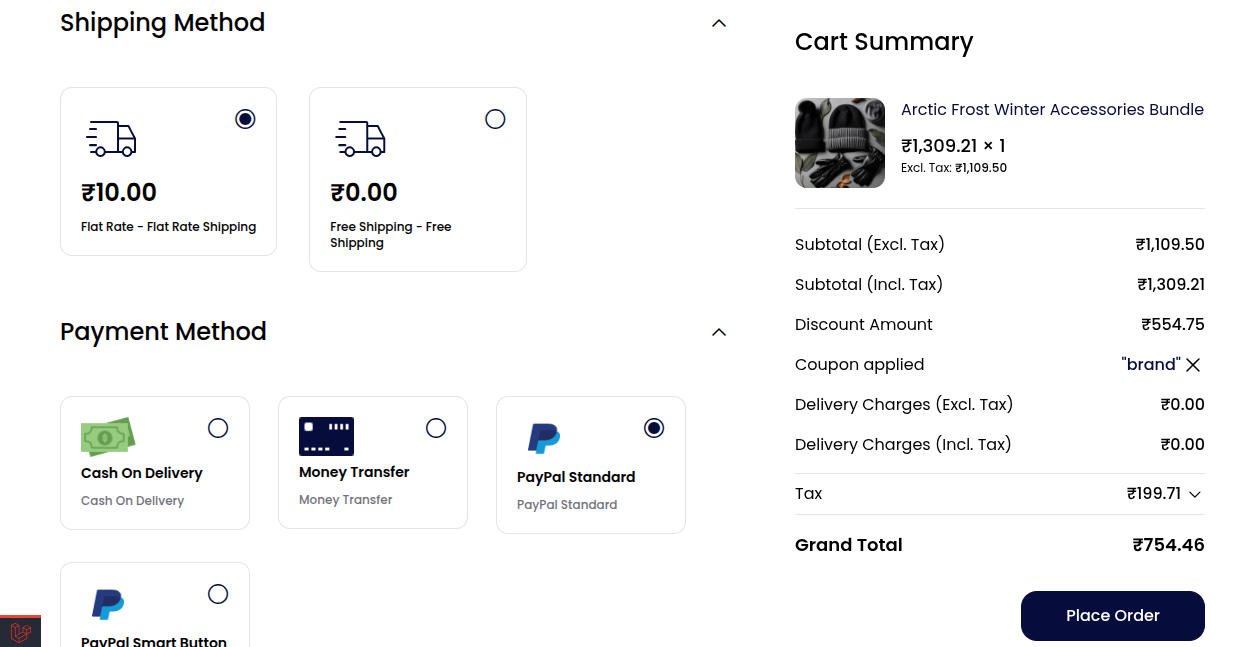
- Brand, Guest Checkout & Manage Stock – Showcases the brand for trust and filtering, allows purchases without login through guest checkout, and manages inventory tracking to maintain accurate stock levels or treat the product as always available.
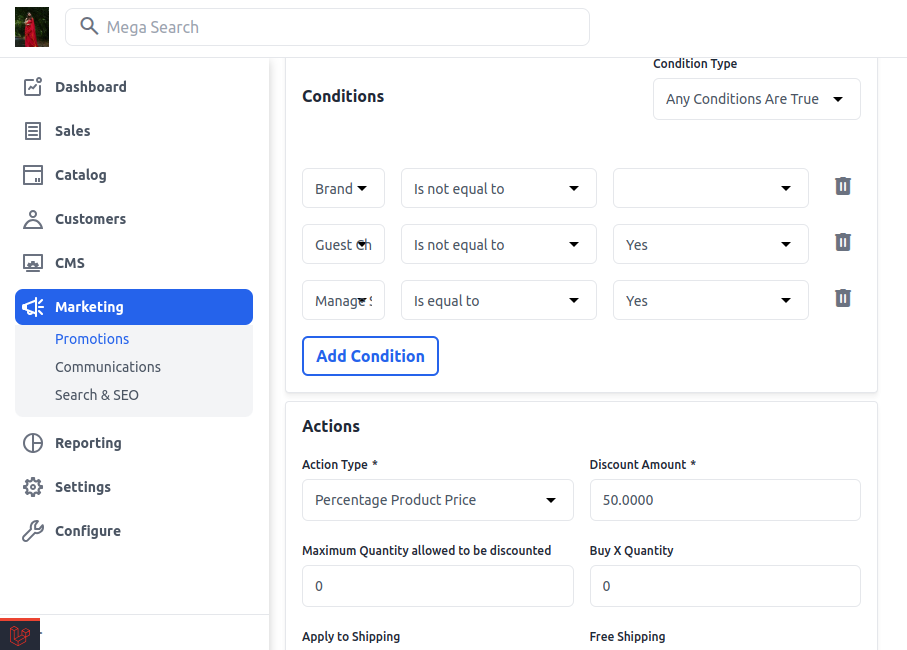
11) Product View on Storefront
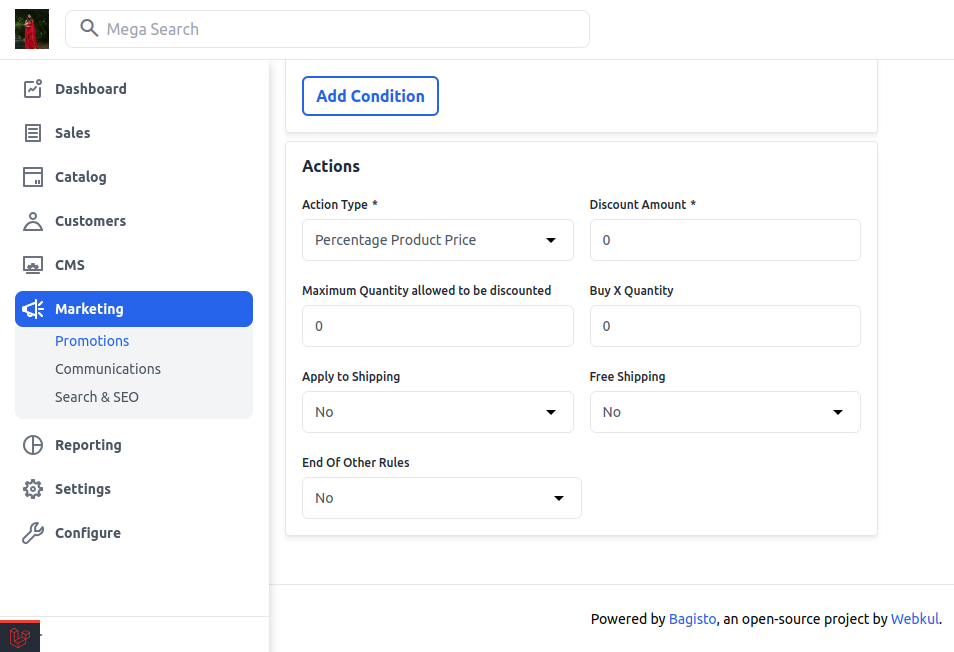
Step 4: Define Actions
Choose the type of discount:
-
Percentage of product price
-
Fixed amount
-
Fixed amount for the whole cart
- Buy X, Get Y Free
Optional:
-
Apply to Shipping
-
Allow Free Shipping
-
End of other rules
Step 5: Set Priority & Channels
-
Priority: Lower numbers get higher priority.
-
Channels: Select storefronts where the rule applies.
-
Save the Rule
Thanks for reading this blog. Please comment below if you have any questions. Also, you can Hire Laravel Developers for your custom Laravel projects.
Hope it will be helpful for you, or if you have any issues, feel free to raise a ticket at our Support Portal


Be the first to comment.