Visual Product Discovery: From Image Matching to AI-Powered Search
Visual Product Discovery lets your buyers find products with an image. Your Bagisto store reads the picture with AI-Powered Search and shows matching products.
The Evolution of Product Discovery
Online stores began with categories. A buyer clicked Men, then Jeans, then scrolled until something looked right.
Then came the search box. It works well, as long as the buyer knows the right words.
That is the catch. A buyer sees a jacket on a friend and wants one like it. To type a search, they first have to answer questions they cannot:
- What is this style called?
- Is it a bomber, a flight jacket or a varsity jacket?
- Which words did the store use in the product name?
Every wrong guess is an empty results page. An empty results page is where a sale ends.
The solution is visual product discovery in Bagisto.
Image Search in Bagisto
Bagisto already supports visual product discovery on the storefront. A camera icon sits at the end of the search bar, on desktop and on mobile.

Introducing Generative AI Image Search
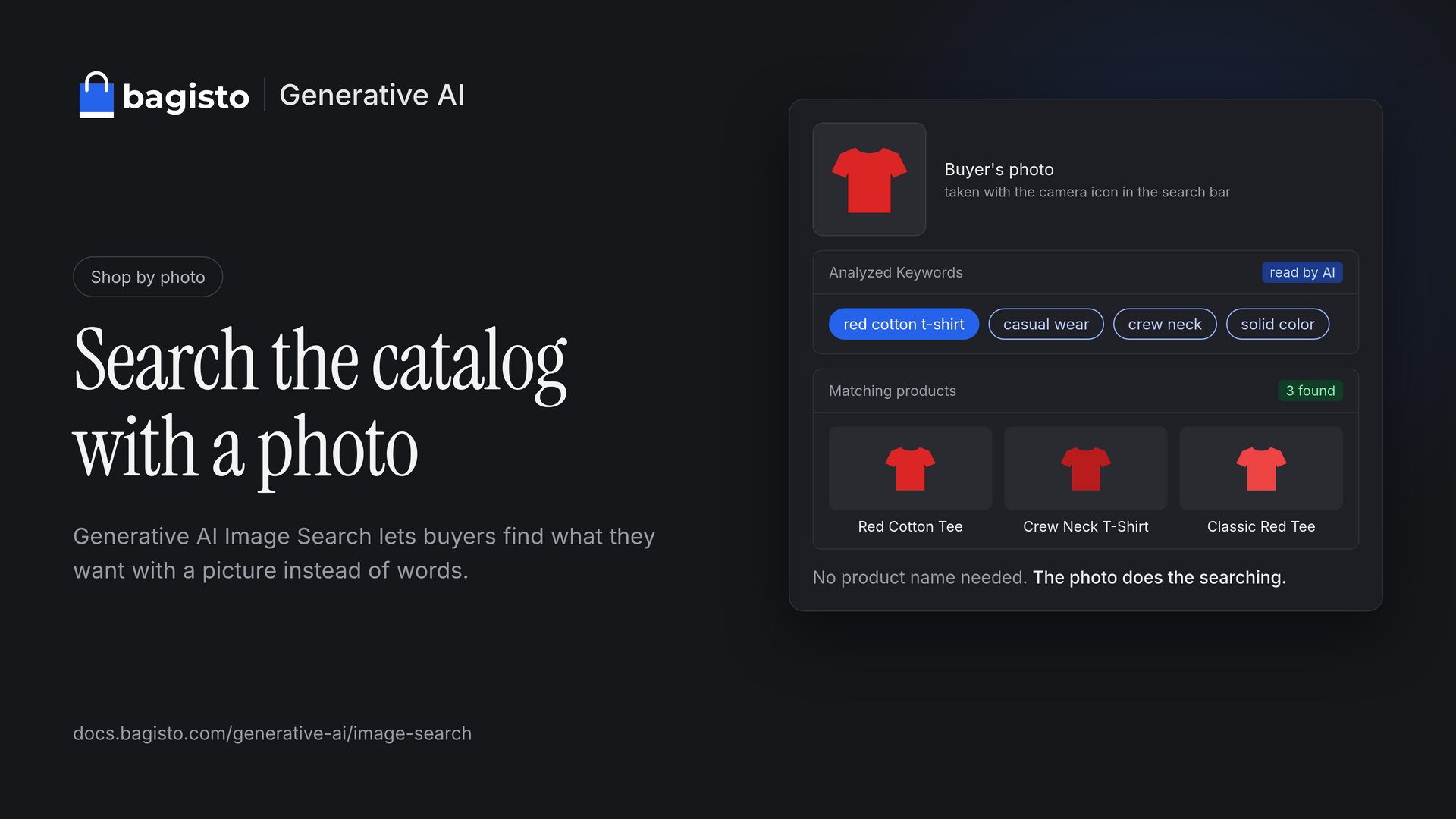
Generative AI Image Search keeps the same camera icon and changes the engine. Instead of a general label, generative AI looks at the image.
It writes down what it sees, the way a shop assistant would: the product type, color, material, style and fit.
If a brand is visible on the product, the AI adds it to the keywords too.
In Bagisto, it is part of Magic AI, the built-in module behind every generative AI tool in the store. The admin panel calls it AI Image Search.
It works with eight AI providers, including Anthropic, OpenAI and Gemini, or with open models on your own server through Ollama.
Two Approaches, One Goal
Both engines power visual product discovery and answer the same question, “what is in this image?”, at a different depth. You choose which one.
- TensorFlow image matching: runs in the buyer’s browser, free and with no setup. It returns general labels from 1,000 categories.
- Generative AI Image Search: runs on the AI provider you choose. It returns detailed keywords for every product in the image.
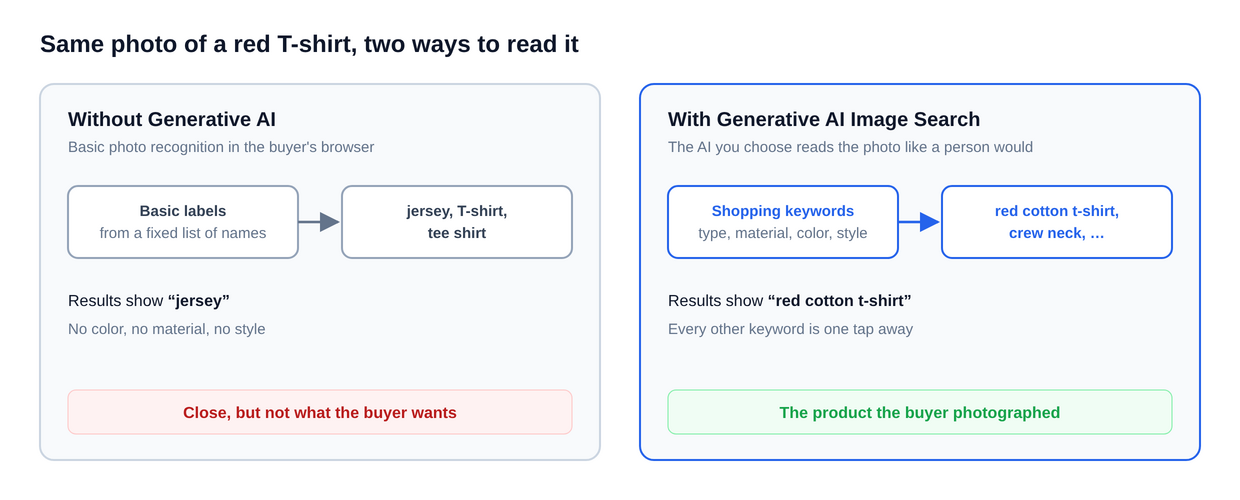
Turn AI Image Search on, and the store uses it. Leave it off, and the store keeps using TensorFlow, so the camera icon always works.
The same fallback kicks in if the AI provider is ever unreachable, so buyers never hit a dead end.
Selling through several channels? Each channel sets its own switch and model, so one can use Gemini while another stays on TensorFlow.
How Visual Product Discovery Works
For the buyer, an image search takes three steps:
- Tap the camera icon in the search bar.
- Choose an image of up to 2 MB.
- Wait a moment while a spinner shows the image is being read.
Here is a real search: an outdoor image of a man in jeans, a denim jacket and suede sneakers. The AI returned eight keywords:
- men’s slim straight jeans
- medium wash denim
- blue denim shirt jacket
- navy suede sneakers
- gum sole
- casual menswear
- tapered fit
- stretch denim
Notice what happened. One image held three products, and Generative AI Image Search gave each its own keywords, down to the gum sole.
Generative AI Image Search opens the results for the first keyword. Above them, the image sits beside Analyzed Keywords, each one tap away.
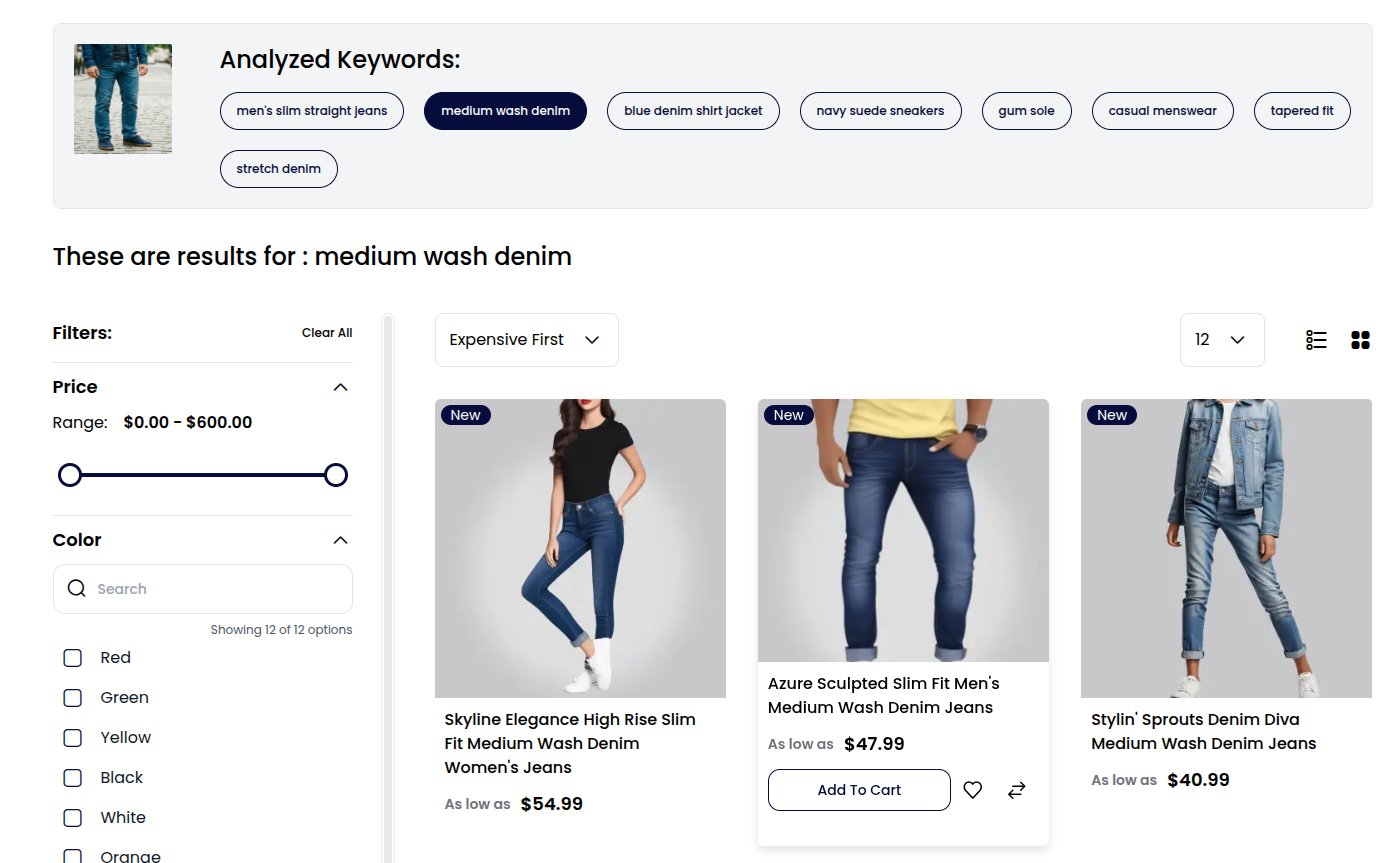
Here the buyer tapped “medium wash denim”. The page shows “These are results for: medium wash denim” with jeans for women, men and kids.
The results page works like any search. Price, color, and other filters, sorting, and grid or list view all stay in place.
Visual Product Discovery Benefits for Merchants and Buyers
For buyers, visual product discovery makes finding a product as easy as showing it:
- No guessing words: the image does the describing, so there is no style name to remember.
- Complete looks: one outfit image finds the jeans, the jacket and the shoes, each a tap apart.
- Social screenshots: a buyer saves a post they liked and searches with the screenshot, no caption needed.
- Home and furniture: an image of a friend’s living room becomes “walnut side table, mid-century, round top”.
For merchants, visual product discovery ends more searches on a product page instead of an empty one:
- Fewer dead ends: buyers who could not name a product can still find it.
- Multi-seller catalogs: in a marketplace, one image searches every seller’s products at once.
- Your choice of cost: stay on free TensorFlow image matching, or pay your AI provider for richer keywords.
- Privacy when you need it: with Ollama, images stay on your own server.
- No coding: everything is switched on from the admin panel.
Getting Started with AI Image Search
Turning on AI-powered visual product discovery takes a few minutes in the admin panel, with no coding. There are three screens to visit.
Step 1: Switch Magic AI on. Go to Configure → Magic AI → General and turn on Enabled. This one switch controls Magic AI store-wide.

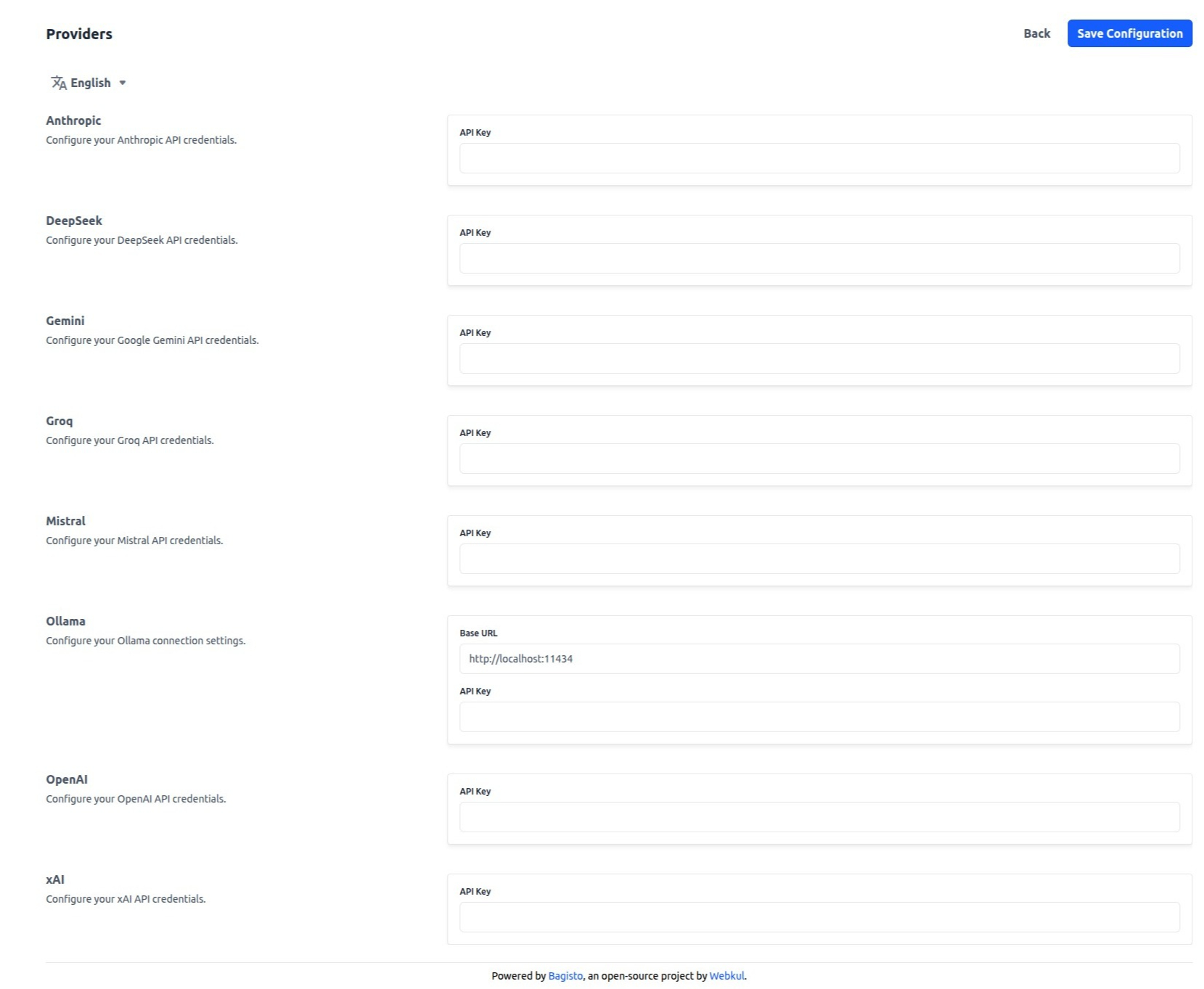
Step 2: Add an AI provider. Under Configure → Magic AI → Providers, paste the API key from your AI provider and save. Bagisto lists eight:
- Anthropic (Claude), OpenAI (ChatGPT) and Gemini (Google).
- DeepSeek, Groq, Mistral and xAI.
- Ollama, which runs open models on your own server through a Base URL, such as http://localhost:11434.
You only need one. Ollama keeps every image on your own server, which suits stores with strict privacy rules.
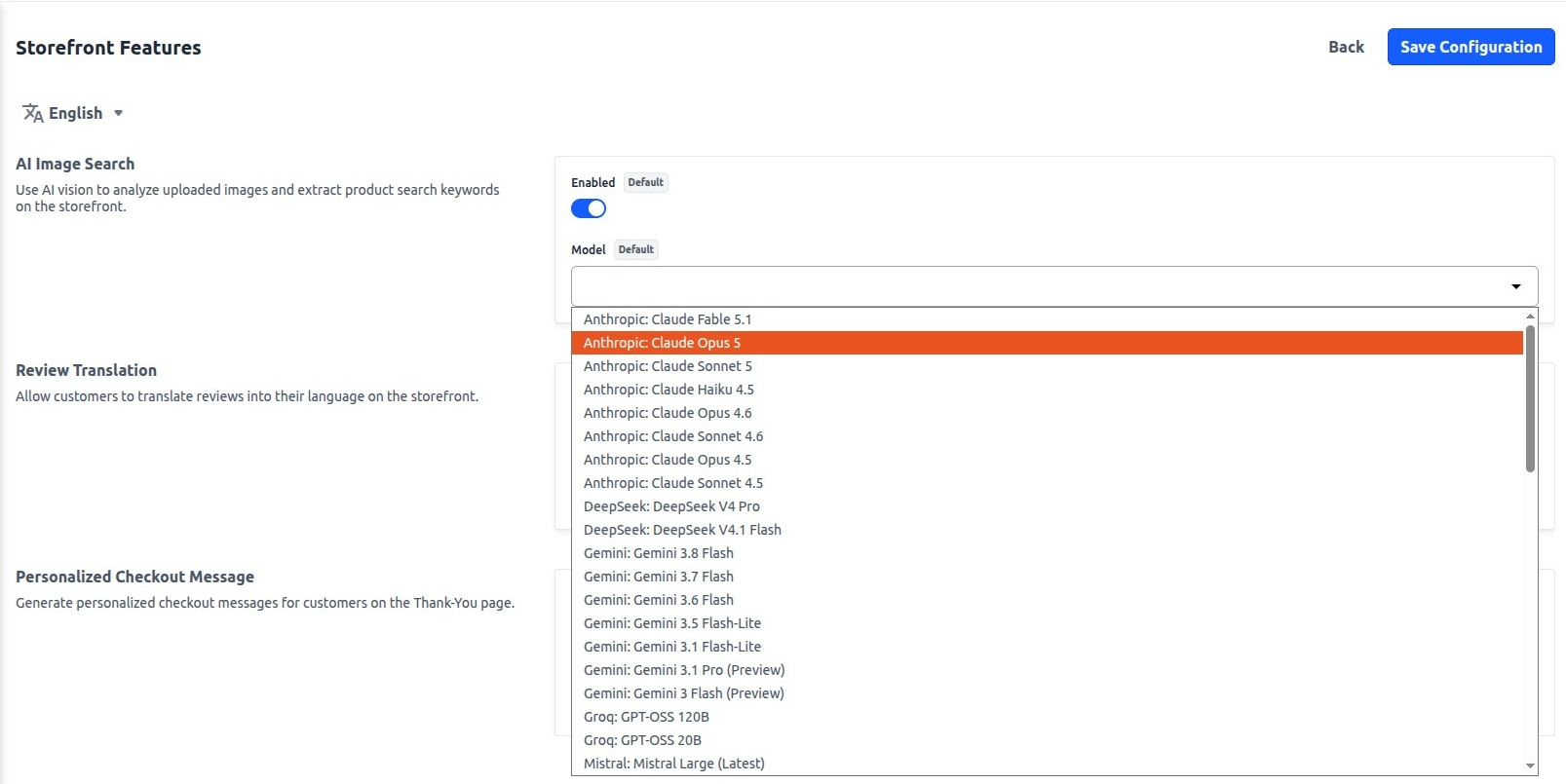
Step 3: Choose the model. Open Configure → Magic AI → Storefront Features. Under AI Image Search, turn on Enabled and pick a model.
The list shows every model by provider, such as “Anthropic: Claude Opus 5” or “Gemini: Gemini 3.8 Flash”. Pick one that can read images.
The camera icon itself has a switch under Configure → Catalog → Products → Settings → Image Search Option. It is on by default.
Buyers can upload JPEG, PNG, GIF, WebP and SVG images up to 2 MB. HEIC images, the default on many iPhones, are not accepted.
Works with Bagisto extensions:
- Multi Vendor Marketplace: transform your store into a marketplace.
- Multi Tenant Commerce: a SaaS solution to launch and scale online.
- Headless eCommerce: API-first, flexible headless commerce.
- B2B Commerce: build B2B with bulk orders and catalogs.
- B2B Marketplace: launch a B2B marketplace for scalable trade.
- Mobile App: a customizable open-source eCommerce app.
- Bagisto Themes: pre-built stores for every business type.
- POS: sell in your offline store and online.
….. all other Extensions.
Visual Product Discovery FAQ
Does it cost anything?
Visual product discovery itself is built into Bagisto. Your AI provider bills you for each image it reads, at its own rates.
TensorFlow image matching in the browser is free, and so is a model you run yourself with Ollama.
Where do buyers’ photos go?
The store saves each image on its own server, so it can show it beside the keywords. It also sends the image to your chosen AI provider to be read.
With Ollama on your own server, the image never leaves your infrastructure.
Does it work on phones?
Yes. The camera icon sits in the mobile header too. Images must be JPEG, PNG, GIF, WebP or SVG, up to 2 MB; HEIC images are not accepted.
What happens if the AI is unavailable?
The search still works. The store switches to TensorFlow image matching in the buyer’s browser and opens results for the label it finds.
Which model should I choose?
Any model in the list that can read images will work. The choice is a trade-off between accuracy and cost.
For the most exact keywords, pick a flagship model with strong vision, such as Claude Opus 5 or Gemini 3.1 Pro. It costs more per image.
In return, it catches the fine details that make a match: the wash of the denim, the fabric, the cut and a small brand logo.
Lighter models such as the Flash family answer faster and cost less per image. They suit large catalogs of simple products.
Can I turn it off for one channel?
Yes. Each channel has its own AI Image Search switch and model. To hide the camera icon itself, turn off Image Search Option.
Go Ahead with Bagisto
Product discovery has moved from categories to keywords to images. Visual product discovery lets a buyer show your store what they want.
Your store answers with the right products, whether it reads the image with TensorFlow or with AI.
The same Storefront Features screen holds two more Magic AI tools: Review Translation and Personalized Checkout Message.
Pair it with AI product content generation, which writes the listings those keywords find.
Get started today: Follow the AI Image Search guide.

Be the first to comment.