How to Manage Inventory and Orders in Multi-Vendor Marketplace?
Running a marketplace takes real effort. You must track every product and sale across sellers to ensure smooth fulfillment.
More sellers often lead to stock errors. Inaccurate levels cause delays, and frustrated buyers may leave your platform.
A centralized system fixes this chaos. One simple dashboard helps you manage Inventory and Orders in a Multi-Vendor Marketplace.
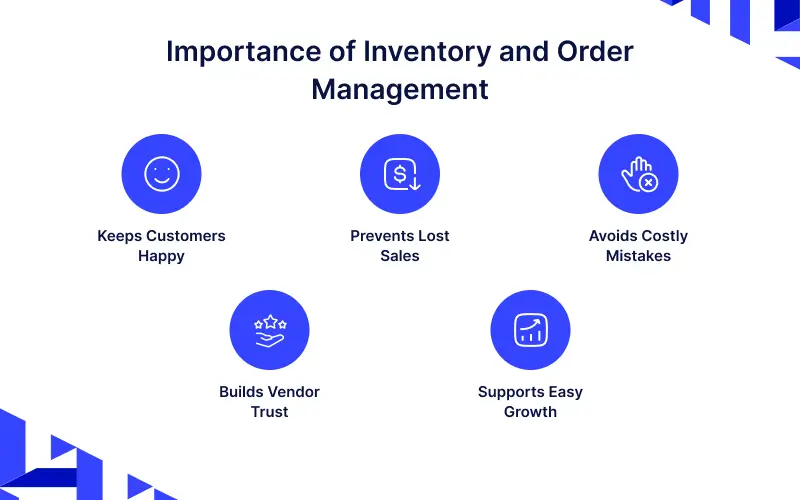
Importance of Inventory and Order Management
Understand why tracking stock and orders is essential for your marketplace before diving into the steps.
-
Keeps Customers Happy:
Accurate stock ensures buyers get what they ordered without delays.
Happy customers are more likely to return to your shop. -
Prevents Lost Sales:
Tracking stops you from running out of best-selling items.
This ensures you never miss a chance to make a sale. -
Avoids Costly Mistakes:
Preventing overselling saves money on refunds and returns.
It also protects your marketplace from receiving bad reviews. -
Builds Vendor Trust:
A clear system helps sellers manage their business easily.
Sellers will prefer staying on a platform that works well. -
Supports Easy Growth:
A strong system handles more orders and sellers without breaking.
This makes it easy to grow your business safely.
Steps to Manage Inventory and Orders Efficiently
Efficiently managing inventory and orders in a marketplace ensures accurate stock tracking.
1. Manage Your Product Data
Store all stock data in one system instead of spreading info across different tools.
This gives you a clear view of your supply chain and reduces vendor confusion.
2. Set Clear Vendor Rules
Every seller should follow the same rules to ensure consistent product management.
These rules reduce human error and keep your marketplace running smoothly every day.
3. Automate the Order Process
Automation saves time by handling many orders at once without manual work.
The system instantly sends orders to the correct vendor and updates stock levels.
4. Track Inventory in Real Time
Real-time tracking ensures stock numbers are always updated for sales and returns.
This prevents overselling and helps your vendors plan their restocking accurately.
5. Monitor Orders and Deliveries
Order tracking allows you to check delivery status and monitor progress at any time.
This helps you identify delays early and improves overall customer satisfaction.
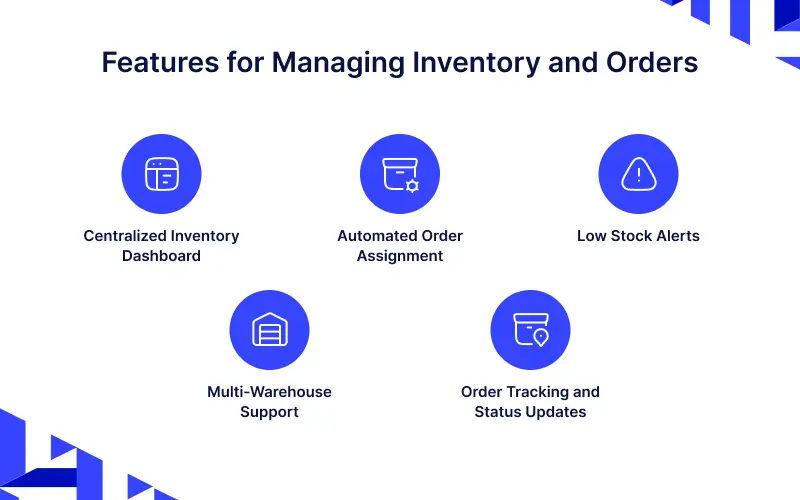
Features for Managing Inventory and Orders in Marketplace
1. Centralized Inventory Dashboard
A centralized dashboard shows all stock in one place so managers can monitor inventory easily.
This improves visibility across all vendors and supports faster business decisions.
2. Automated Order Assignment
Automated assignment sends orders to the correct vendor instantly.
This reduces processing delays and keeps your marketplace operations running smoothly.
3. Low Stock Alerts
Low stock alerts warn vendors early by sending notifications when inventory is low.
This allows vendors to restock on time and prevents lost sales from out of stock items.
4. Multi-Warehouse Support
Multi-warehouse support allows you to store products in multiple locations for faster delivery.
Strategic shipping methods reduce delivery distances and lower your overall shipping costs.
5. Order Tracking and Status Updates
Order tracking shows delivery progress and allows customers to check their status anytime.
Providing clear updates builds customer trust and reduces the number of support requests.
How Order and Inventory Processes Work in Marketplace?
Clear navigation paths make work easier and help teams complete tasks faster.
They also reduce training time by providing simple paths for marketplace users.
Order
Order Management in a Laravel Multi Vendor Marketplace helps sellers and admins track, manage, and fulfill customer orders with ease.
From the moment a buyer places an order to shipping and delivery, everything is handled in one place.
It ensures smooth processing, timely updates, and better coordination between vendors and buyers for a hassle-free shopping experience.
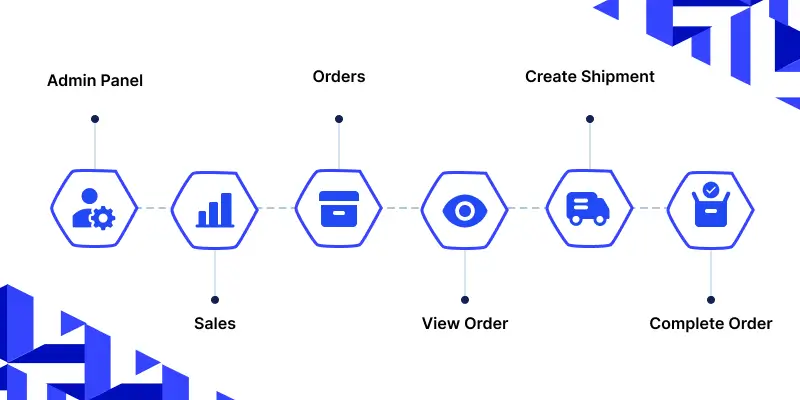
Navigation Path for Admin Panel
Admin Panel → Sales → Orders → View Order → Create Shipment → Complete Order
Admins use this path to manage and monitor all marketplace orders.
It helps control shipments, update order status, and ensure smooth delivery operations.
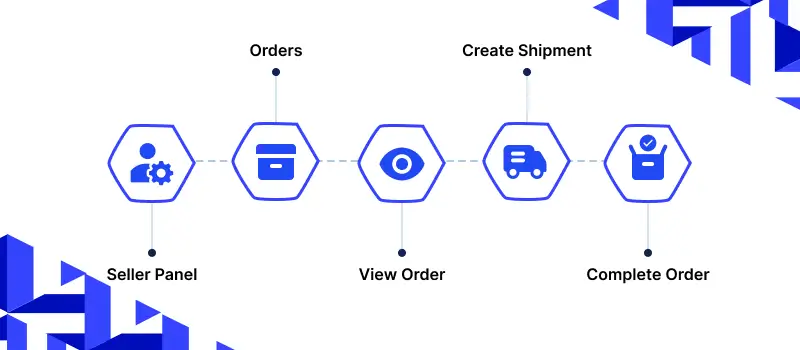
Navigation Path for Seller Panel
Seller Panel → Orders → View Order → Create Shipment → Complete Order
Sellers use this path to process their own customer orders.
It allows them to prepare shipments, update order progress, and complete deliveries efficiently.
Inventory Sources
Multi-Warehouse Inventory is one of the unique features of Bagisto.
Here, we will explain how to manage multi-warehouse inventory in Laravel eCommerce and provide reliable service to your customers.
Having a single inventory source can pose some restrictions for your e-commerce store.
For example, suppose you have only one inventory in Delhi. A customer from Chennai places an order.
Shipping from Delhi may cause delays and higher costs.
Having inventory in Chennai ensures faster delivery and lower shipping expenses.
By using Multi-Warehouse Inventory, you can easily manage all inventory sources.
In Bagisto, you can create as many inventory sources as needed and manage them effectively.
Steps to Manage Inventory in Bagisto
Here are the simple steps to create and manage inventory sources in Bagisto effectively.
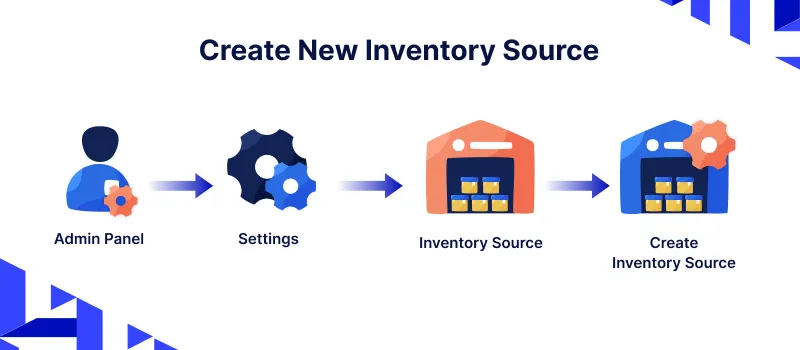
Step 1: Create New Inventory Source
Go to Admin panel of Bagisto >> Settings >> Inventory Sources >> Create Inventory Source
Step 2: General
Enter the Code, Name, Description, Latitude, Longitude, and Priority, and set the Status as active.
Step 3: Contact Information
Enter Name, Email, Fax, and Contact Number.
Step 4: Source Address
Enter the source address details like country, address, state, and city.
After that, click on Save Inventory Source. You will now see the newly created inventory source as shown below.
Step 5: Channels
Go to Settings >> Channels. Open the selected channel in Edit Mode >> Inventory Sources.
This is a multi-select field where you can select multiple inventory sources for your channels.
After that, click Save Channel.
Inventory Setting on the Product Page
Go to Catalog >> Products. Open the selected product in Edit Mode and enter the quantity for each inventory source.
After filling up the required fields, click Save Product.
Note: If you do not enter a quantity, 0 is saved by default.
An inventory item with 0 quantity will not be visible in the shipment page inventory options.
Inventory Setting on the Shipment Page
Go to Sales >> Orders. Open the selected order in Edit Mode >> Invoice >> Save Invoice >> Ship.
Under the Product Ordered Section, the Admin can decide from which inventory the product should be delivered.
Only one inventory can be active at a time. Selecting a new warehouse automatically disables all others.
For example, choosing the Noida Warehouse will disable all other inventory locations.
Enter the quantity to ship and click Create Shipment.
So, by following these steps, you can easily create and manage Inventory Sources in Bagisto.
Final Thoughts
Managing inventory and orders with clear processes keeps your marketplace organized and customers satisfied.
Stock Notifications alert vendors early when inventory levels run low, allowing them to restock on time and avoid missed sales opportunities.
This helps maintain smooth daily operations.
Following best practices like routine audits and clear vendor rules supports smooth growth.
A structured system makes scaling easier while maintaining trust and reliability.
Thank you for reading this guide. If you have any questions, feel free to raise a ticket at our Support Portal


Be the first to comment.