Seller Pricing in Bagisto Marketplace
Seller Pricing turns price edits into a quick seller task.
The seller opens one table in the Bagisto seller panel.
Each row shows name, SKU, type, and editable price fields.
For sellers, it cuts manual work and speeds up price updates.
Seller Pricing
The seller starts on the Pricing screen in the seller panel.
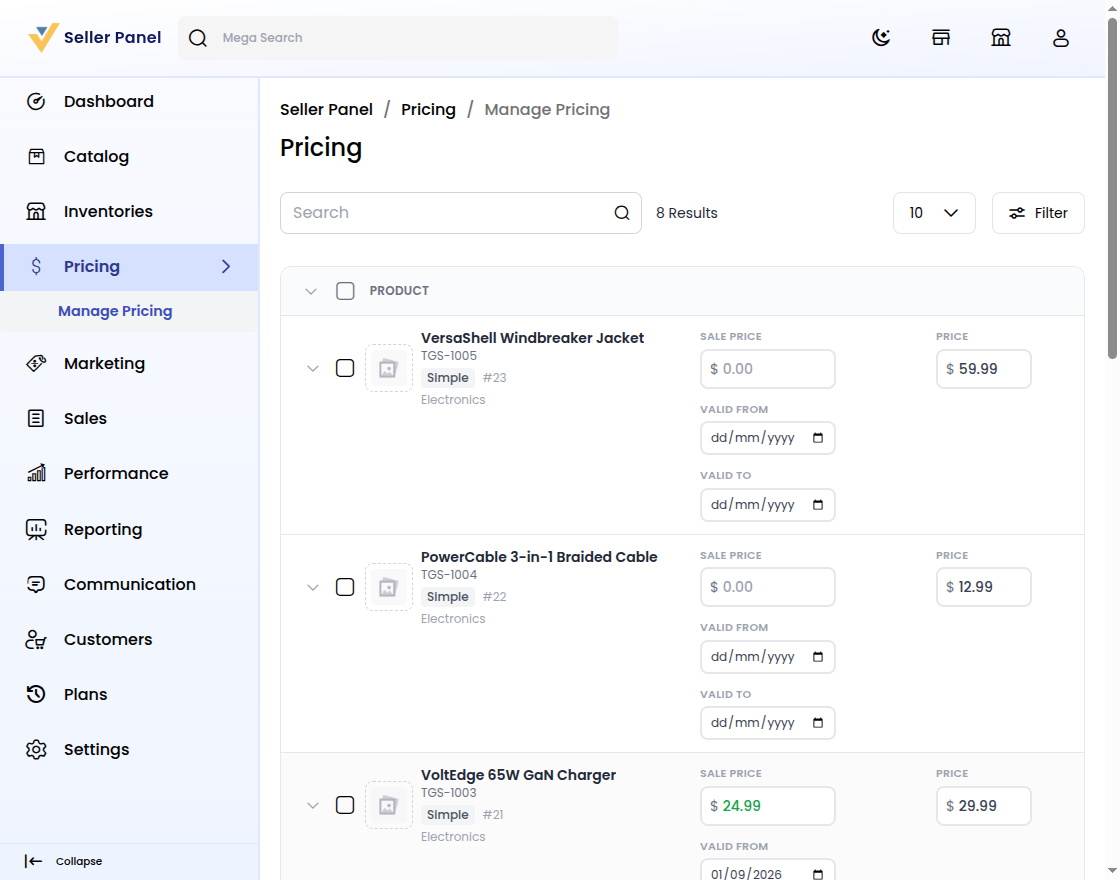
Simple and virtual products appear in one editable table.
Step 1: Open Seller Pricing
First, log in and click Pricing in the sidebar.
Then review owned and resold rows with SKU and type.
See the Bagisto Multi-Vendor Marketplace seller guide.
Step 2: Edit the Base Price Inline
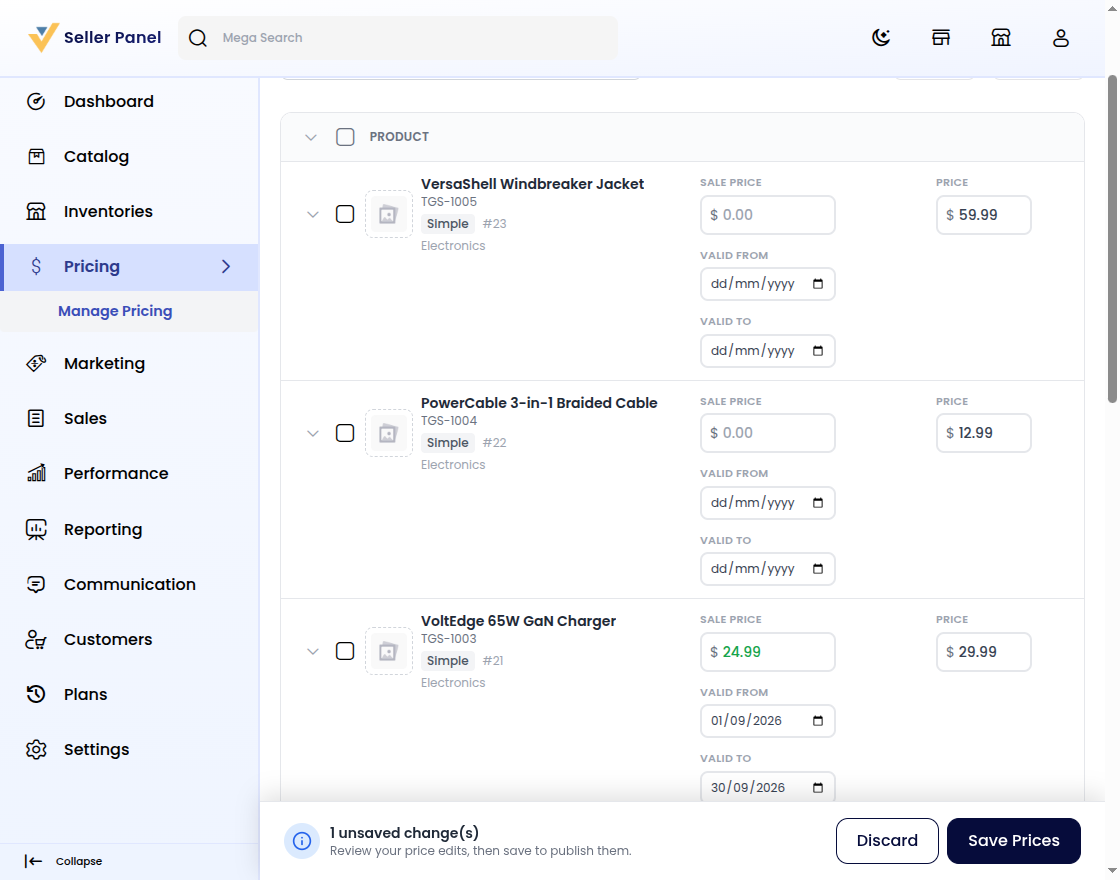
Next, click the Price input and type the new amount.
For PulseBeats earbuds, change $49.99 to $44.99.
The input turns yellow until you click Save Prices.
- Edit Several Rows First: Adjust multiple products, then save them all at once.
- Undo a Field: Restore any edited value to its saved state.
- Discard Everything: Reset all pending edits with the Discard button.
Edits stay local until you save, so the storefront does not change yet.
Step 3: Schedule a Sale in Seller Pricing
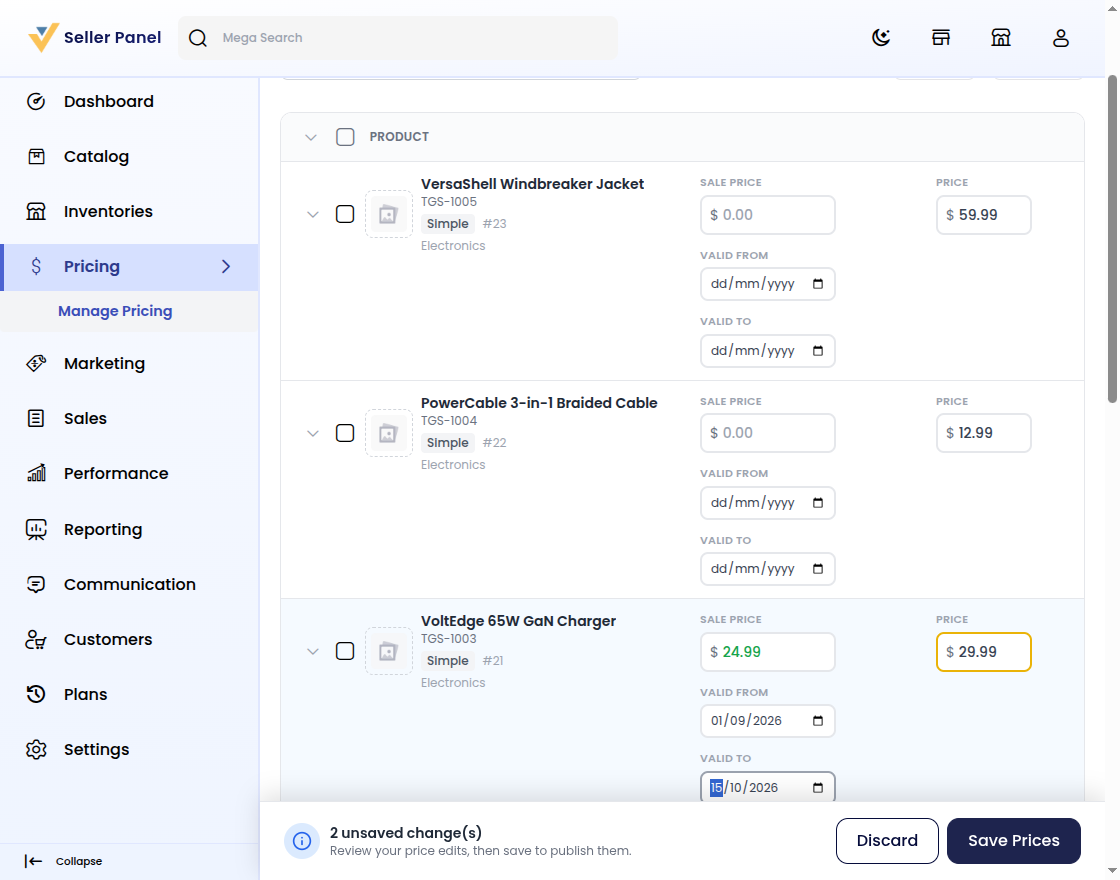
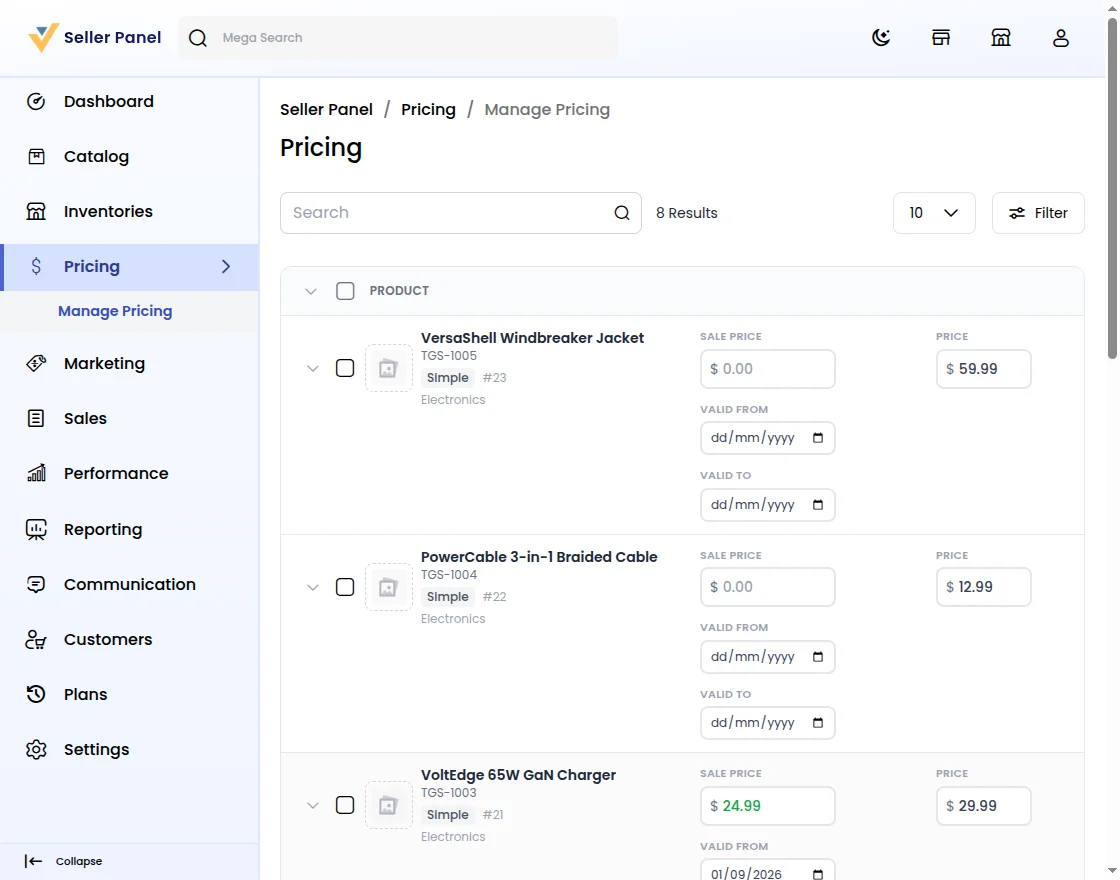
Type $24.99 in Sale Price for the VoltEdge charger.
Set Valid From to September 1, 2026, and Valid To to October 15, 2026.
Seller Pricing keeps the sale and its dates on the same row.
The sale goes live on the Bagisto storefront in that window.
Step 4: Set Customer-Group and Quantity Pricing
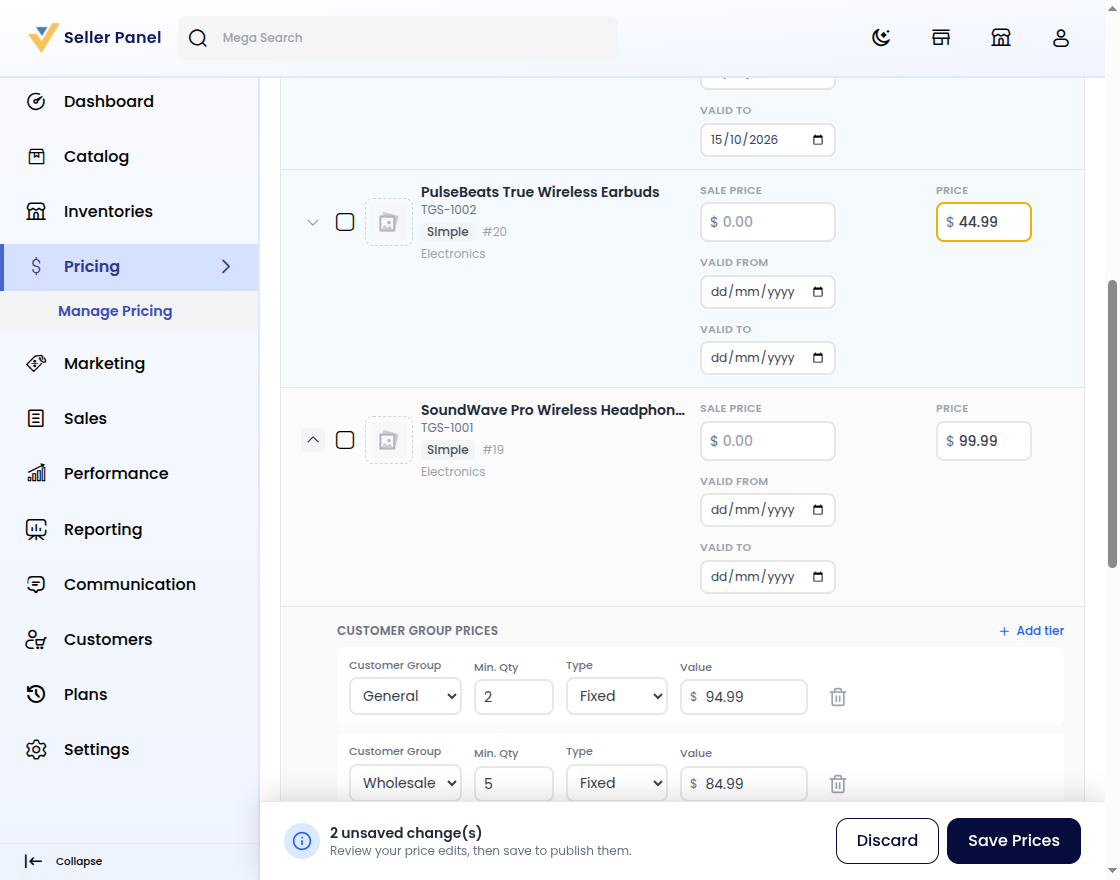
Expand an owned row to open Customer Group Prices.
General pays $94.99 for 2+ and $89.99 for 10+.
Wholesale pays $84.99 for 5+; add a 15% tier with Add tier.
Inside Pricing, each tier stays on the same row.
See field rules in the Bagisto documentation.
Step 5: Apply Bulk Price Changes
Tick the two Skyline jeans variants, w24 and w28.
Choose Set to in Action, enter 56.99, and click Apply.
After applying, both rows update at once; yellow marks unsaved edits.
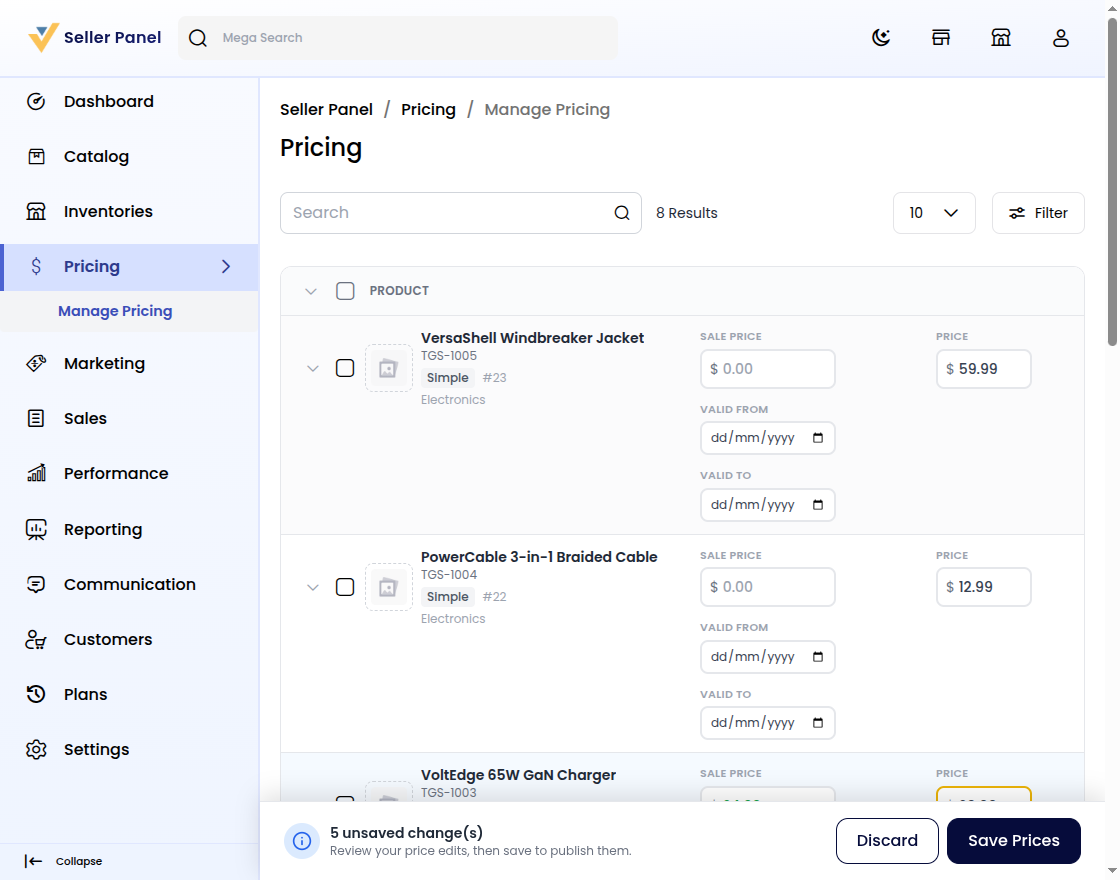
Step 6: Save and Publish in Pricing
Click Save Prices once for all waiting edits.
PulseBeats shows $44.99 and both jeans show $56.99.
Saved prices refresh the Bagisto Marketplace grid.
Conclusion
You review each edit, save once, and keep every tier consistent.
For Bagisto owners, faster pricing means a better seller experience.


Be the first to comment.