Product Discounts in Bagisto Marketplace
Product Discounts turns price cuts into automatic seller savings.
The seller runs percent or fixed cuts from the Bagisto seller panel.
Each rule picks products, dates, channels, and shopper groups.
For sellers, it lifts orders with less manual price work.
Product Discounts
The seller starts under Marketing in the seller panel.
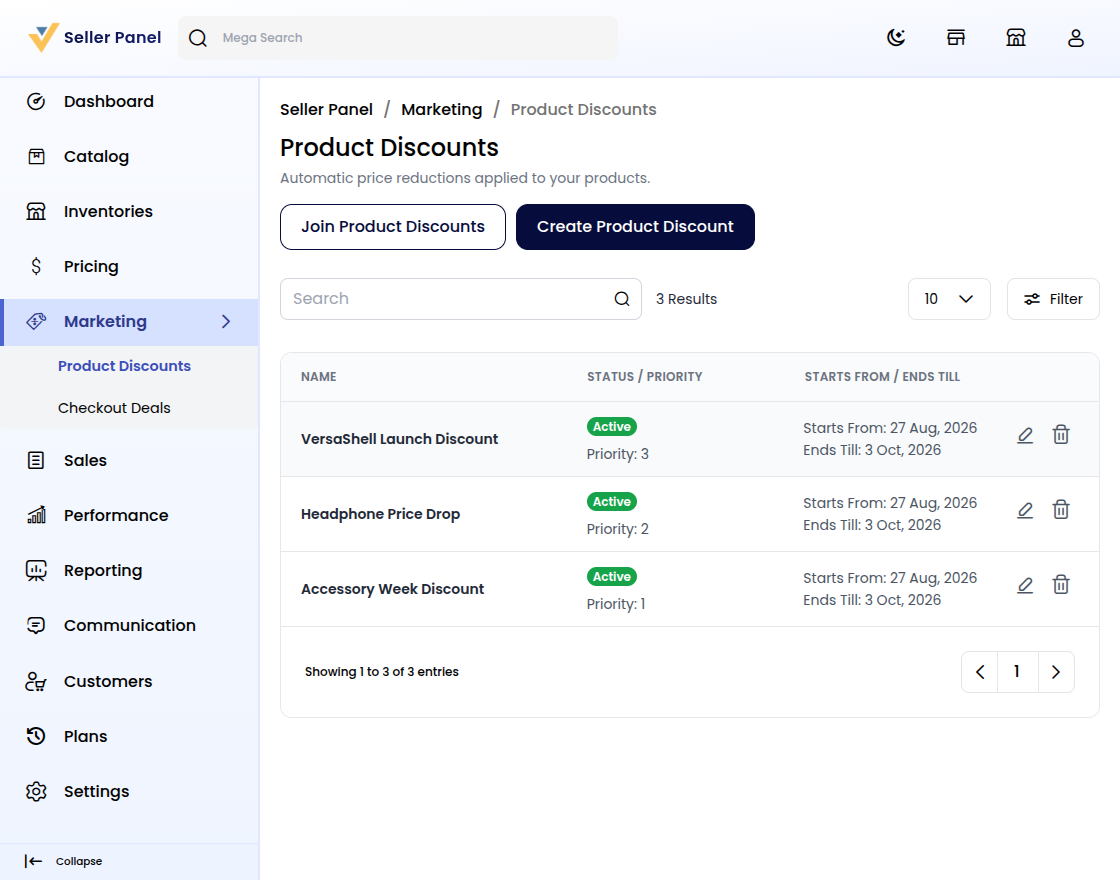
The list shows every rule; the wizard has Discount, Details, and Advanced.
Step 1: Open Product Discounts
First, open Marketing and choose the discounts list.
Then review Name, Status, Priority, Starts From, and Ends Till.
Use Edit or Delete per row; the Join button opens admin rules.
See the Bagisto Multi-Vendor Marketplace seller guide.
Step 2: Set the Discount Amount
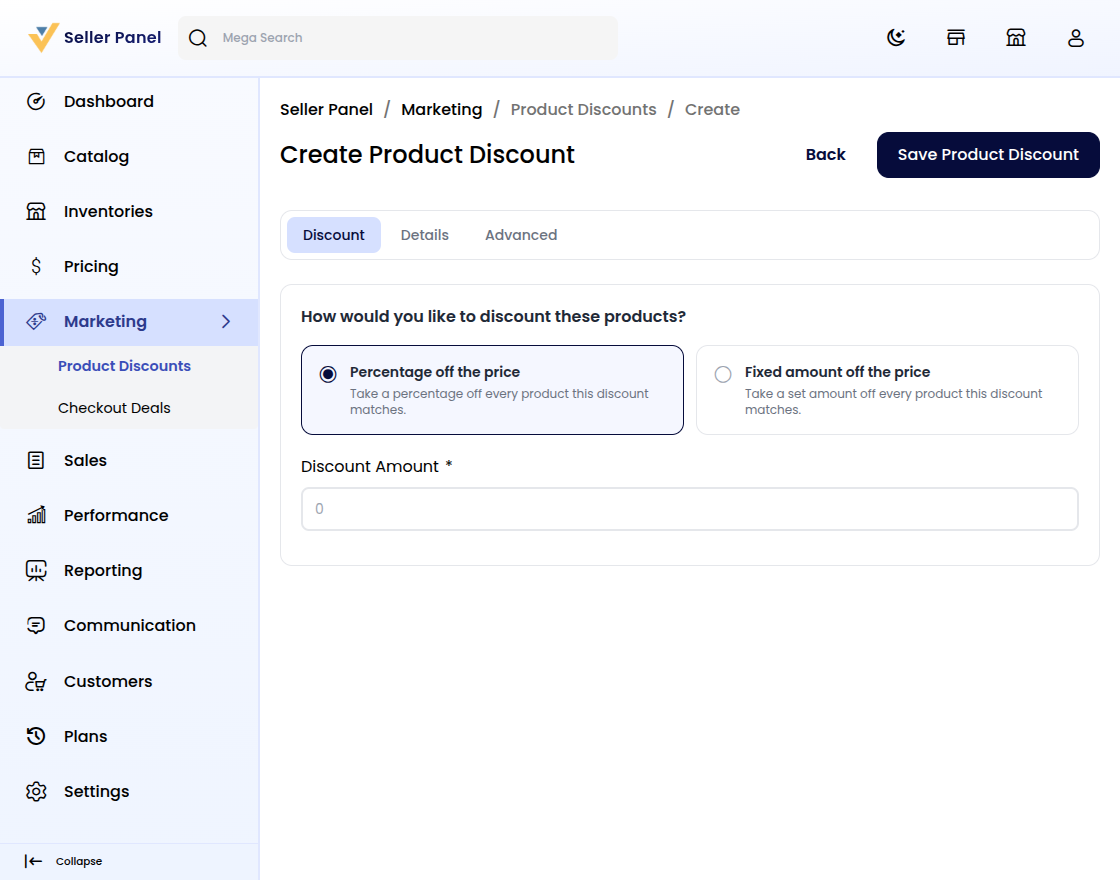
Click Create Product Discount to launch the wizard.
Answer How would you like to discount these products?
Pick Percentage off the price or Fixed amount off the price.
Step 3: Name and Schedule the Discount
Enter the Discount Amount as a percent or fixed value.
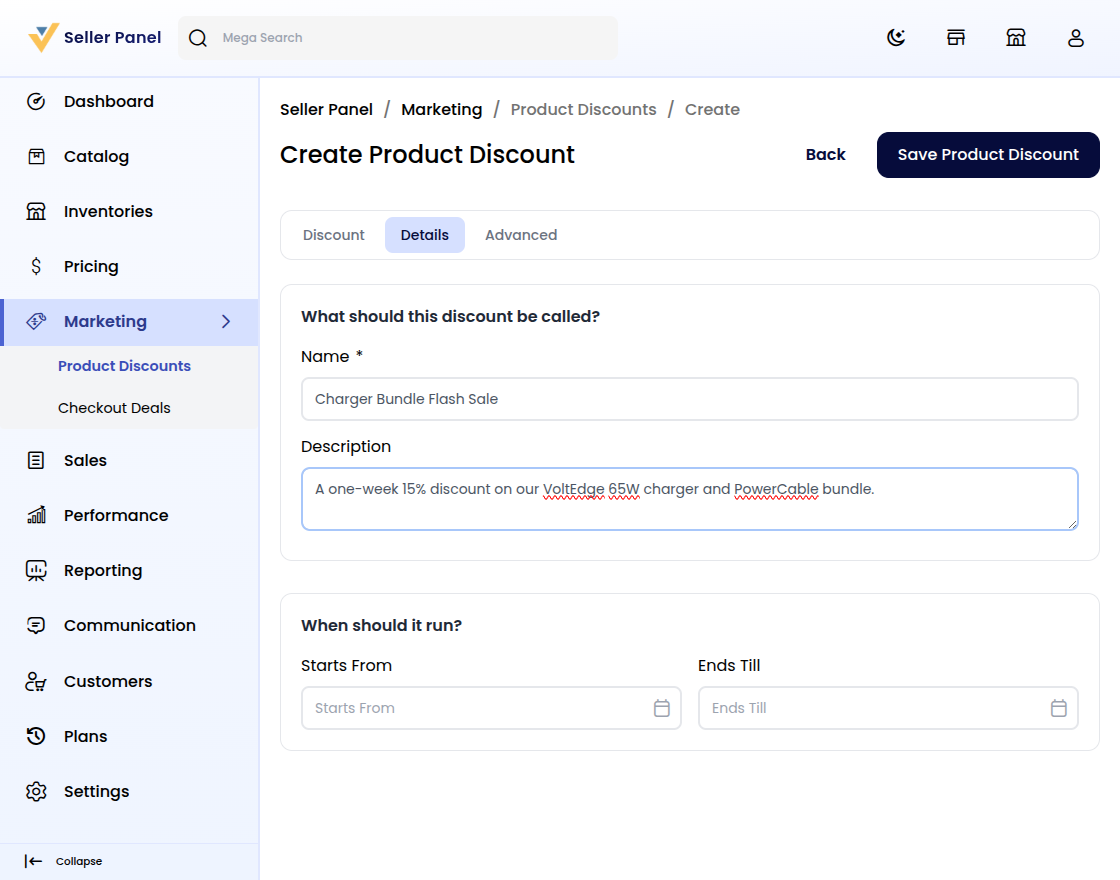
Give it a Name, add a Description, and set Starts From and Ends Till.
Rules apply automatically on the Bagisto storefront.
Step 4: Target Products with Product Discounts
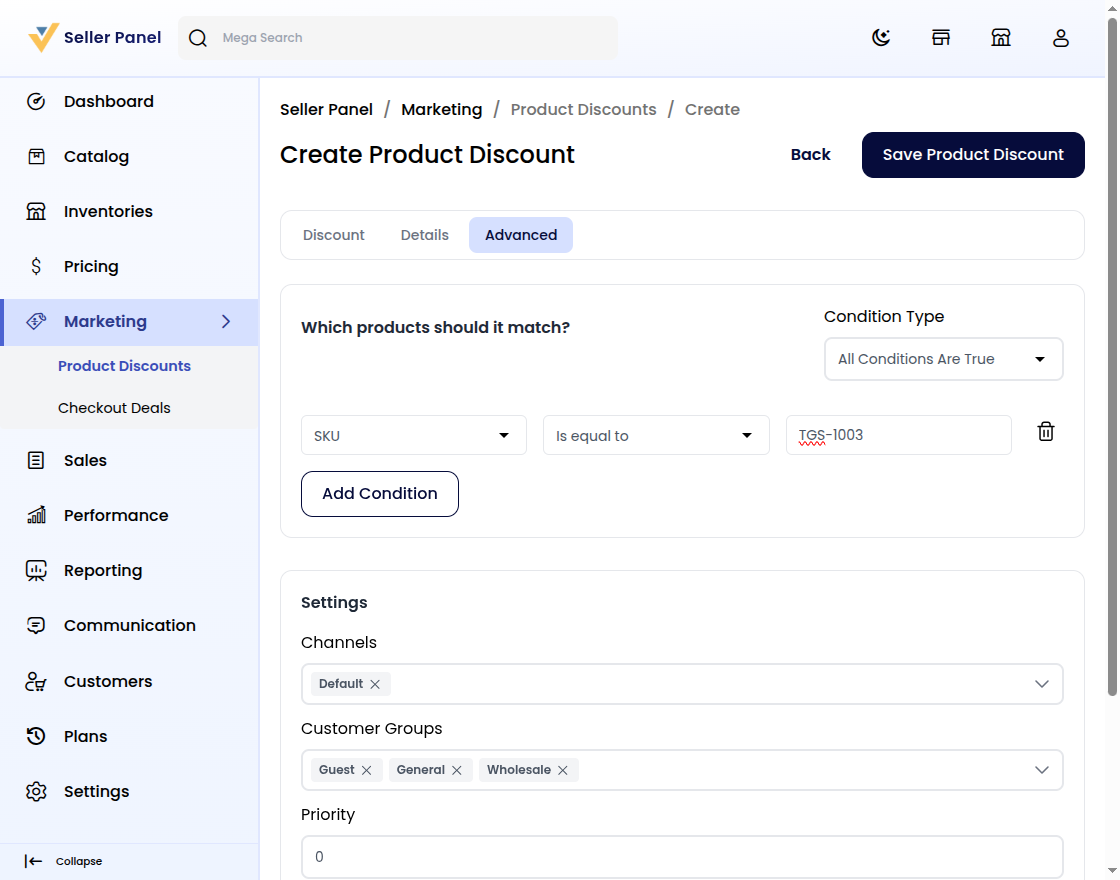
Open Advanced to control which products the rule reaches.
Add Conditions under All Conditions Are True or Any Condition Is True.
Match Categories, Attribute Family, or SKU for precise targeting.
See condition options in the Bagisto documentation.
Step 5: Limit the Discount by Channel and Group
Choose Channels and Customer Groups for who sees the cut.
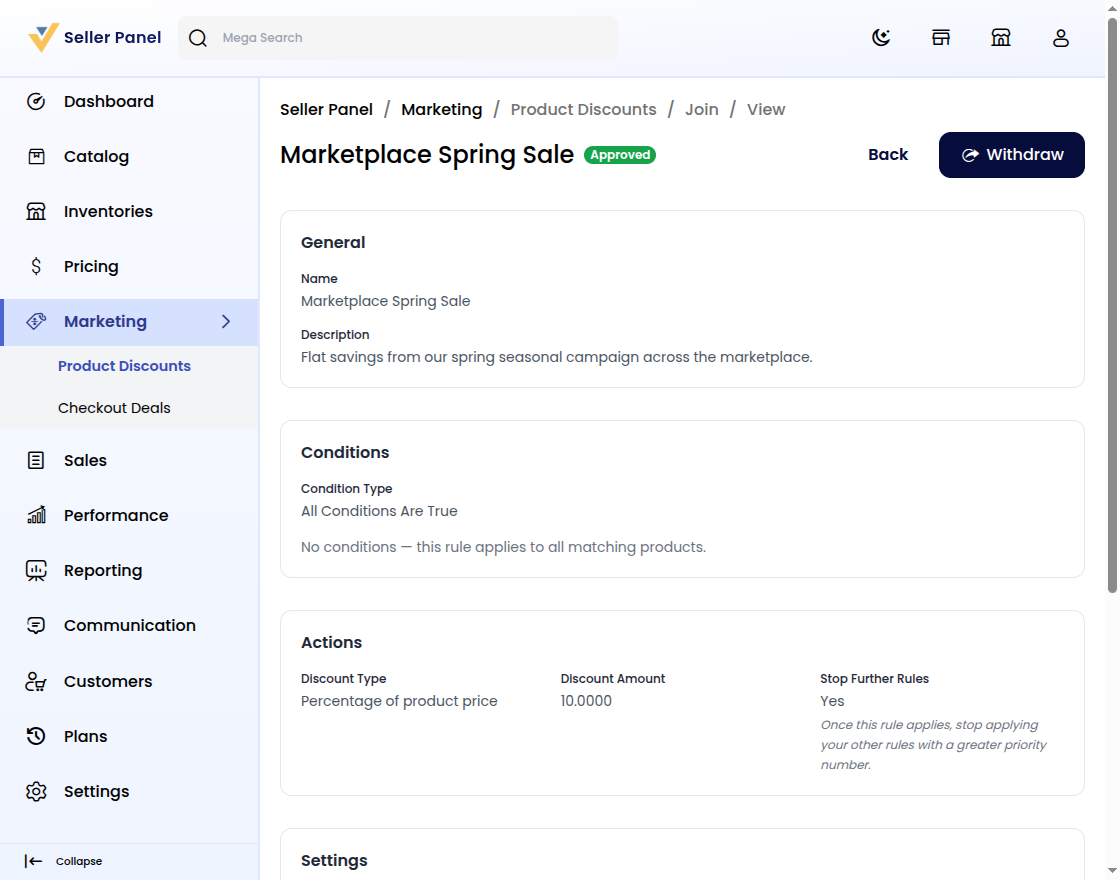
Set Priority to order rules; Stop Further Rules blocks lower ones.
Flip Status on, then click Save Product Discount to publish.
Step 6: Manage and Join Product Discounts
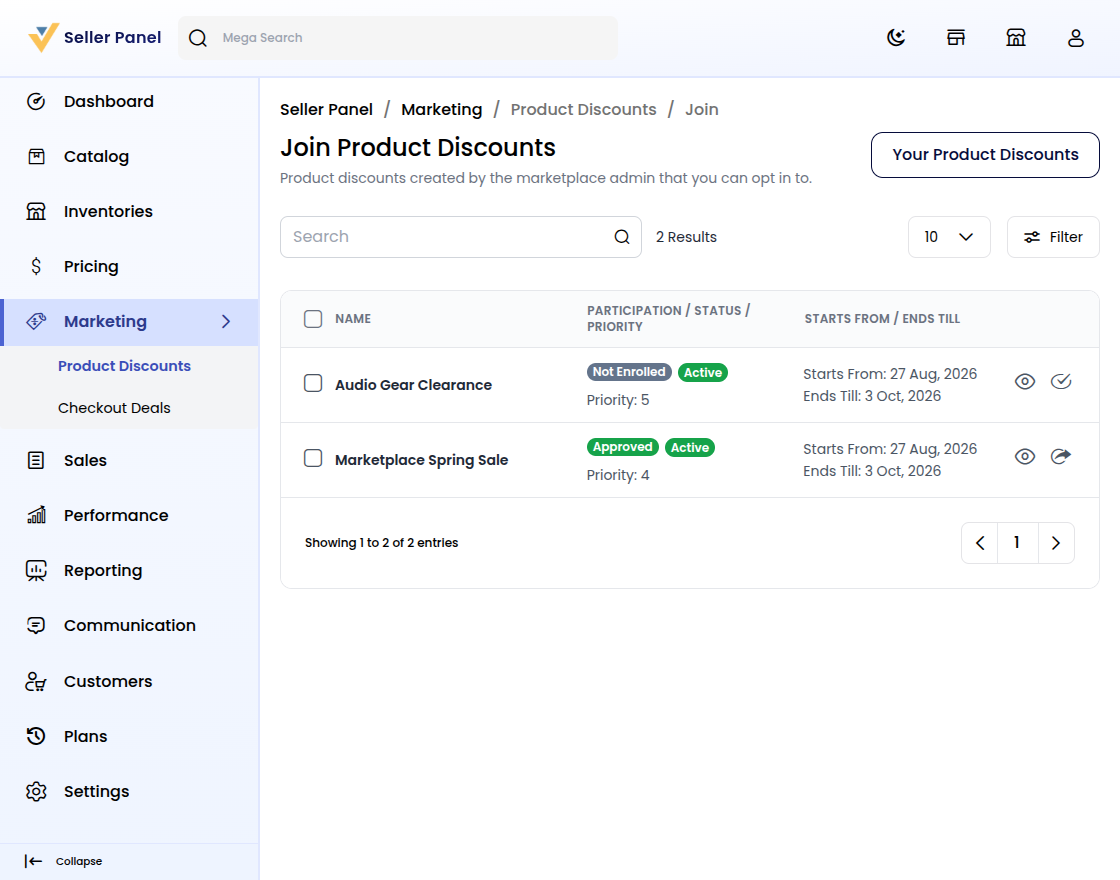
The Join page lists admin rules sellers can opt into.
Participation reads Not Enrolled, Enrolled, Pending, or Approved.
Approved rows show Withdraw; others offer Enroll and View.
Joined rules refresh the Bagisto Marketplace catalog.
Conclusion
Product Discounts helps sellers cut prices faster with less manual effort.
You review each rule, save once, and keep pricing consistent.
For Bagisto owners, automatic discounts mean a better seller experience.


Be the first to comment.