Inventory Source Management in Bagisto Marketplace
Inventory Source Management turns warehouses into tracked seller stock.
The seller defines each fulfillment location instead of sharing one warehouse.
Each product carries its own quantity per source in the seller panel.
For sellers, it keeps stock accurate and updates the storefront fast.
Inventory Source Management
The seller starts under Inventories in the seller panel.
Inventory Sources holds locations; Manage Inventory holds quantities.
Step 1: Create a Source in Inventory Source Management
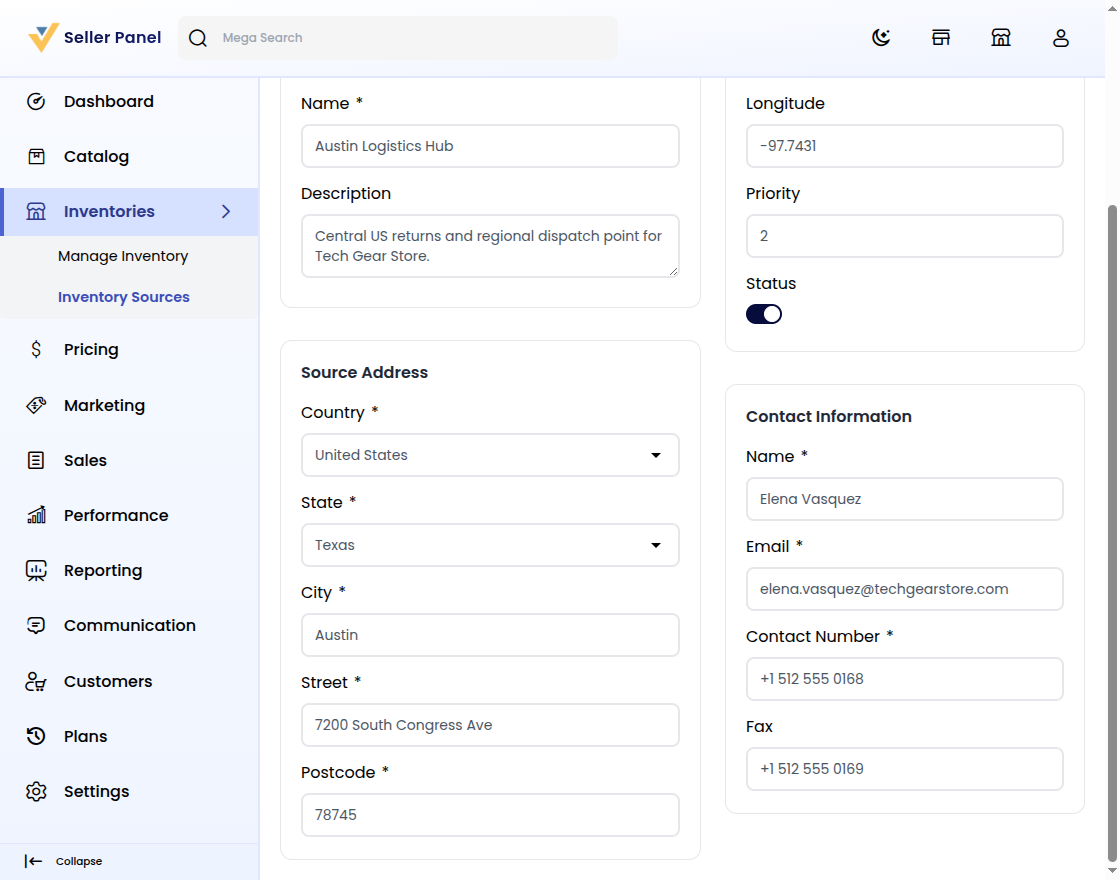
First, open Inventories and choose Inventory Sources.
Then click Create Inventory Source to open the form.
- General: A unique Code, the Name, and an optional Description.
- Source Address: The Country, State, City, Street, and Postcode.
- Settings: Latitude, Longitude, Priority, and the Status toggle.
- Contact Information: Name, Email, Contact Number, and Fax.
The Code must start with a letter, then letters, numbers, or underscores.
Step 2: Review the Source List
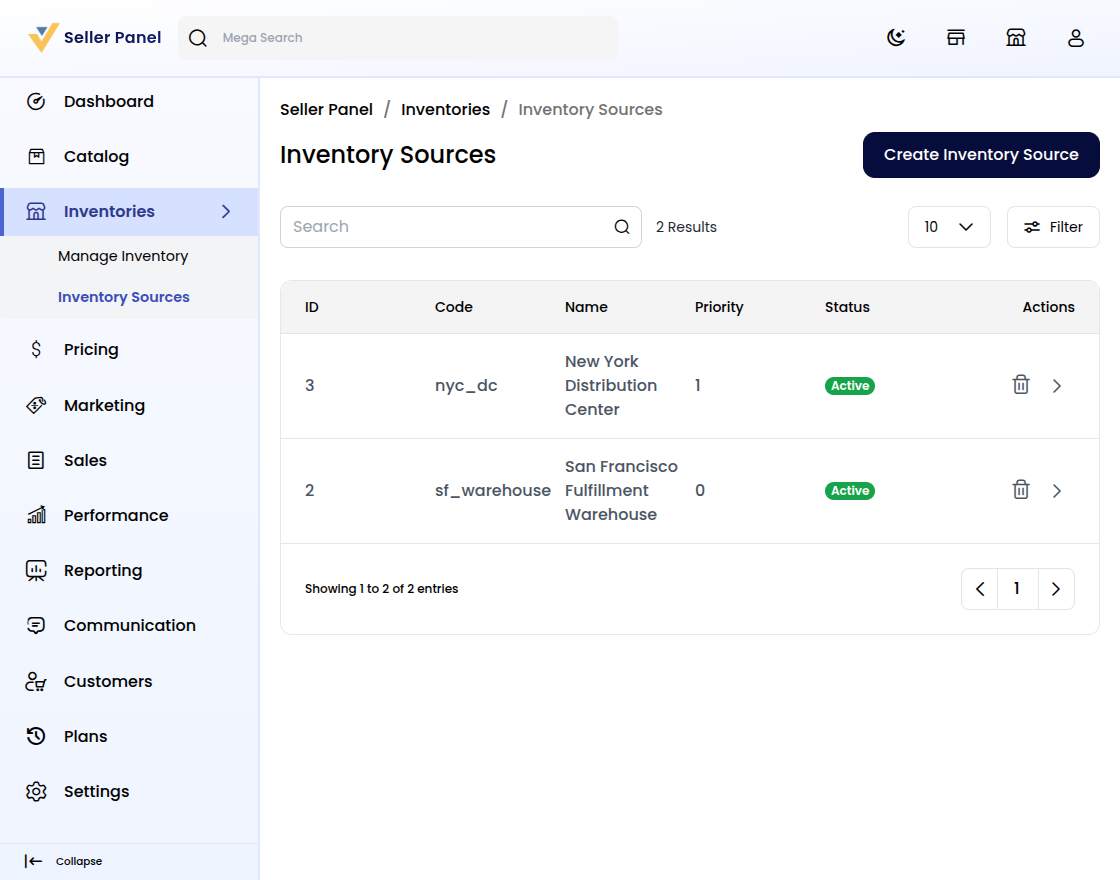
Each saved source appears as one row in the list.
San Francisco Fulfillment Warehouse and New York Distribution Center show here.
Rows show ID, Code, Name, Priority, and Status, plus Edit and Delete.
See the Bagisto Multi-Vendor Marketplace seller guide.
Step 3: Open Manage Inventory
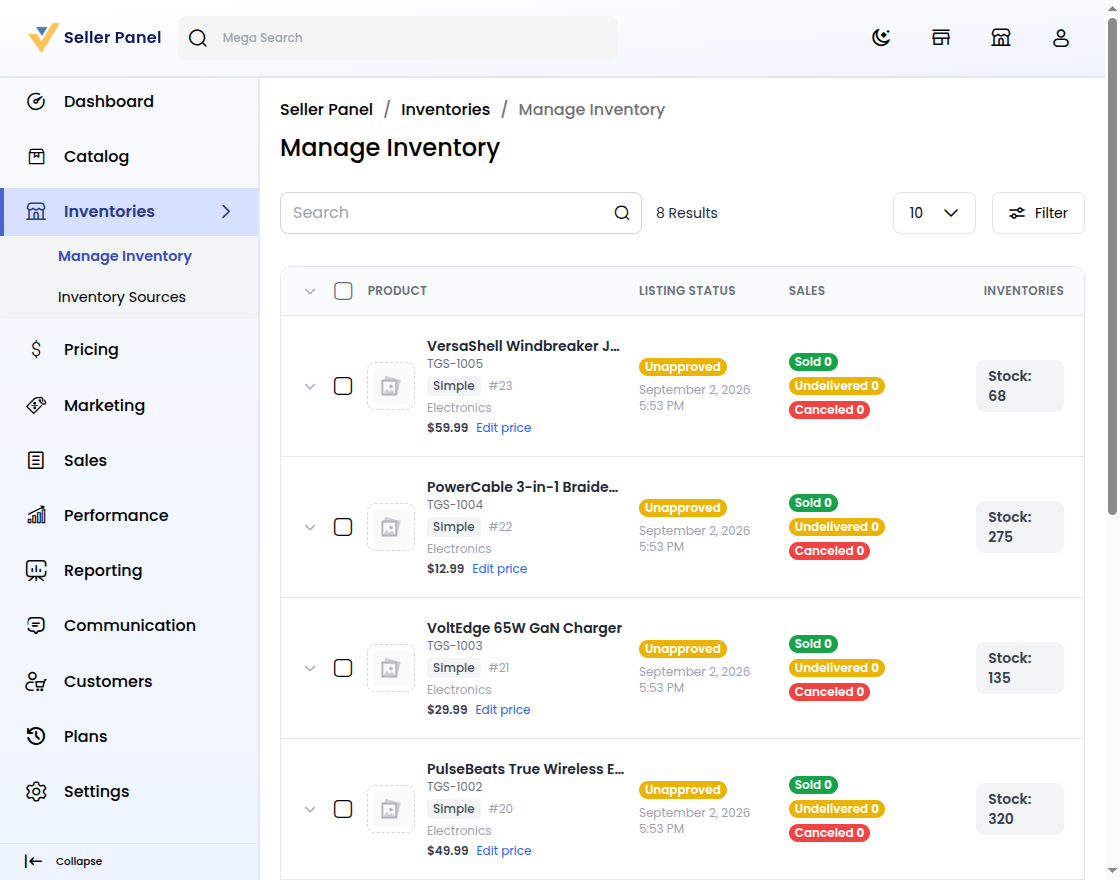
Quantities live under Inventories and Manage Inventory.
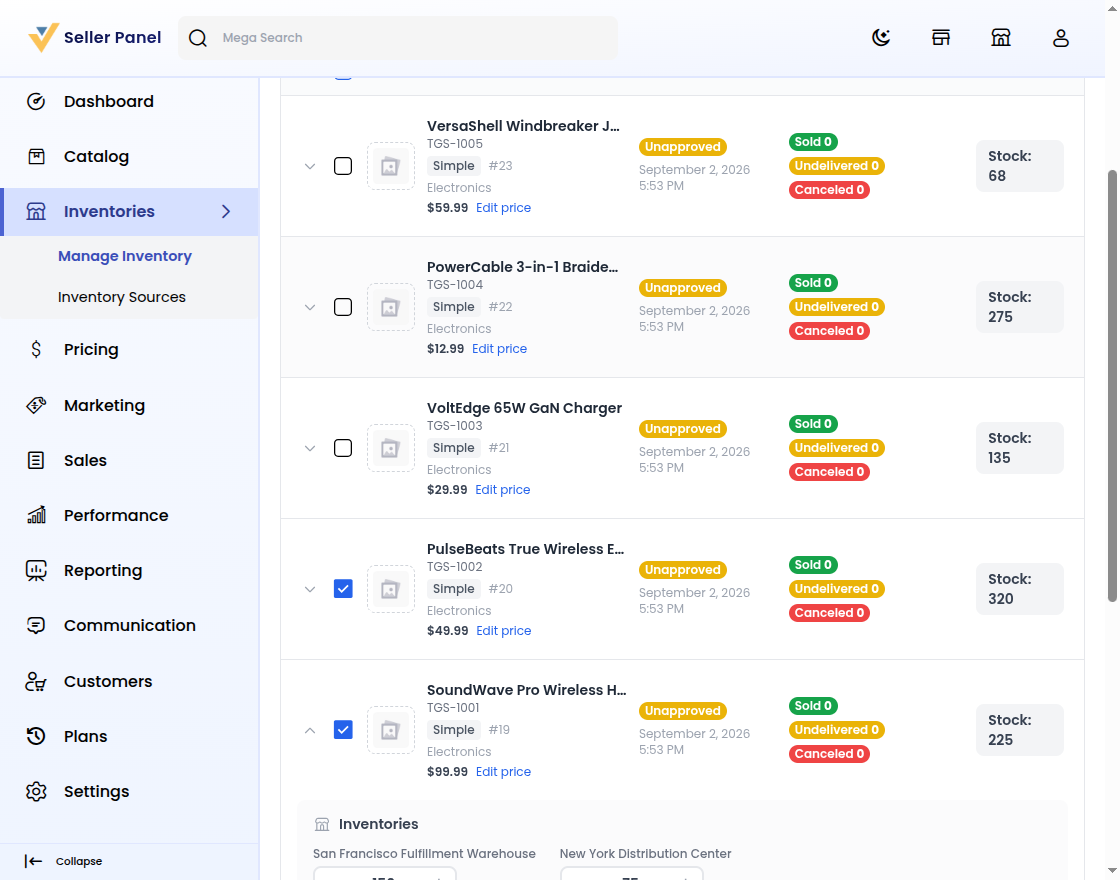
Each row shows Product, SKU, Listing Status, Sales, and a Stock total.
SoundWave reads Stock: 225 from 150 plus 75 units.
The storefront reads these values on Bagisto.
Step 4: Set Stock in Inventory Source Management
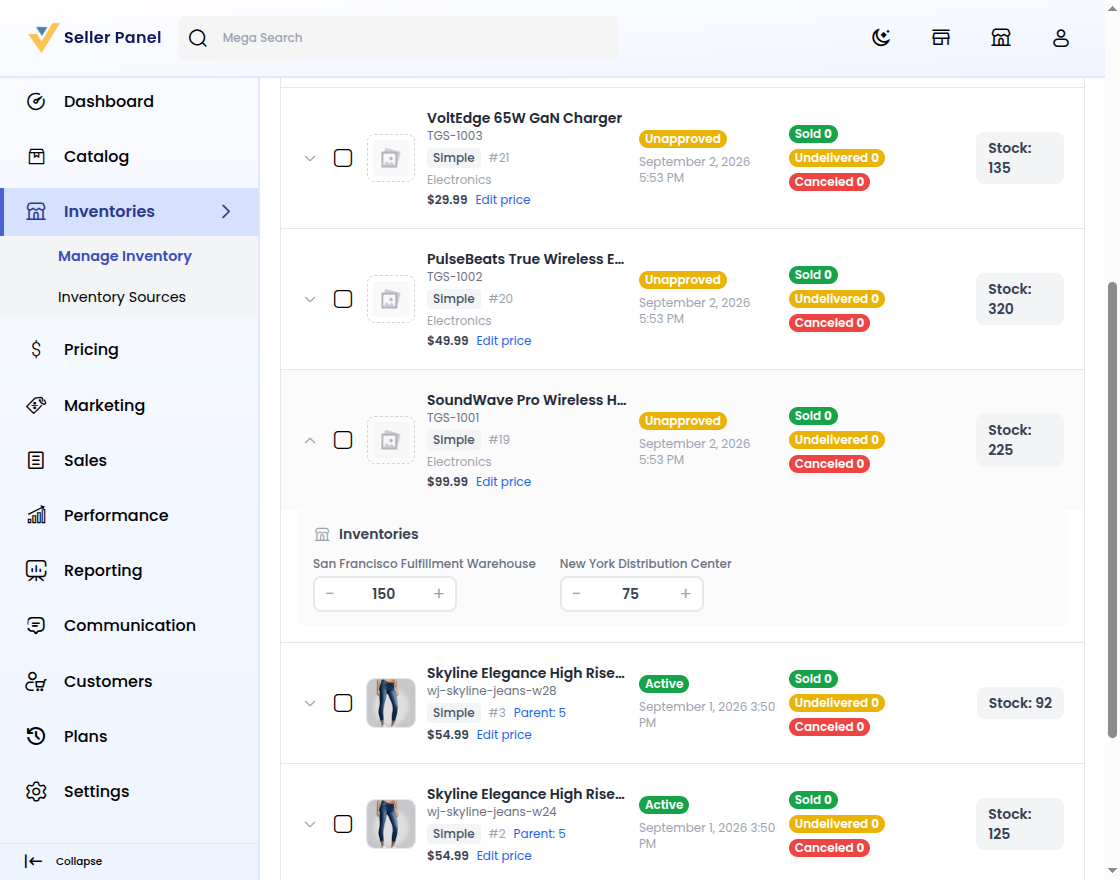
Click a row to expand its Inventories panel.
Use the minus and plus steppers to adjust each source.
Hold 150 units in San Francisco and 75 in New York.
See field rules in the Bagisto documentation.
Step 5: Bulk-Adjust Inventory
Tick products to reveal the bulk toolbar above the list.
Pick a source, choose Set to, Increase by, or Decrease by, and enter a Value.
For example, raise New York stock for two products by 10.
Click Apply to stage the change without publishing yet.
Step 6: Save and Publish in Inventory Source Management
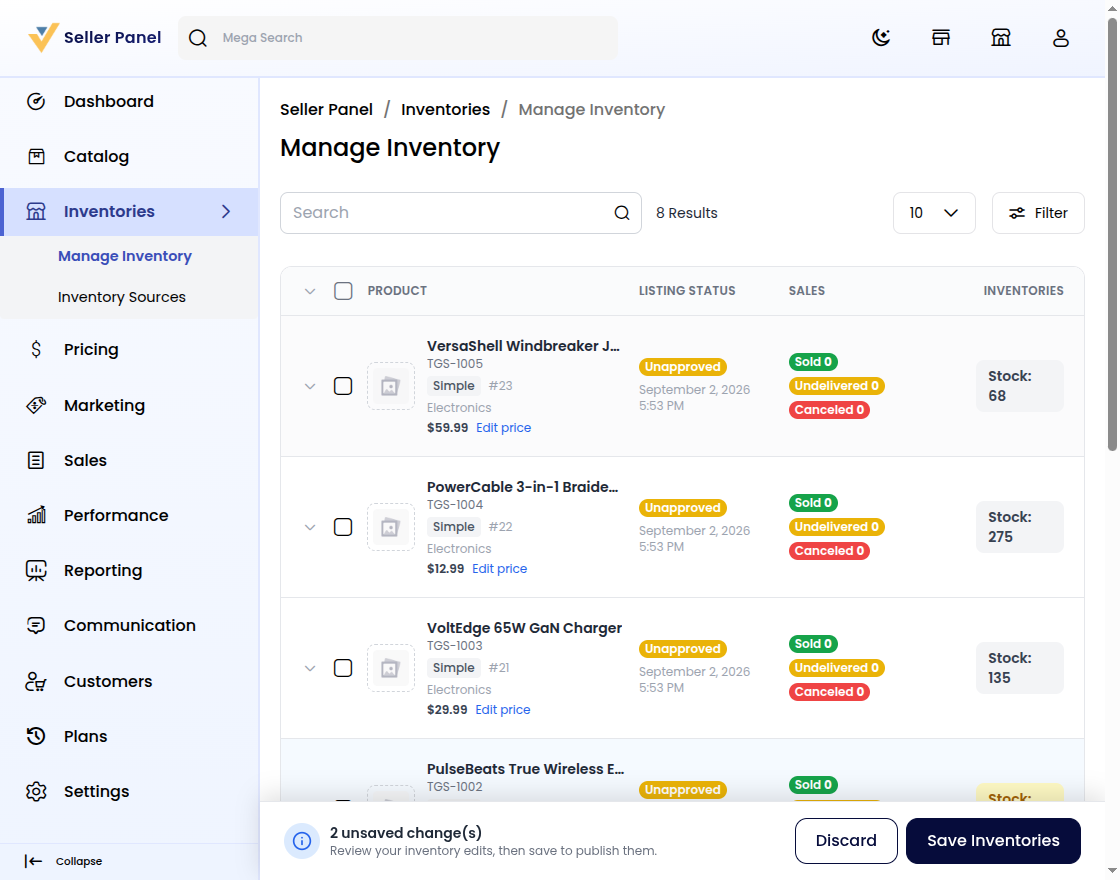
Staged edits collect in a drawer as unsaved change(s).
Click Save Inventories to publish, or Discard to roll back.
After saving, SoundWave reads Stock: 235.
Saved stock refreshes the Bagisto Marketplace storefront.
Conclusion
Inventory Source Management helps sellers keep stock accurate with less manual effort.
You set per-source quantities, save once, and publish with confidence.
For Bagisto owners, accurate stock means a better seller experience.


Be the first to comment.