How to Remove and Replace Menu Items in Admin Panel?
Every project has different admin menu requirements based on its features and business needs.
As your project grows, you may need to remove unused menu items or replace them with new ones.
This helps keep the admin panel clean, organised, and easier for users to navigate.
In this blog, you’ll learn how to remove and replace menu items in Admin Panel step by step.
Remove Menu Items from Admin Panel
To remove a menu item, edit the menu.php file in the Admin package.
The menu configuration is defined as an array in this file. Simply remove the menu array that you no longer want to display in the admin panel.
Step 1
Open the menu.php file and remove the required menu array.
Before Removing the Dashboard Menu
The highlighted code shows the Dashboard menu configuration in the menu.php file.
Removing this menu array will remove the Dashboard menu from the Bagisto admin panel.
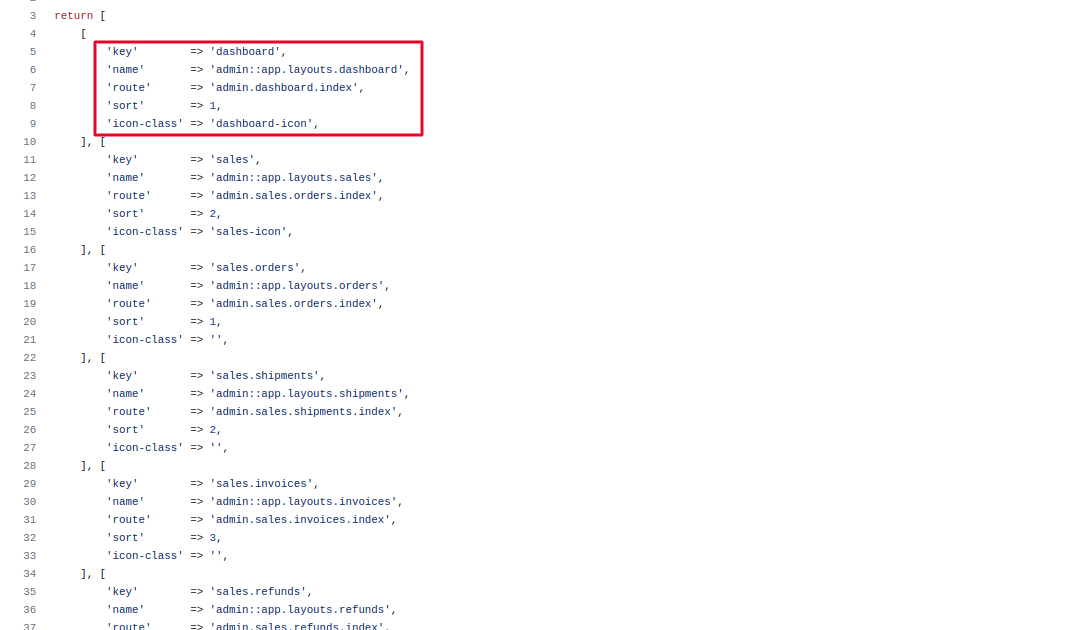
The image below shows the Dashboard menu displayed in the Bagisto admin panel before it is removed.

Step 2
Clear Bagisto’s cache by running the following command:
|
1 |
php artisan optimize:clear |
After clearing the cache, refresh the admin panel. The removed menu item will no longer appear.
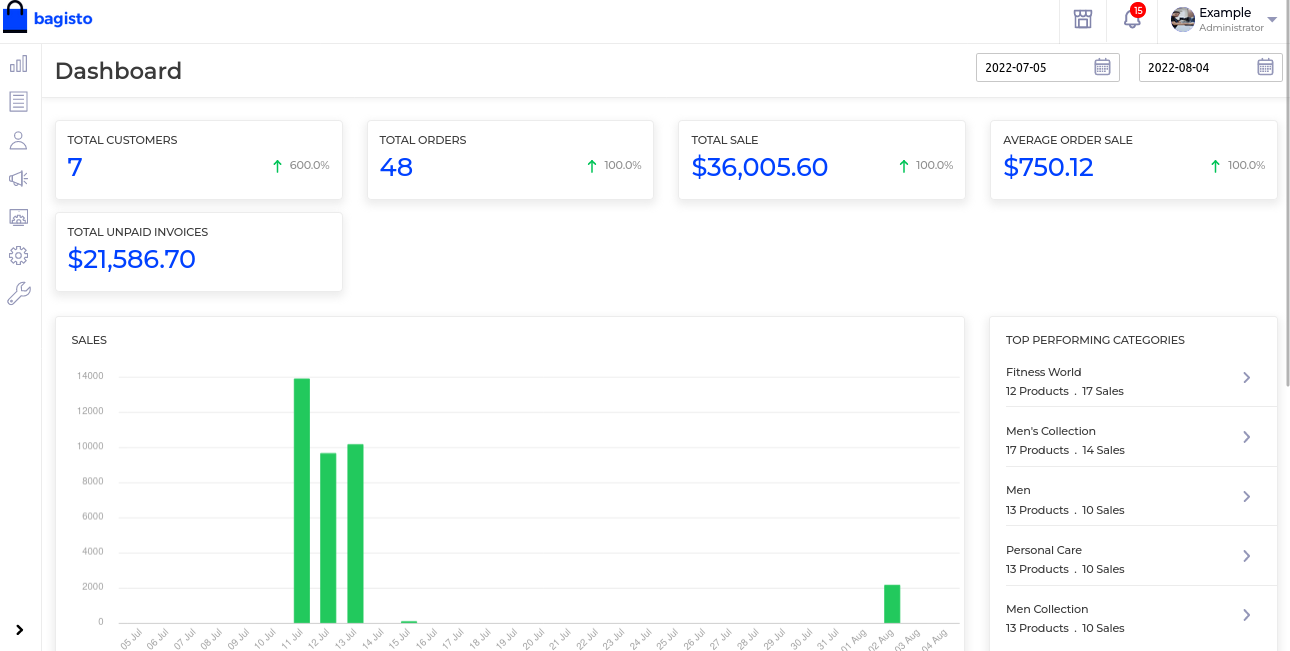
After Removing the Dashboard Menu
The image below shows the Dashboard menu after it has been removed from the admin panel.
Replace Menu Items in Admin Panel
If you want to replace an existing menu item with your own, edit the same menu.php file in the Admin package.
Update the following menu properties:
- key – A unique identifier for the menu item.
- name – The menu label displayed in the admin panel.
- route – The route that opens when the menu item is clicked.
- sort – Controls the display order of the menu.
- icon-class – The CSS class used for the menu icon.
Step 1
Update the required menu array.
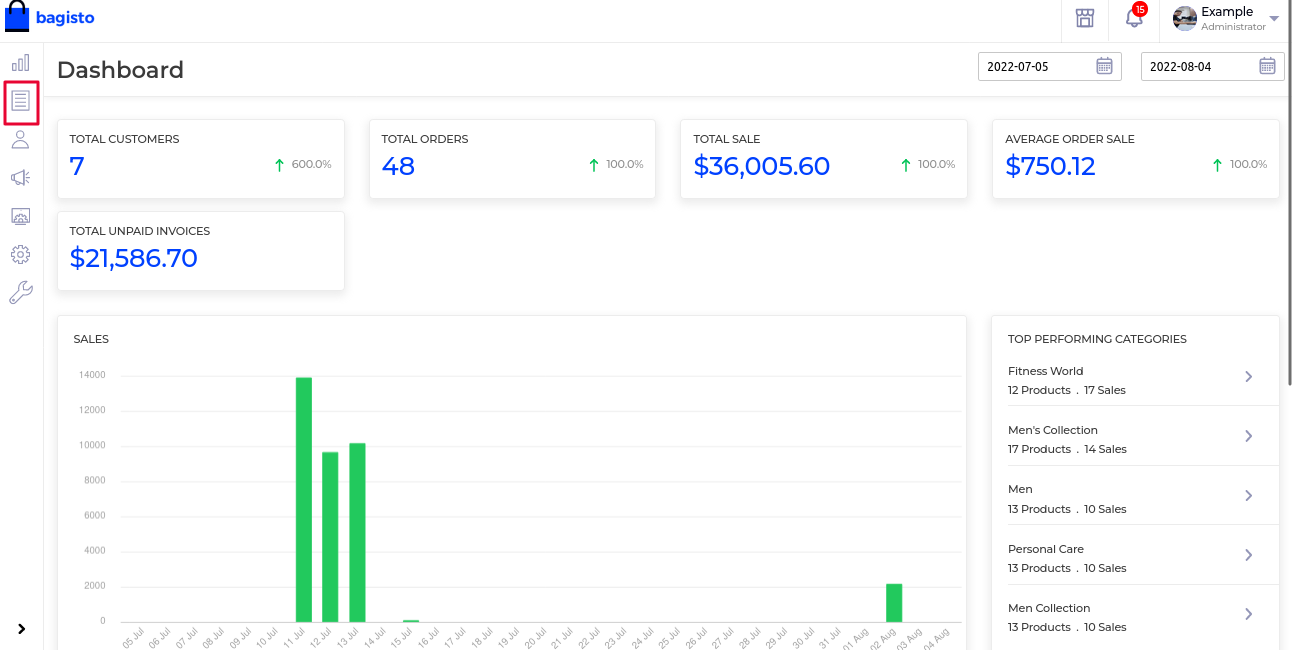
Before Updating the Menu
Update the values according to your Custom Requirements.
|
1 2 3 4 5 6 7 8 |
return [ [ 'key' => 'leads', 'name' => 'Leads-menu', 'route' => 'admin.sales.leads.index', 'sort' => 2, 'icon-class' => 'leads-icon', ], |
Step 2
After making the changes, clear the cache again.
|
1 |
php artisan optimize:clear |
Refresh the admin panel to see the updated menu item.
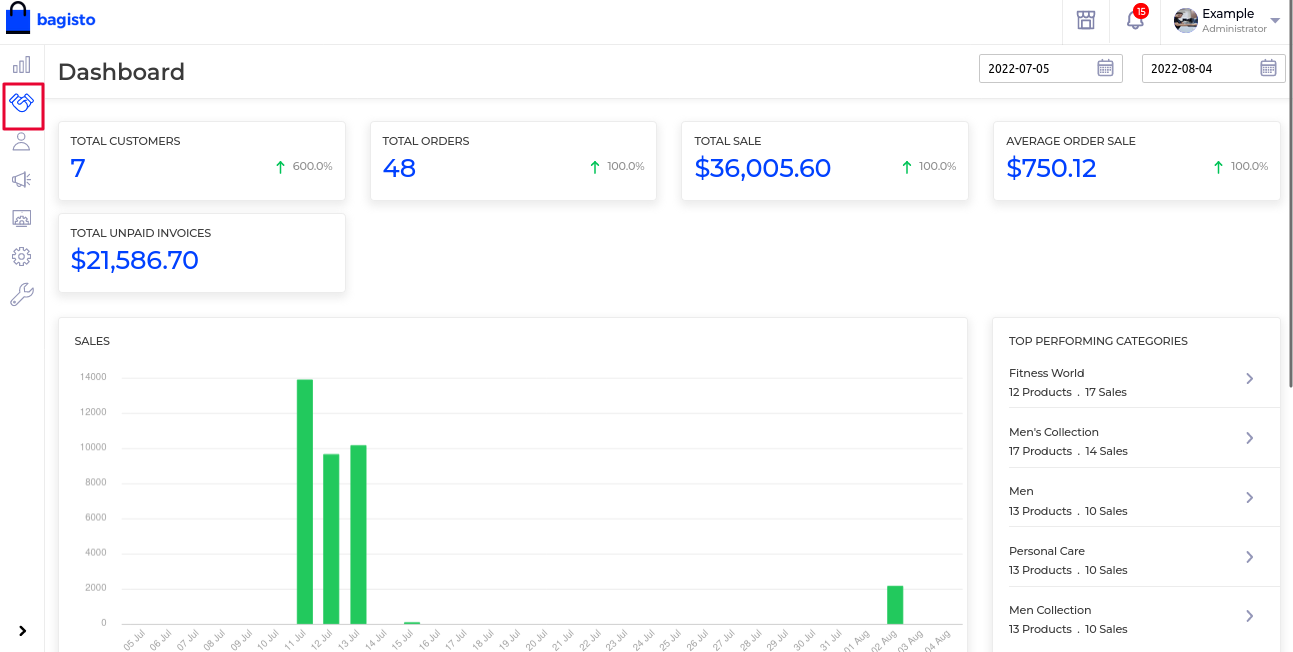
After replacing the menu
The image below shows the updated menu after replacing the existing menu item.
Final Thoughts
Removing and replacing menu items helps keep the Bagisto admin panel simple and relevant to your project.
By updating the menu.php file and clearing the cache, you can quickly apply the changes.
This makes it easier to organise the admin menu as your project grows.
We hope this guide helps you manage menu items with confidence. If you need any help, feel free to contact the Bagisto Support Portal.


Be the first to comment.