Bagisto Command Palette: A Faster Way to Navigate
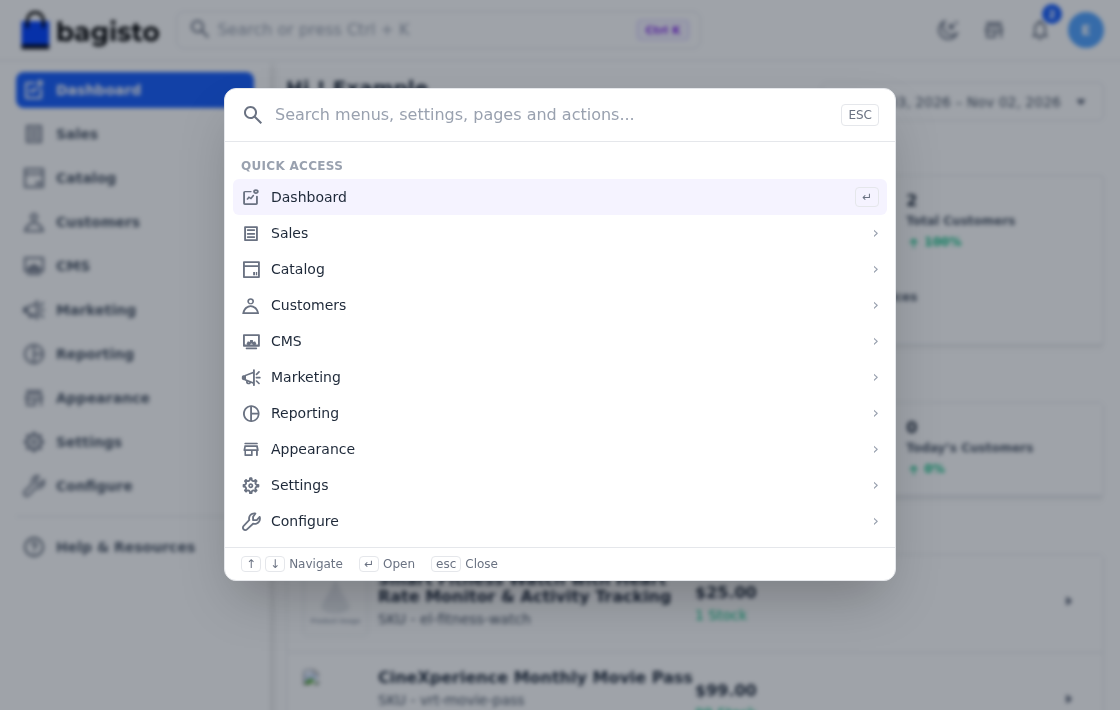
The Bagisto command palette is a new search box for your admin panel.
Press Ctrl + K (or Cmd + K on a Mac), type a few letters, and jump straight to any page, setting, record or action.
The command palette turns a long trip through the sidebar into a single shortcut and a few keystrokes.
It arrives with Bagisto.
A New Way to Interact with Your Admin
Think of the command palette as a search bar that lives on top of every admin page.
It stays hidden until you call it. Once you press Ctrl + K, it appears in the middle of the screen, ready for you to type.
It finds pages, settings and actions, and it also looks inside your store for real products, orders, categories and customers.
In short, it is one place to reach almost anything in your admin.
Stop Searching Through Menus
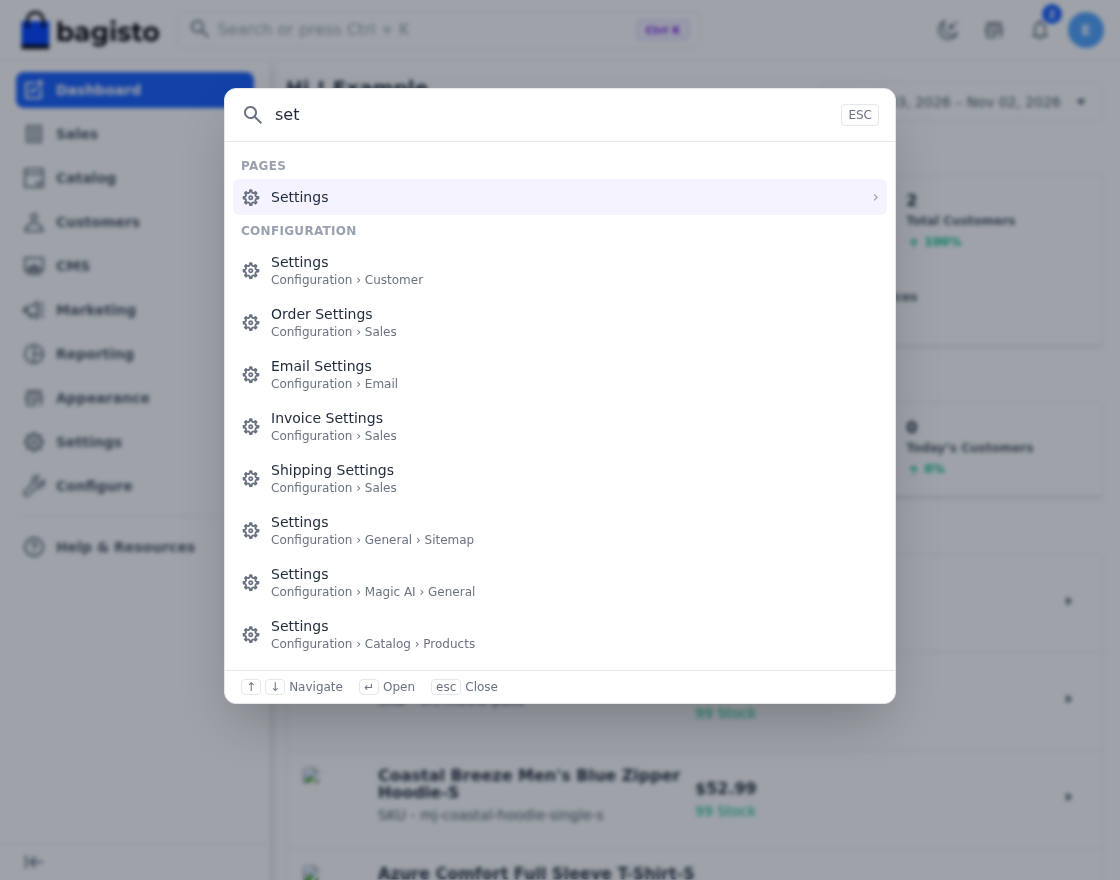
A growing store has a growing admin. Catalog, sales, customers, marketing, content and settings each hold many pages,
and many settings sit several levels deep. Consequently, new team members often struggle to find the right screen.
The command palette solves this in three ways:
-
- It saves time. You reach a page in seconds instead of clicking through several menus.
-
- It helps new staff. Teammates do not need to memorise where every setting lives.
-
- It keeps you focused. Your hands stay on the keyboard while you work.
From Shortcut to Destination
Using it feels natural. First, press Ctrl + K on any admin page. Next, type what you are looking for.
Results appear instantly, sorted by how closely they match your words. Finally, press Enter to open the result you want.
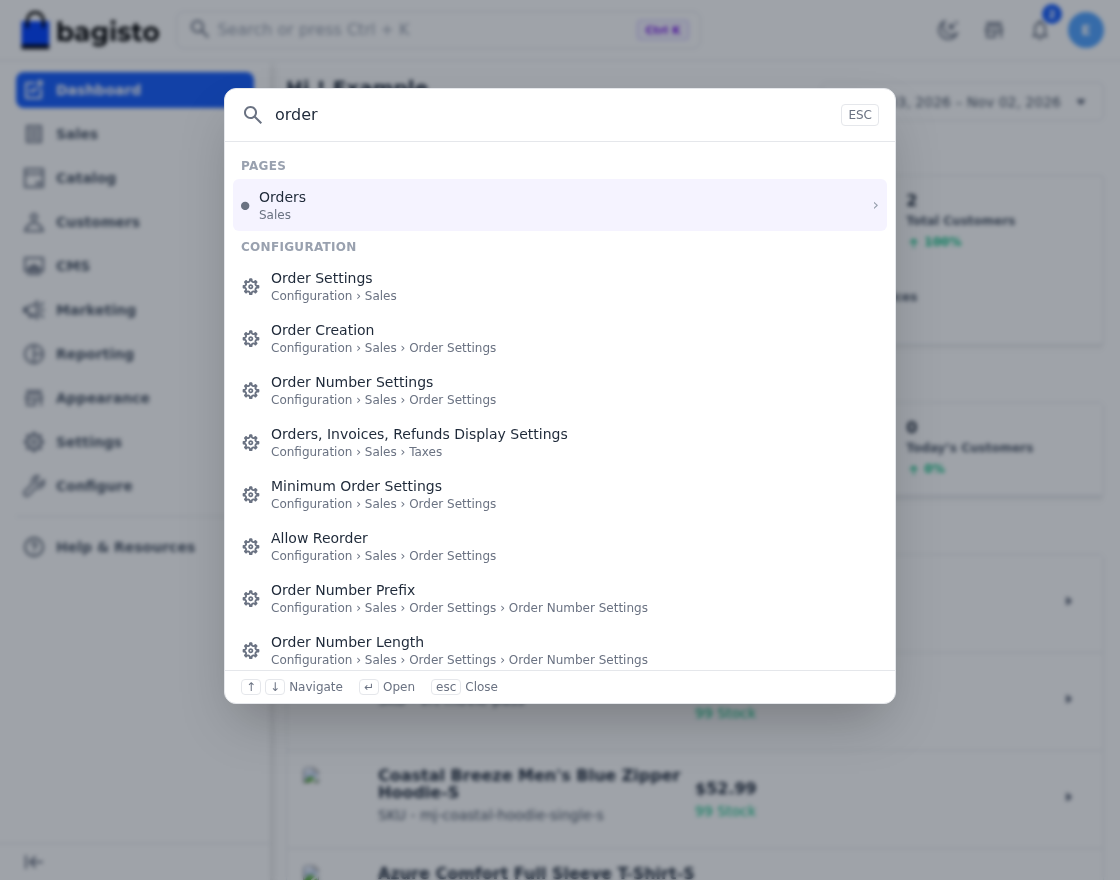
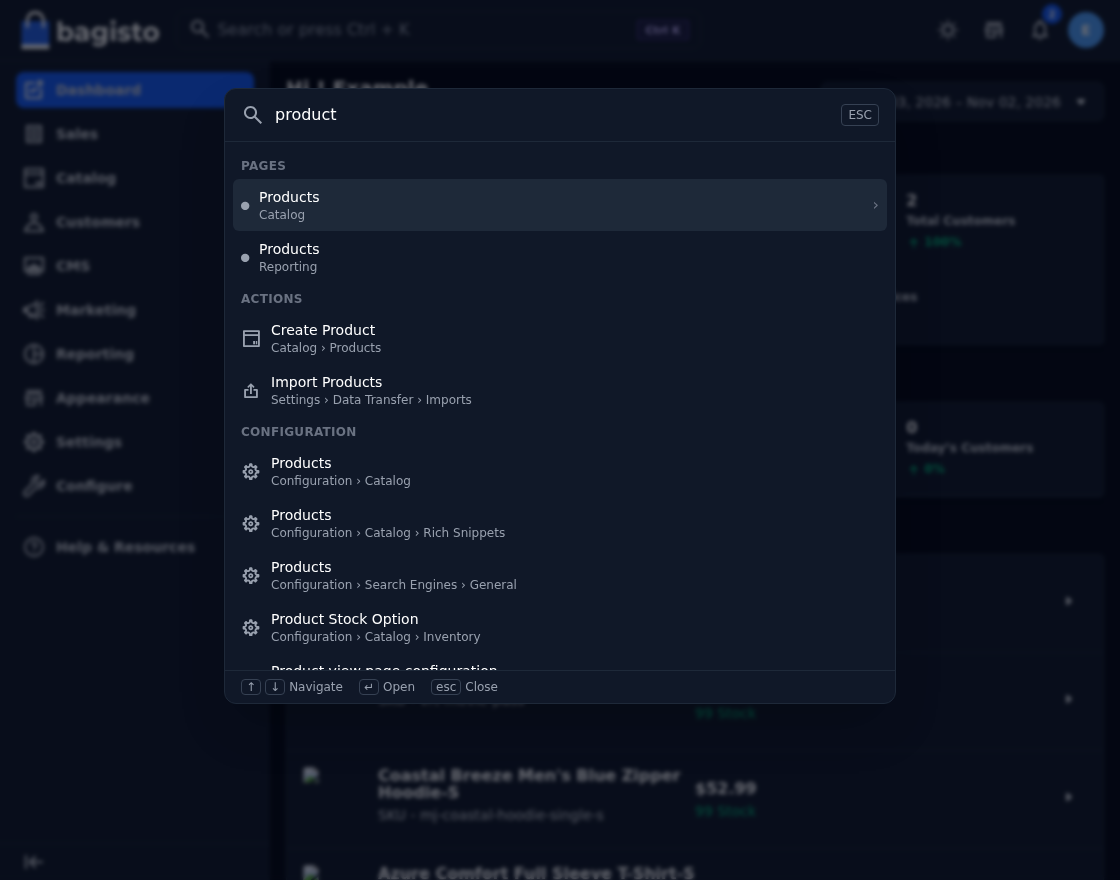
Results are grouped under clear headings such as Pages, Actions and Configuration, so you can scan them quickly.
Use the up and down arrow keys to move through the list, and press Esc to close the palette at any time.
Search by Intent, Not Just Keywords
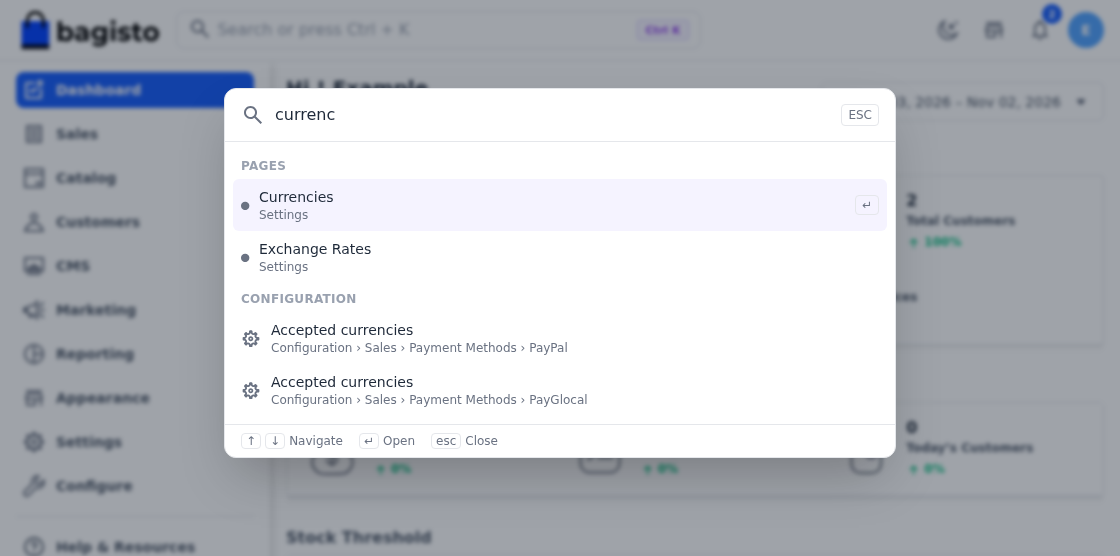
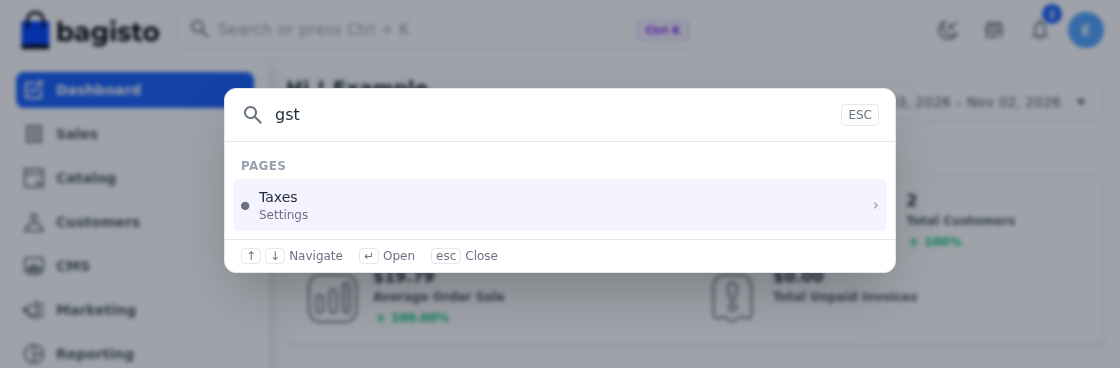
You do not need to know the exact menu name. For example, typing GST or VAT takes you to the tax pages.
Likewise, language opens Locales, money opens Currencies, and smtp opens the email settings.
The palette ranks results by how well they fit. Exact name matches come first, followed by names that start with your word, and then looser matches.
As a result, the page you want usually sits at the top.
Your Store Data, One Search Away
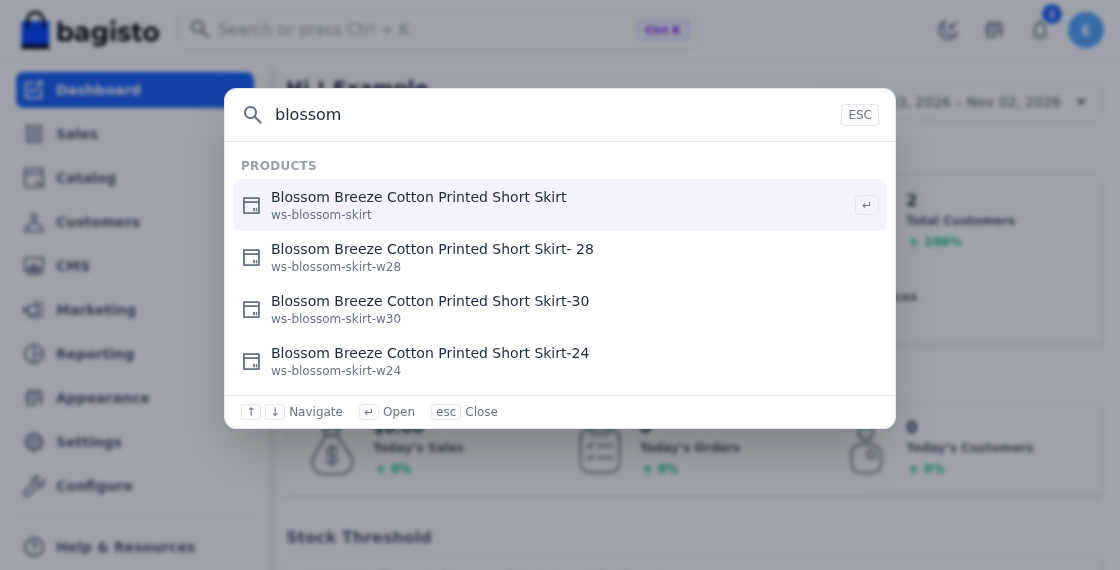
The palette also searches your real store data.
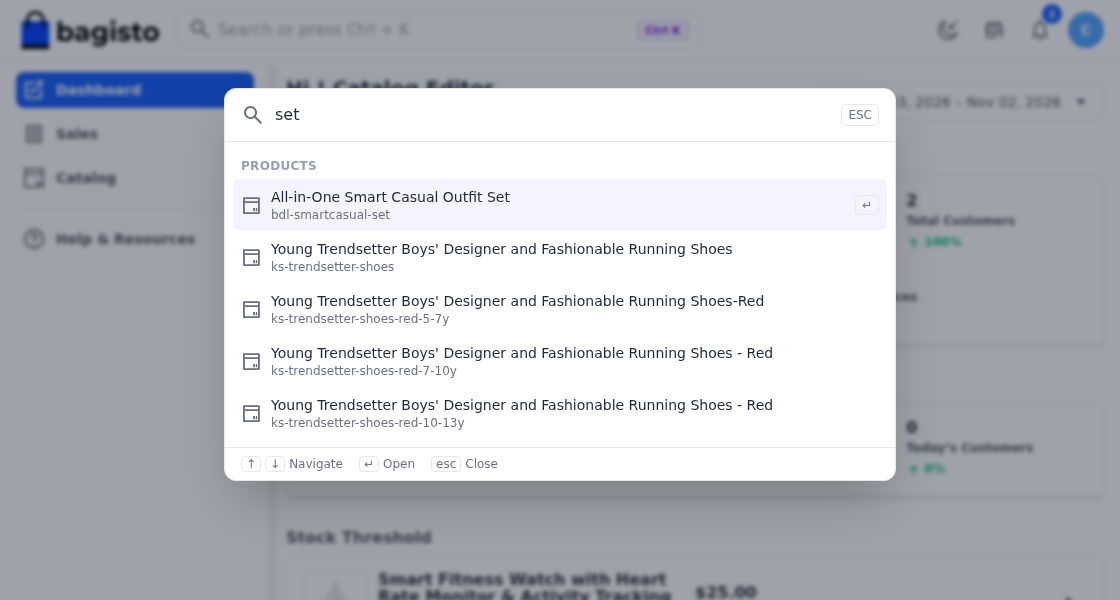
Type a product name or SKU, an order number, a category, or a customer name or email, and matching records appear beside the pages.
Each record shows a small detail underneath, such as the SKU for a product or the email for a customer.
Therefore, you can open an order or edit a product without visiting its list page first.
Browse Step by Step
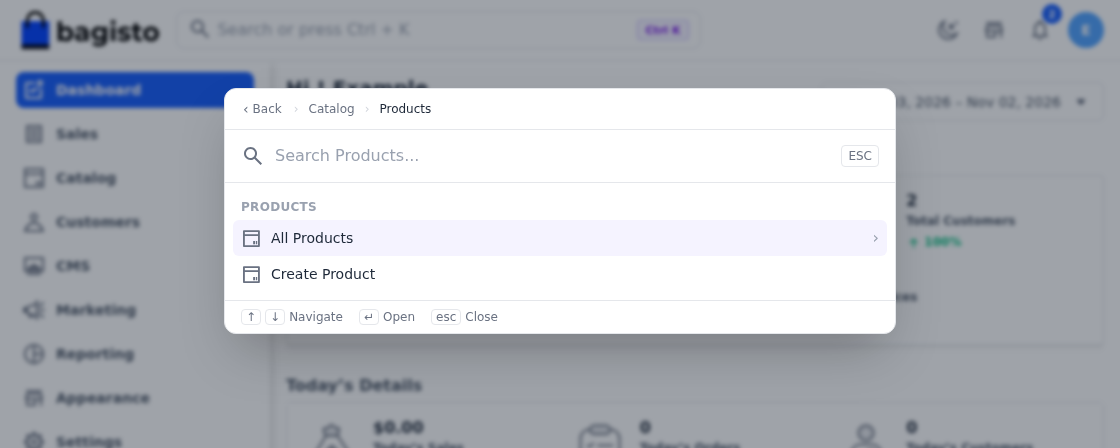
Not sure what to search for? Browse instead. Pick a section, such as Catalog, then choose Products, and then pick a product.
A trail at the top of the box shows where you are, for example Catalog › Products. Use the Back button or the Backspace key to step out again.
Once you pick a record, the palette offers what you can do with it. For a product, that means Edit or Duplicate.
For an order, customer or category, you can View or Edit, depending on what your role allows.
Don’t Navigate. Just Do It.
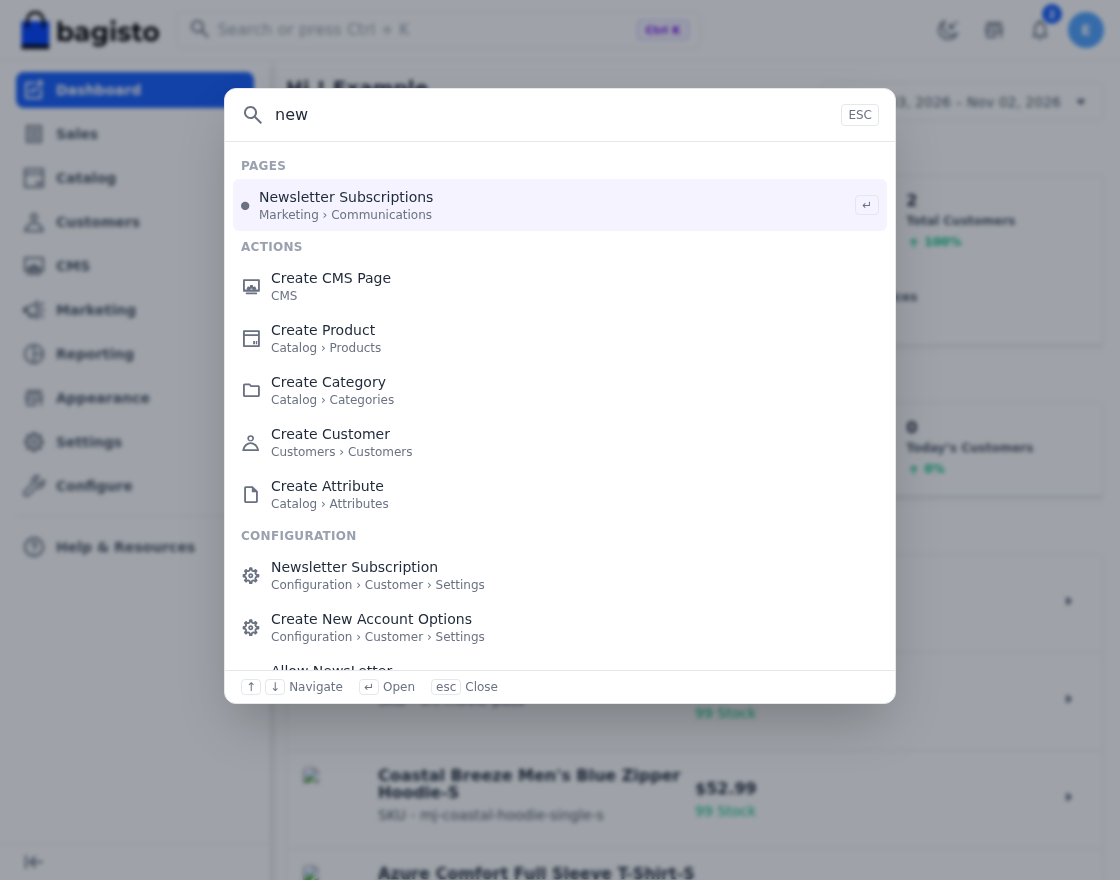
Some results are things you start rather than places you visit. The palette includes ready-made actions for the jobs you repeat most:
-
- Create Product
-
- Create Category
-
- Create Attribute
-
- Create Order
-
- Create Customer
-
- Create CMS Page
-
- Create User
-
- Import Products
Typing the word new or add brings these up right away.
Built for Keyboard-First Workflows
The Bagisto command palette works fully from the keyboard. A short hint bar at the bottom of the box reminds you of the keys.
| Key | What it does |
|---|---|
| Ctrl + K / Cmd + K | Opens the palette from anywhere in the admin |
| Up / Down arrows | Moves through the results |
| Enter | Opens the highlighted result |
| Backspace or Left arrow | Goes back one level |
| Esc | Closes the palette |
The Right Access for Every Role
The palette respects your roles and permissions. A staff member sees only the pages, settings, actions and records their role allows.
For instance, a team member without access to Settings will not see settings in their results.
When you change a role, the palette updates straight away. Additionally, results appear in the admin’s own language,
so every team member searches in the language they work in.
Fast, and Ready for Dark Mode
Speed matters in a search tool. The palette keeps the list of pages and settings ready, so it opens quickly.
Live record searches run only after you pause typing, and each group shows the top few matches, which keeps the list tidy.
It also looks right everywhere. The palette follows your admin theme, so it feels at home in both light and dark mode.
Make the Palette Your Own
Developers can grow the palette with their own modules.
A package can add new actions, extra search words for its pages, and new record types to search.
Because the palette builds its list from the existing admin menu and configuration, new pages from your extensions appear automatically.
If you build custom features, the Bagisto developer documentation is the best place to start.
A Faster Way to Work
The Bagisto Command Palette makes navigating the admin faster, simpler, and more intuitive.
With a single shortcut, your team can search pages, settings, records, and actions, start common tasks, and move through the admin without leaving the keyboard.
Press Ctrl + K (or Cmd + K on Mac) and experience a faster way to work with Bagisto.
Want to see what else is new? Read the Bagisto 2.5 release note.

Be the first to comment.