How to create a custom theme in Bagisto 2.0
Introduction:-
Welcome to our new blog for how to create a custom theme in Bagisto 2.0.
Our improved theme design enhances the look and feel of the store’s interface. By giving users complete control over themes, we enable seamless customization.
This feature allows users to add images, text, and links to any section of their store with ease.
In the below screenshot, this is our default storefront and we are going to change its Content , Carousel, and CSS in our custom theme design.

So firstly, you need to create a package for your new theme, as you want to display your front end.
You just clone the Shop package and modify the changes requested for your new one.
After creating the Store package, update all namespaces accordingly.
Then register the module in composer.json, config/concord.php, and config/app.php so Bagisto can load it properly.
Now run the below command to register the package.
Now you also need to do the vite setup inside your new package in the vite.config.js file as shown below
|
1 2 3 4 5 6 7 8 9 10 11 12 13 14 15 16 17 18 19 20 21 22 23 24 25 26 27 28 29 30 31 32 33 34 35 36 37 38 39 40 41 42 43 44 |
import { defineConfig, loadEnv } from "vite"; import laravel from "laravel-vite-plugin"; import path from "path"; export default defineConfig(({ mode }) => { const envDir = "../../../"; Object.assign(process.env, loadEnv(mode, envDir)); return { build: { emptyOutDir: true, }, envDir, server: { host: process.env.VITE_HOST || "localhost", port: process.env.VITE_PORT || 5173, }, plugins: [ laravel({ hotFile: "../../../public/store-theme1-vite.hot", publicDirectory: "../../../public", buildDirectory: "themes/shop/theme1/build", input: [ "src/Resources/assets/css/app.css", "src/Resources/assets/js/app.js", ], refresh: true, }), ], experimental: { renderBuiltUrl(filename, { hostId, hostType, type }) { if (hostType === "css") { return path.basename(filename); } }, }, }; }); |
To configure the store theme in Bagisto, follow these steps:
- Go to your project’s root directory and locate the Config folder. Inside the Config folder, you will find a file named themes.php
|
1 2 |
-config/themes.php |
Open the themes.php file to examine its contents. This file contains all the necessary information for creating a custom theme in Bagisto.
- Add a new theme entry to the themes array in the themes.php file as shown in the below file.
|
1 2 3 4 5 6 7 8 9 10 11 12 13 14 15 16 17 18 19 20 21 22 23 24 25 26 27 28 29 30 31 32 33 34 35 36 37 38 39 40 41 42 43 44 45 46 47 48 49 50 51 52 53 54 55 56 57 58 59 60 61 62 63 64 65 |
<?php return [ /* |-------------------------------------------------------------------------- | Shop Theme Configuration |-------------------------------------------------------------------------- | | All the configurations are related to the shop themes. | */ 'default' => 'default', 'themes' => [ 'default' => [ 'name' => 'Default', 'assets_path' => 'public/themes/shop/default', 'views_path' => 'resources/themes/default/views', 'vite' => [ 'hot_file' => 'shop-default-vite.hot', 'build_directory' => 'themes/shop/default/build', 'package_assets_directory' => 'src/Resources/assets', ], ], 'theme1' => [ 'name' => 'theme1', 'assets_path' => 'public/themes/shop/store', 'views_path' => 'resources/themes/theme1/views', 'vite' => [ 'hot_file' => 'store-theme1-vite.hot', 'build_directory' => 'themes/shop/store/build', 'package_assets_directory' => 'src/Resources/assets', ], ], ], /* |-------------------------------------------------------------------------- | Admin Theme Configuration |-------------------------------------------------------------------------- | | All the configurations are related to the admin themes. | */ 'admin-default' => 'default', 'admin-themes' => [ 'default' => [ 'name' => 'Default', 'assets_path' => 'public/themes/admin/default', 'views_path' => 'resources/admin-themes/default/views', 'vite' => [ 'hot_file' => 'admin-default-vite.hot', 'build_directory' => 'themes/admin/default/build', 'package_assets_directory' => 'src/Resources/assets', ], ], ], ]; |
Now install the Node modules inside the newly created Store package by running the command below.
|
1 2 3 |
npm install npm run dev npm run build |
So after hitting these commands node modules get installed and the build is also been created as shown in the below screenshot.

Now you just need to override the view files inside your new package.
So copy the file from your old package and paste it into the new package, following the same path structure. Like this
|
1 |
package -> src -> Store -> Providers->StoreServiceProvider.php |
|
1 2 3 4 |
$this->publishes([ __DIR__ . '/../Resources/views' => resource_path('themes/theme1/views'), ]); |
Now load the views from the package and apply the below code in the boot method inside the service provider.
|
1 |
$this->loadViewsFrom(__DIR__ . '/../Resources/views', 'store'); |
So once the provider entry is successfully added, please publish your override files inside the core files with the help of the command
|
1 |
php artisan vendor:publish --force |
Now you have the option to select the themes from the admin end inside the channel section. Just change the theme.
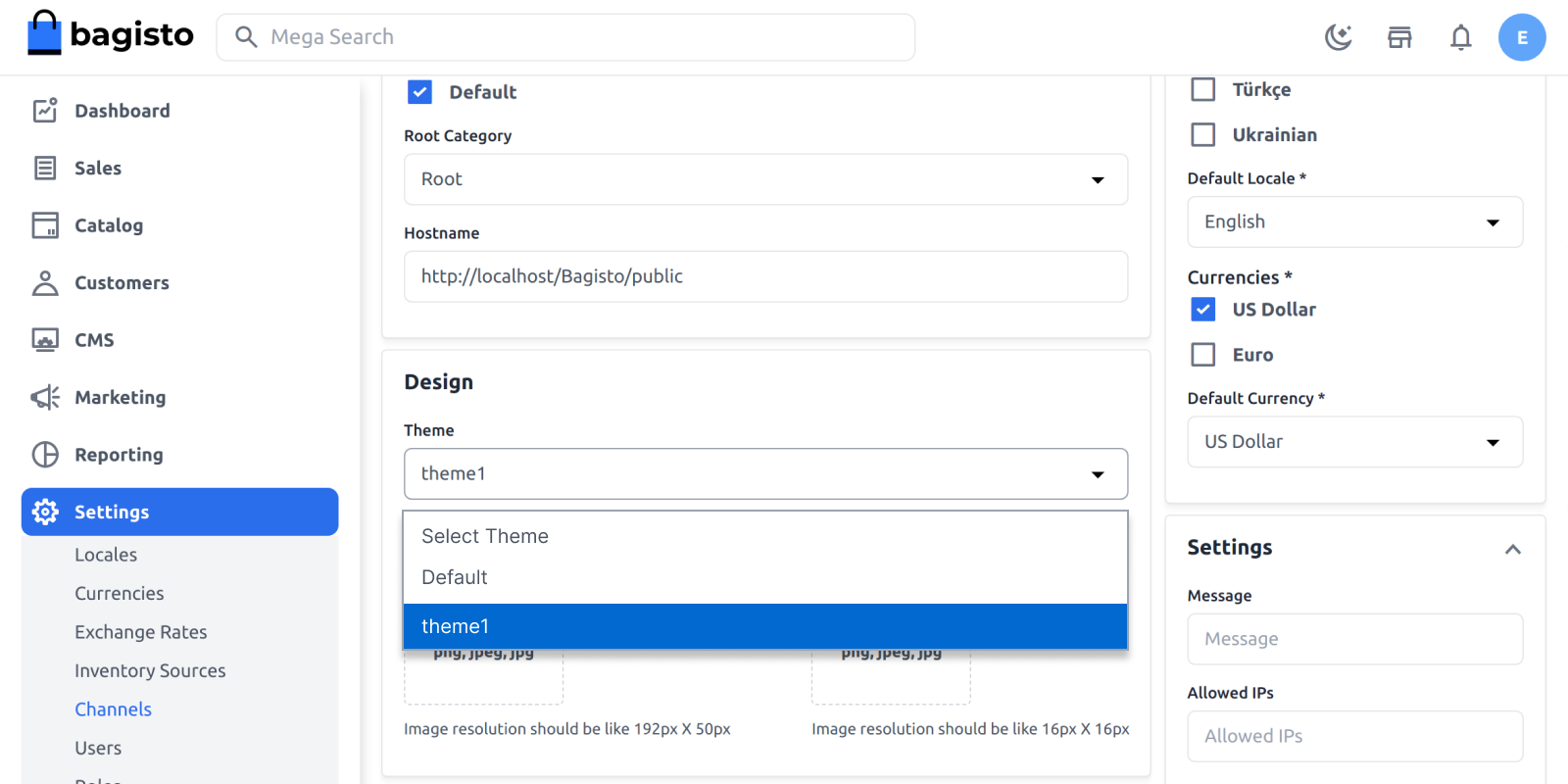
- After changing the theme from the channel section, you can add your theme content (e.g., product carousel, static content, slider carousel, category carousel, footer links, service container) to your theme.
So After completing all the steps, we have successfully updated our new theme on the front of our website.
And we have updated some of the changes in our blade file and changed the CSS, Carousel, and Content and it will look something like this.
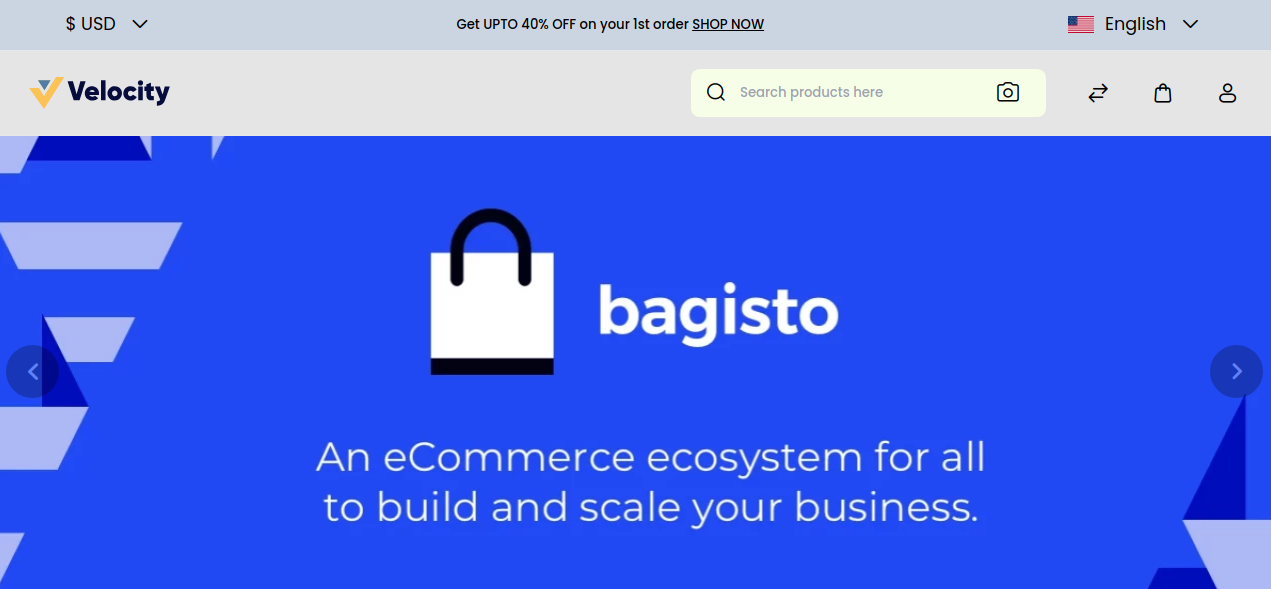
By following these steps, you can create a customized theme in Bagisto 2.0, which will enhance the visual appeal of your e-commerce store.
So I hope this documentation will help you create or customize themes in Bagisto 2.0.
Thanks for reading! Drop your questions in the comments, Hire Laravel Developers for custom projects, and explore our extensions.


Be the first to comment.