How to Override view files in Bagisto
Override View Files in Bagisto is the recommended way to customize the default storefront without modifying the core files.
Customizing the default storefront often requires changes to existing view files.
However, editing the core files can make future upgrades difficult and may overwrite your customizations.
By overriding view files through a custom module, you can keep your changes organized, maintainable, and upgrade-safe.
In this guide, we’ll walk you through the complete process of overriding a Bagisto view file step by step.
Implementation Steps to Override View Files in Bagisto
In this tutorial, we’ll add a new field to the storefront login page shown below.
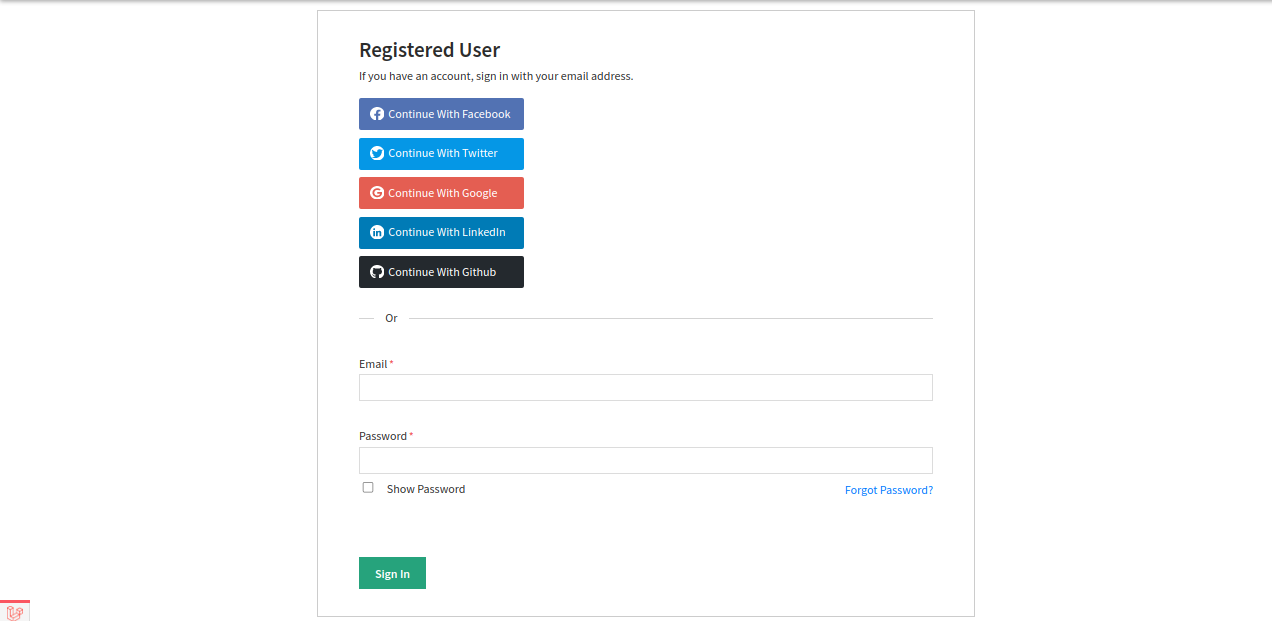
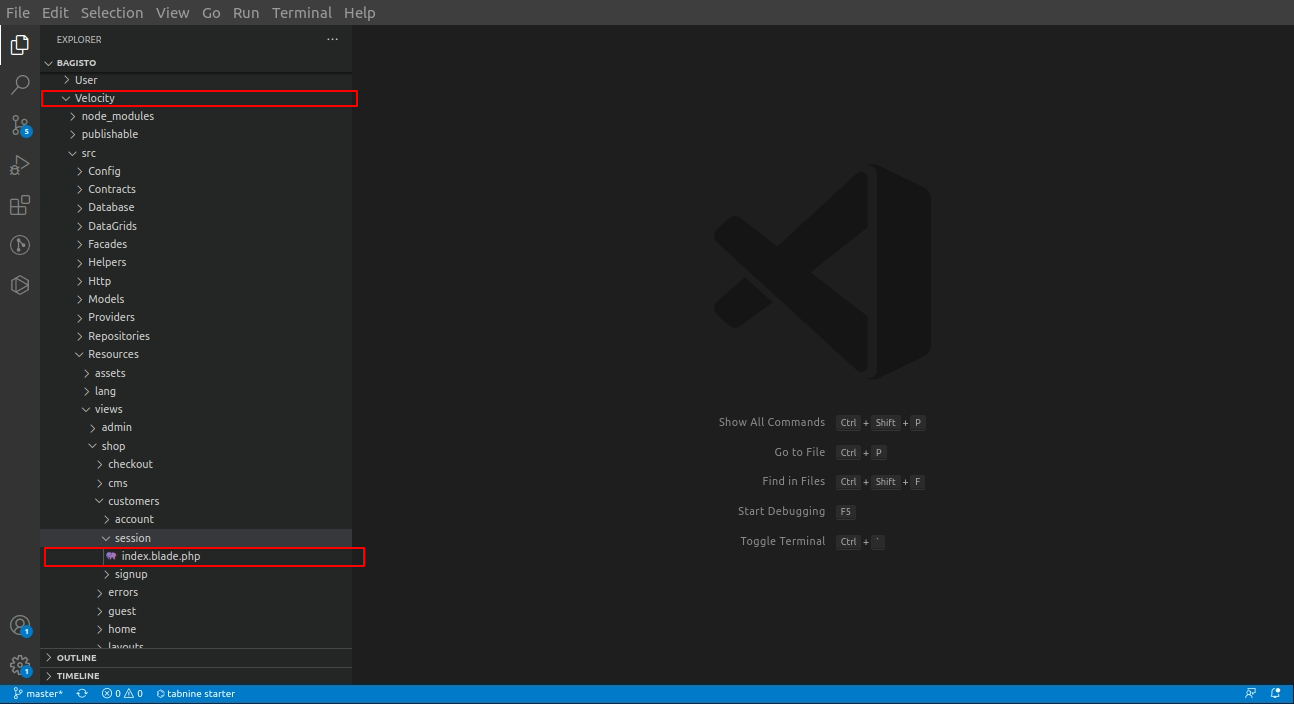
Step 1: Locate the View File
First, locate the view file that you want to override. You can find its location in the project directory, as shown in the screenshot below.
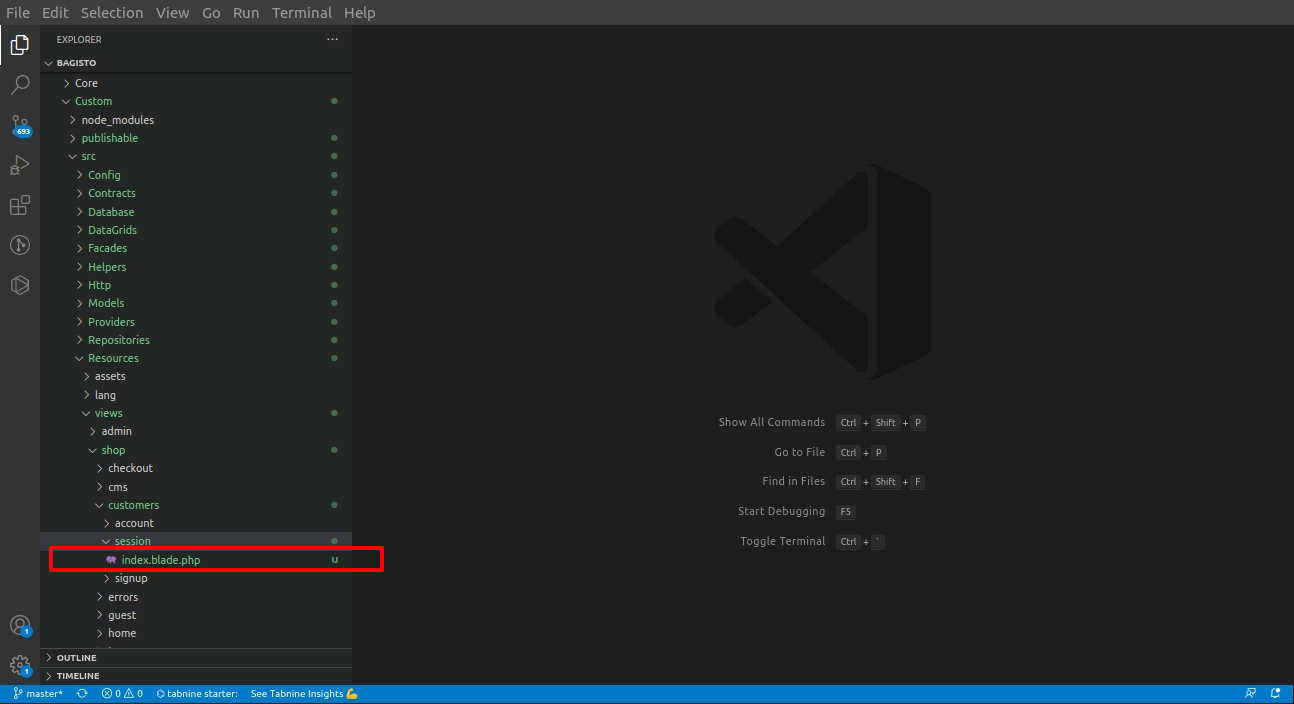
Step 2: Copy the View File to Your Custom Module
Copy the view file and place it inside your custom module while keeping the same directory structure and file name.
After copying the file, make the required changes, as shown in the screenshot below.
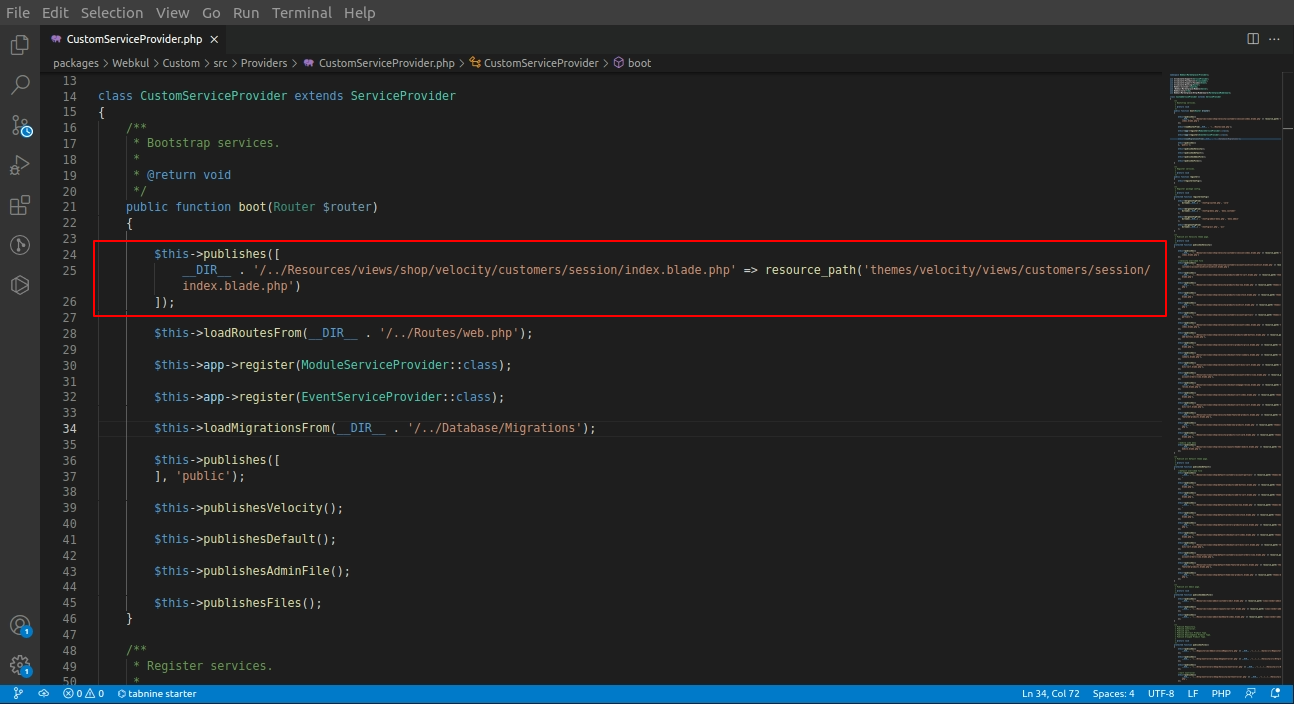
Step 3: Publish the View File from the Service Provider
Next, register the view file in your module’s Service Provider by adding the following code:
|
1 2 3 4 5 6 7 8 9 10 11 12 |
/** * Bootstrap services. * * @return void */ public function boot() { $this->publishes([ __DIR__ . '/../Resources/views/shop/velocity/customers/session/index.blade.php' => resource_path('themes/velocity/views/customers/session/index.blade.php'), ]); } |
Step 4: Publish the Changes
Run the following Artisan command:
|
1 |
php artisan vendor:publish --force |
When prompted, enter 0 and press Enter to publish all assets and configurations.
Result
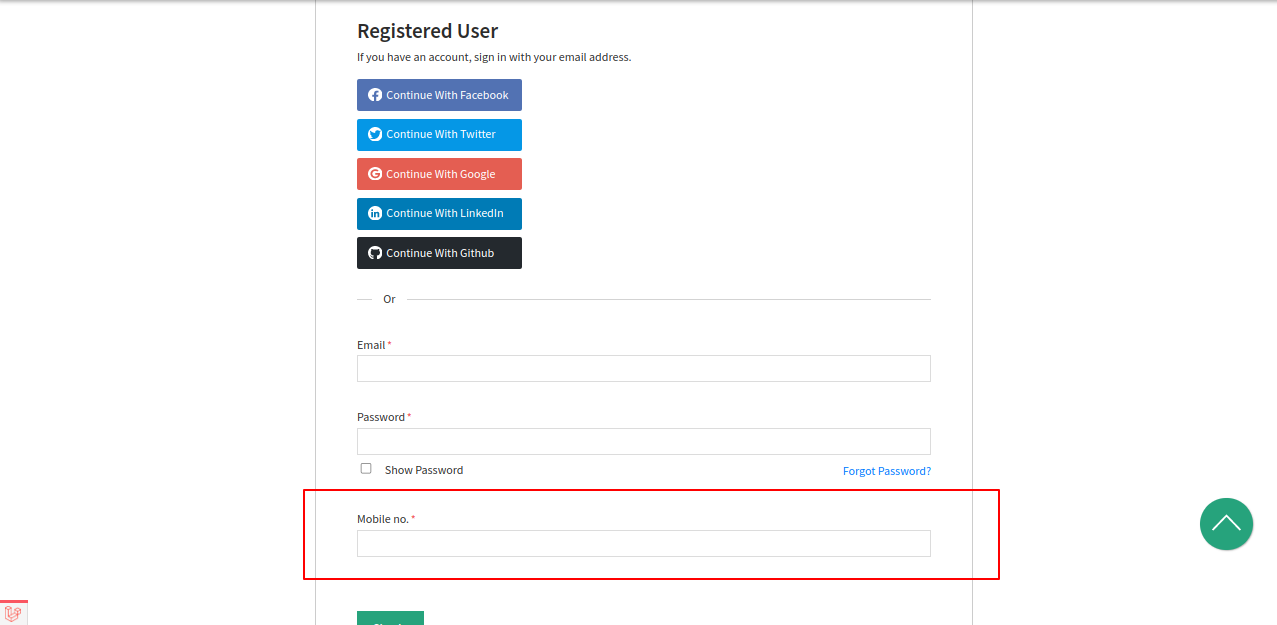
After publishing the changes, you can see the updated login page with the newly added field, as shown in the screenshot below.
Final Thoughts to Override view files in Bagisto
Override View Files Bagisto recommends the way to customize the Bagisto storefront without modifying the core files.
It keeps your customizations organized and prevents them from being overwritten.
We regularly publish new Bagisto tutorials and development guides, so be sure to check our blog for the latest updates.
If you have any questions or need assistance, feel free to contact us at [email protected] or raise a ticket through our HelpDesk system.


Be the first to comment.