Selling services online can be tough because many platforms primarily focus on physical products.
This system makes it easier by letting you create and manage non physical services in an organized manner.
Creating a Virtual Product in Bagisto allows you to easily set up services such as memberships, subscriptions, and warranties.
This way, you can grow your store to include more than just physical items without making things too complicated.
What is Virtual Product in Bagisto 2.0
A Virtual Product is something that you can’t touch or hold, and it doesn’t need to be shipped to you.
It is used to sell services or intangible offerings like memberships or support plans.
Unlike products you can download, it doesn’t come with any files to download.
It stands for a service that is provided online without any physical delivery.
Steps To Create Virtual Product In Bagisto 2.0
To create a virtual product, navigate to your admin panel and follow the steps below.
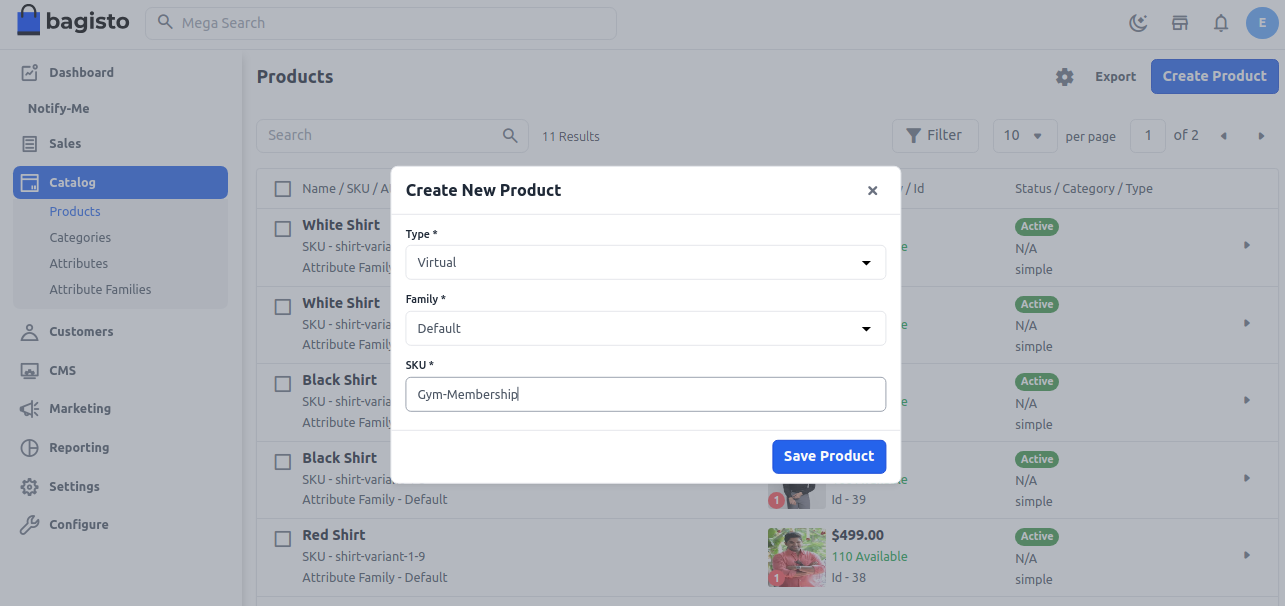

Once saved, you will be redirected to the product configuration page with additional settings.
General Settings
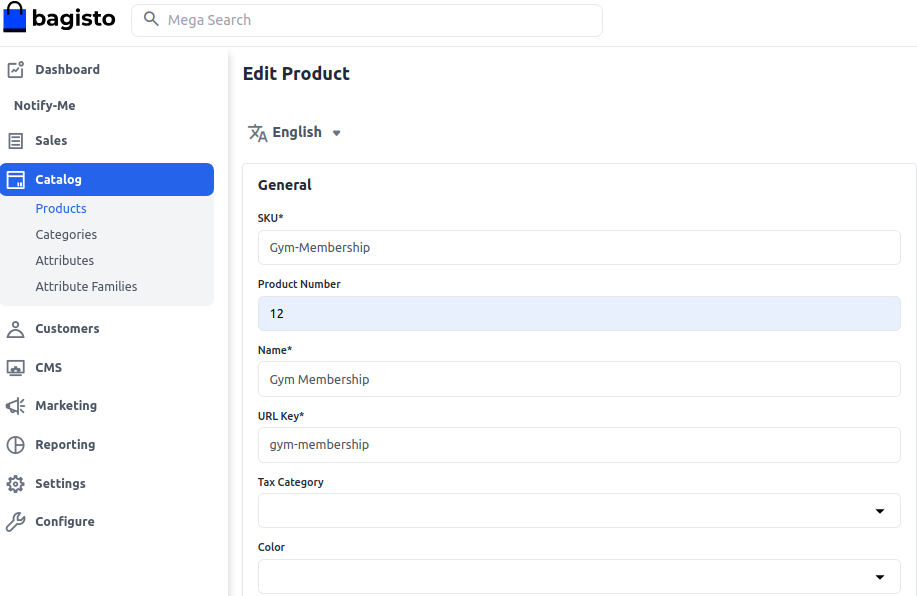
Product Information
This URL key becomes part of the product link, such as /products/fitness/fitness-membership.
Tax Category
Select the appropriate tax category from the dropdown list.
This ensures correct tax calculation for the virtual product.

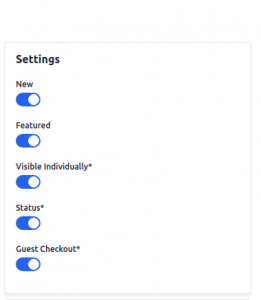
Product Visibility Options
Enable New to highlight the product as new.
Use Featured if you want to display it in the featured products section.
Turn on Visible Individually so the product appears on the storefront.
Turn on Status to activate the product on your store.
Guest Checkout
Enable this option if you want guest users to purchase the product.
This is useful for quick and frictionless checkout experiences.

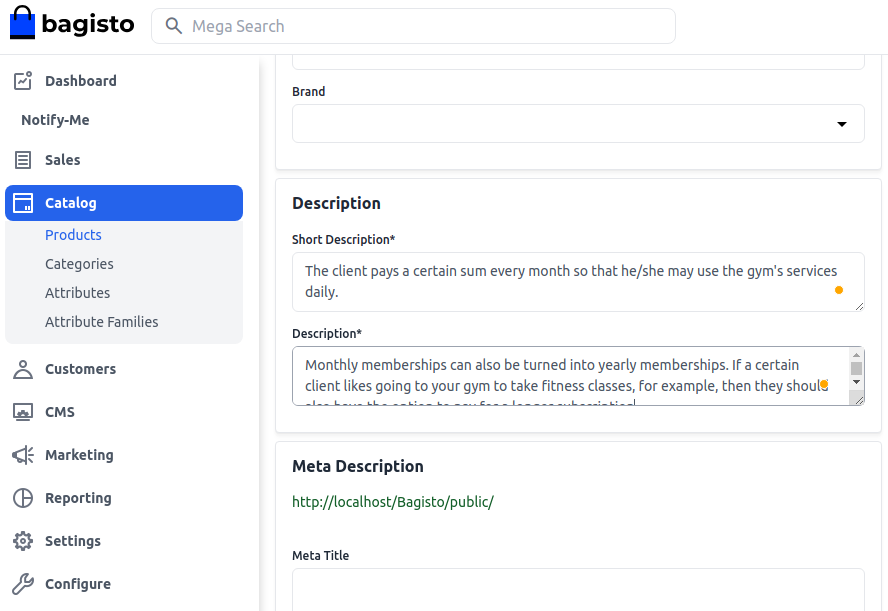
Description Settings
Short Description
Add a summary highlighting the key features of the product.
This appears on product listing pages for quick visibility.
Detailed Description
Provide complete product details, including features and benefits.
This helps customers understand the offering clearly before purchase.

SEO Meta Information
Meta Title
Enter a clear and relevant title for search engine indexing.
This helps improve product visibility in search results.
Meta Keywords
Add relevant keywords related to your product.
These improve discoverability for targeted search queries.
Meta Description
Write a concise description for search engine listings.
It helps improve click through rates from search results.


Images
Click on Add Images to upload product visuals.
You can upload multiple images to better represent the product.


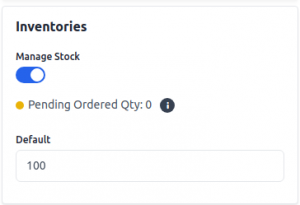
Inventory
Set the available quantity of the virtual product.
By default, the stock is set to 0 until updated.
Even for virtual products, inventory helps track availability.
It ensures proper management of limited services or slots.

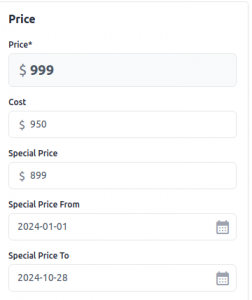
Price
Enter the product price along with the cost and special price.
You can also set a special price duration for promotional offers.
This helps you run time based discounts effectively.
It improves sales during campaigns and seasonal offers.

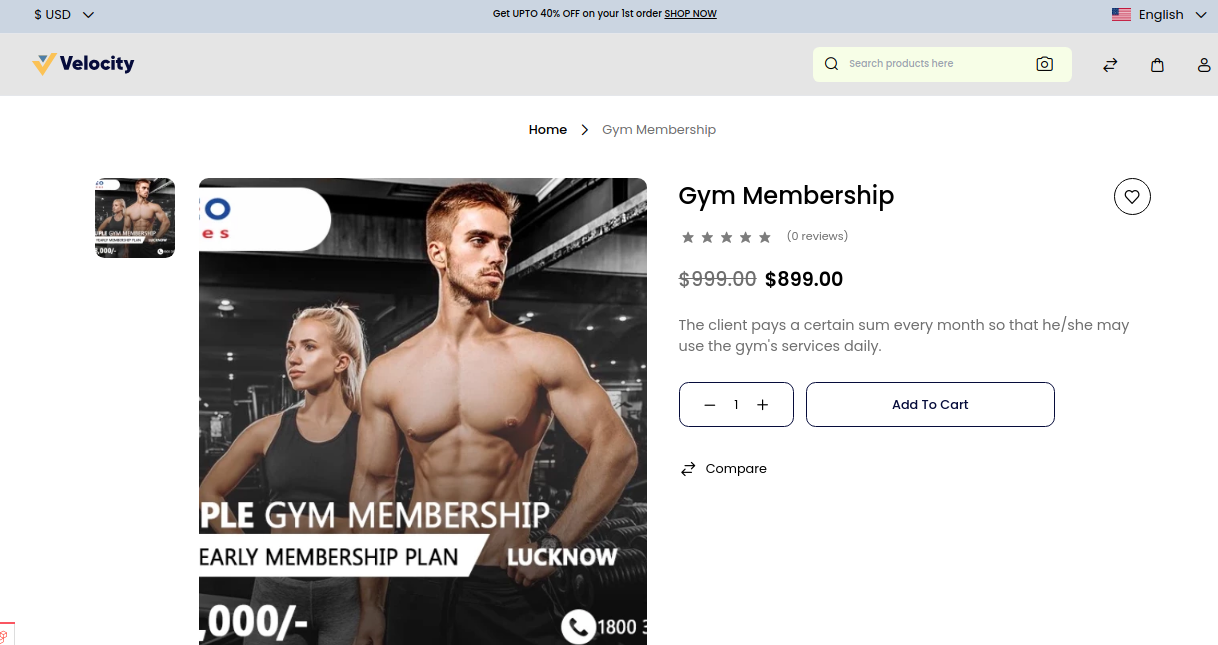
Product on Front End
Once configured, the product will appear on your storefront.
Customers can view details, images, and pricing before purchase.
All enabled settings will reflect directly on the product page.
This ensures a smooth and structured buying experience.

Final Thoughts
Creating a virtual product in Bagisto 2.0 is a simple and structured process.
It allows you to sell services, memberships, and digital offerings efficiently.
With proper configuration of settings, SEO, and pricing, you can improve visibility and sales.
Thanks for reading this blog. Please comment below if you have any questions.
Also, you can Hire Laravel Developers for your custom Laravel projects.
Hope it will be helpful for you, or if you have any issues, feel free to raise a ticket at our Support Portal