If you want to show your website in various languages, you have to set up locales in Bagisto.
A multilingual store lets customers shop in their preferred language, improving their overall experience.
Bagisto has handy localization tools that make it simple to build a multilingual online store by adding and managing different languages.
This guide explains to you through step-by-step configuration of locale settings in the Bagisto dmin panel dashboard easily.
Step 1: Create a New Locale
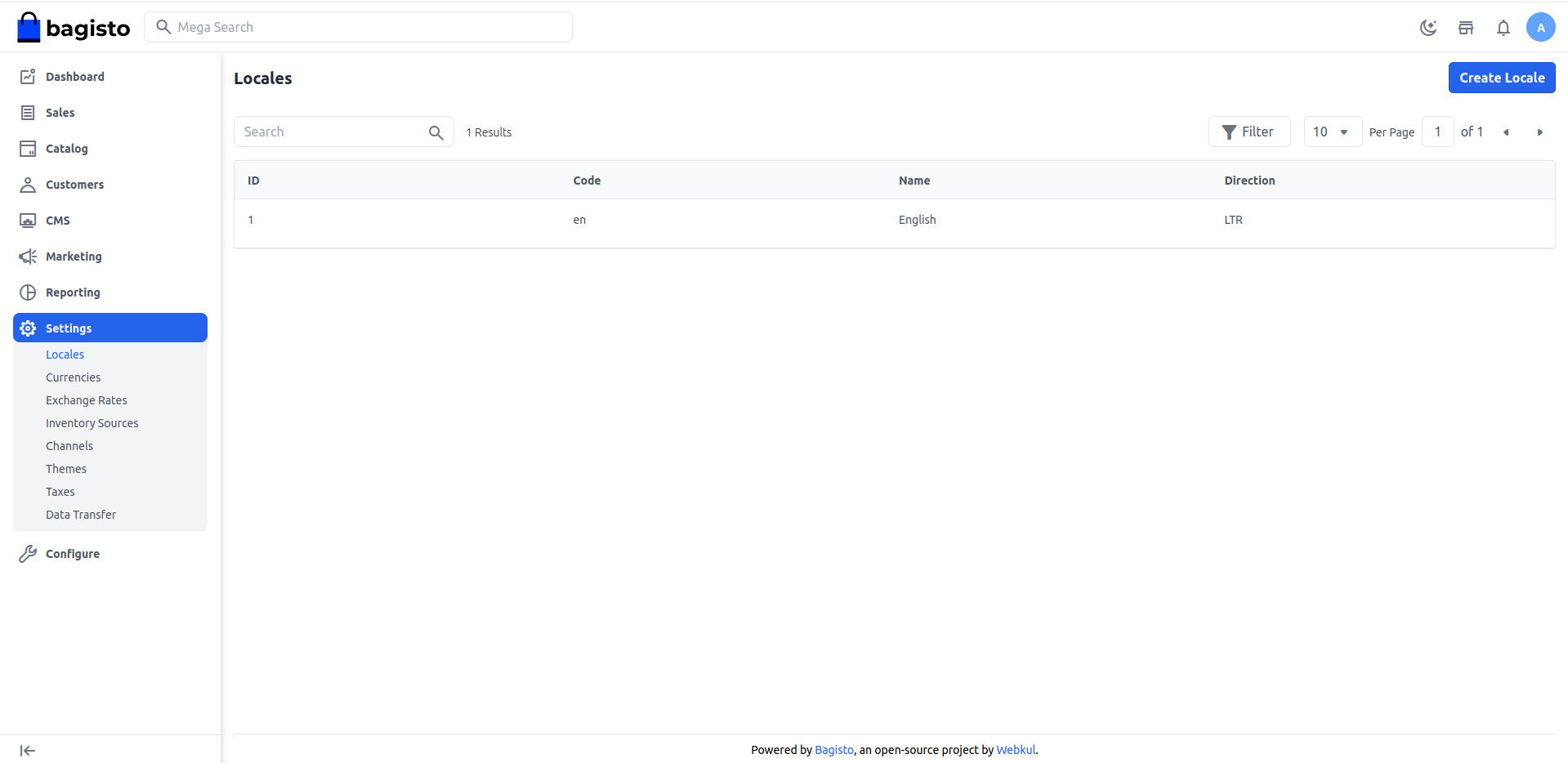
Log in to your Bagisto Admin Panel and navigate to Settings → Locales → Create Locale as shown below.
This option allows you to add a new language to your store.

Step 2: Enter Locale Details
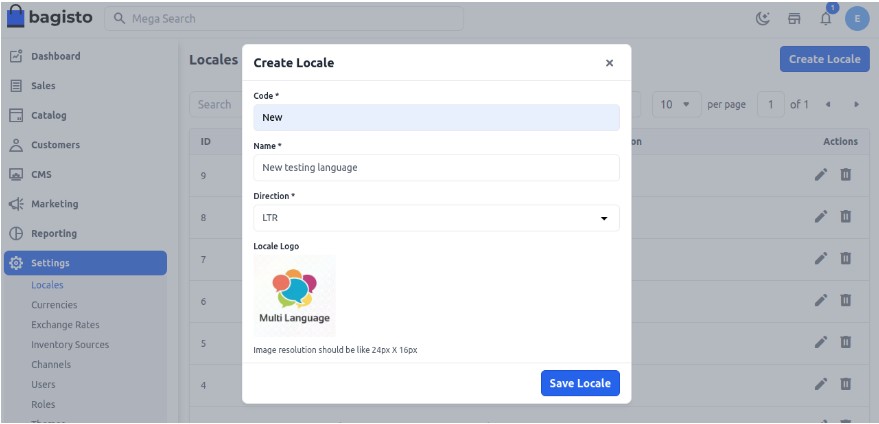
Fill in the following fields:
1. Code
Each language has a unique code.
Examples:
- en – English
- fr – French
- de – German
- ar – Arabic
2. Name
Enter the name of the language you want to add.
Example: English, French, Arabic, Spanish, etc.
3. Direction
Select the text direction used by the language:
- LTR (Left to Right) – Used by English, French, German, and most languages.
- RTL (Right to Left) – Used by Arabic, Hebrew, and similar languages.
4. Locale Logo
Upload a logo or flag image that represents the language.
After filling in all the required details, click Save Locale.
Now Save Locale as shown in the below image.

Step 3: Verify the Locale
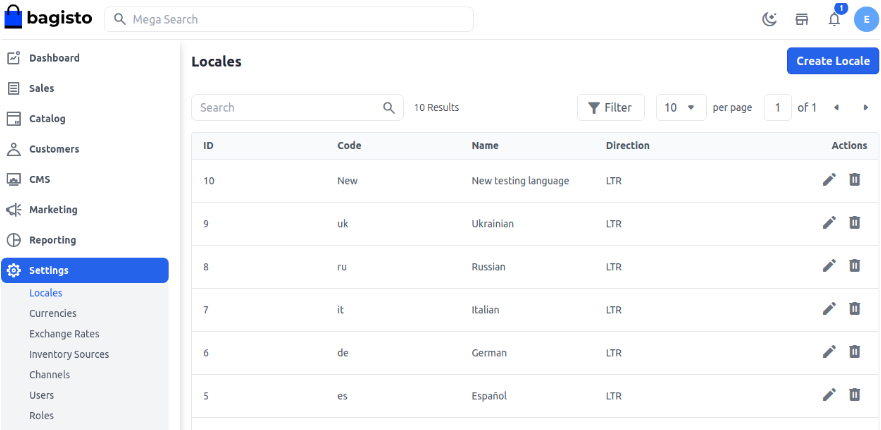
Once the locale is saved, it will appear in the Locale list.
You can now see the newly created language in your Bagisto store

Step 4: Enable the Locale in a Channel
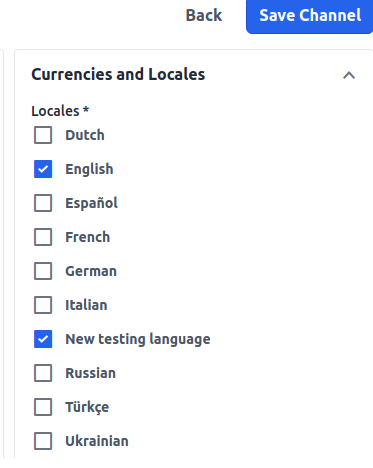
To make the language available on your storefront, go to Settings → Channels. Open the channel you want to configure.
Under the Currencies and Locales section:
- Select the newly created locale.
- Enable it for the channel.
- Click Save Channel.
Your new language is now active and available for use in the selected channel.

By following these steps, you can easily set up locales in Bagisto and create a multilingual store for your customers.
Thanks for reading! If you have any questions, feel free to leave a comment below. Also, you can Hire Laravel Developers for your custom Laravel projects.
Need help with your Laravel or Bagisto project? Our team is here to assist. For any issues, you can also raise a ticket through our Support Portal.