Building a native mobile app usually takes time and effort. However, with Next.js and BagistoNative, the process becomes simple.
Using BagistoNative, you can turn your existing Next.js project into a real native iOS and Android app.
You keep one codebase and share it across web and mobile.
This guide walks you through everything step by step. By the end, your app will run on the web, iOS, and Android.
Why Use BagistoNative with Next.js?
BagistoNative Framework connects your Next.js app to native mobile features.
With it, you can:
- Build iOS and Android apps from one codebase
- Detect native mobile environments
- Trigger native actions like toast and cart updates
- Share UI logic across platforms
- Ship faster with fewer bugs
As a result, development becomes faster and more scalable.
Prerequisites
Before starting, make sure you have:
- Node.js 18 or higher
- pnpm installed
- A Next.js project (new or existing)
- Basic React knowledge
Check the detail documetaion of setting up BagistoNative with next.js
Project Setup
Create or Use a Next.js Project
First, create a new Next.js project:
|
1 2 3 |
npx create-next-app@latest my-native-mobile-app cd my-native-mobile-app |
You can also use an existing Next.js project.
We provide a fast, scalable, and production-ready storefront that you can use directly or customize to fit your needs. Check the demo here.
Install BagistoNative Libraries
Next, open your package.json file and add:
|
1 2 |
npm i @bagisto-native/core npm i @bagisto-native/react |
Then install the dependencies:
|
1 2 |
pnpm install |
Make Your Next.js App Native Mobile Ready
Add Environment Variables
If your app uses APIs or special configuration, add them to:
|
1 2 |
.env.local |
This keeps your settings secure and organized.
Load Hotwire for Native Features
Now, open your main layout file, such as app/layout.tsx. Add the following script:
|
1 2 3 4 5 |
<Script id="hotwire-loader" strategy="beforeInteractive" src="/hotwire/bundle.js" /> |
This script allows communication between your Next.js app and the native mobile shell.
Detect Native Mobile App Environment
BagistoNative framework provides helpers to detect if your app is running inside a native mobile app.
Client-Side Detection
|
1 2 3 4 5 6 |
import { isTurboNativeUserAgent } from "@bagisto-native/core"; if (isTurboNativeUserAgent()) { // Show native mobile UI } |
This is useful when you want to change layouts or behavior for mobile users.
Server-Side Detection
|
1 2 3 4 5 6 7 8 9 |
import { headers } from "next/headers"; import { isTurboNativeUserAgent } from "@bagisto-native/core"; export default async function IsTurboNativeUserAgentFromServerComponent() { const headersList = await headers(); const userAgent = headersList.get("user-agent") || "unknown"; return isTurboNativeUserAgent(userAgent); } |
This ensures correct rendering during server-side rendering.
Add Native Mobile Features Easily
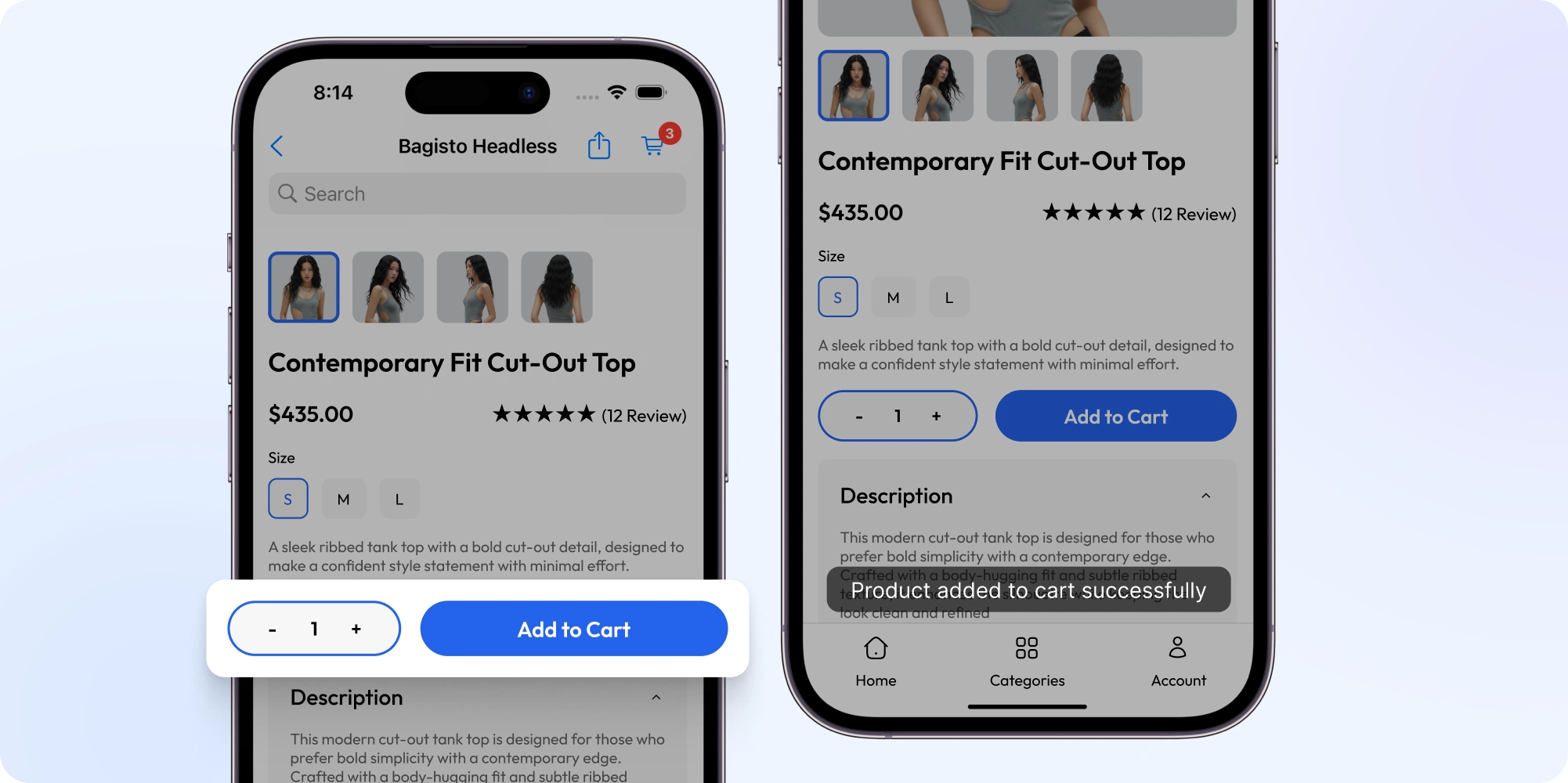
BagistoNative allows your Next.js app to trigger native actions.
Update Cart Count in Native App
|
1 2 3 4 |
import { triggerCartCountValue } from "@bagisto-native/core"; triggerCartCountValue(cartCount); |
This sends the cart count directly to the native mobile app.
Show Native Toast Messages
|
1 2 3 4 |
import { triggerHotwireNativeToast } from "@bagisto-native/core"; triggerHotwireNativeToast("Item added to cart!"); |
This displays a native toast notification.

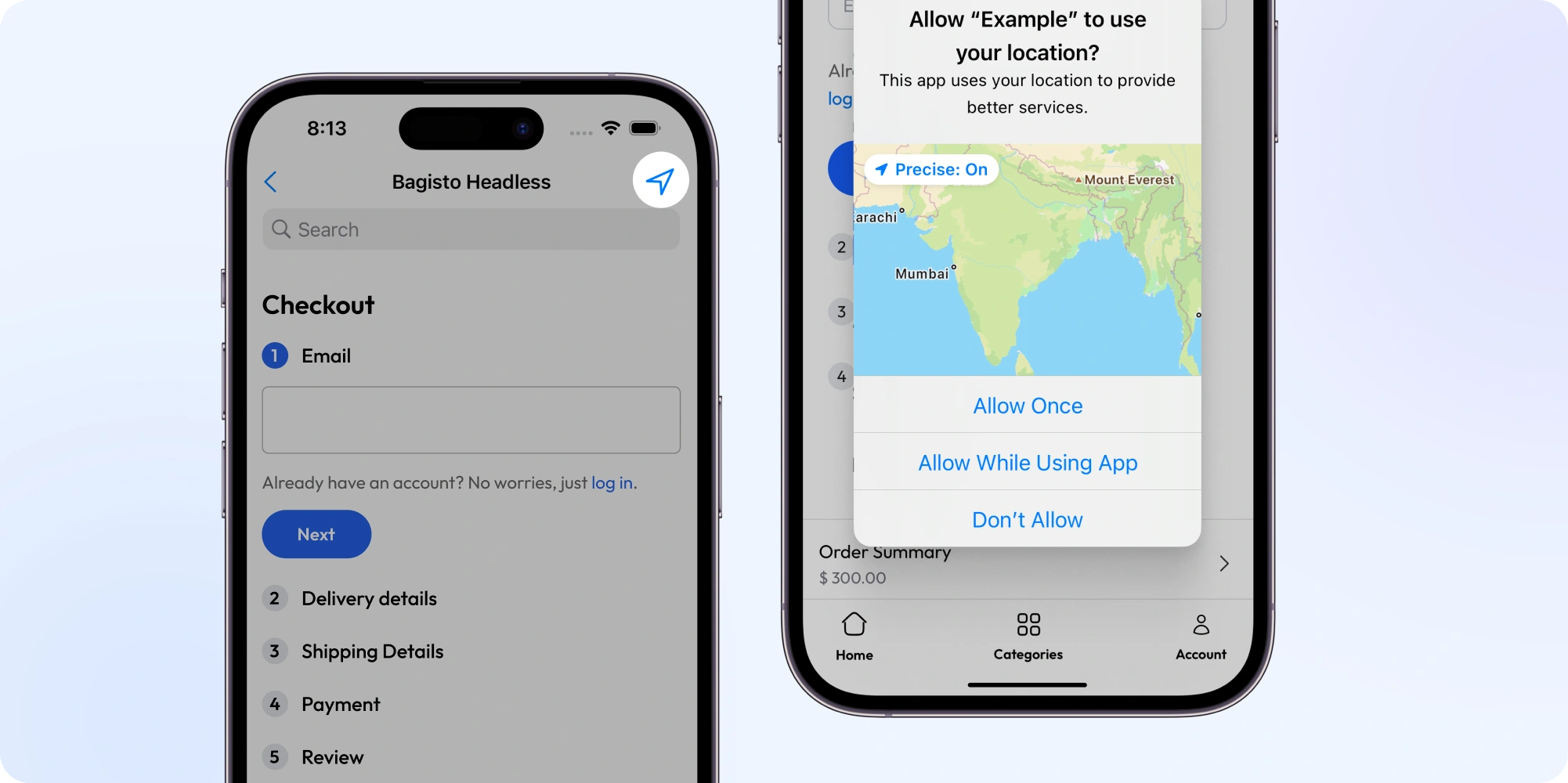
Share User Location (Full Component)
|
1 2 3 4 5 6 7 8 9 10 11 12 13 14 15 |
import React from "react"; import { triggerHotwireNativeLocationShare } from "@bagisto-native/core"; export default function LocationShareButton() { const handleShareLocation = () => { // This will ask the native app to share the user's location triggerHotwireNativeLocationShare(); }; return ( <button onClick={handleShareLocation} style={{padding: 12, background: '#0070f3', color: '#fff', borderRadius: 6}}> Share My Location </button> ); } |
When tapped inside the native app, this opens the device’s location-sharing dialog.
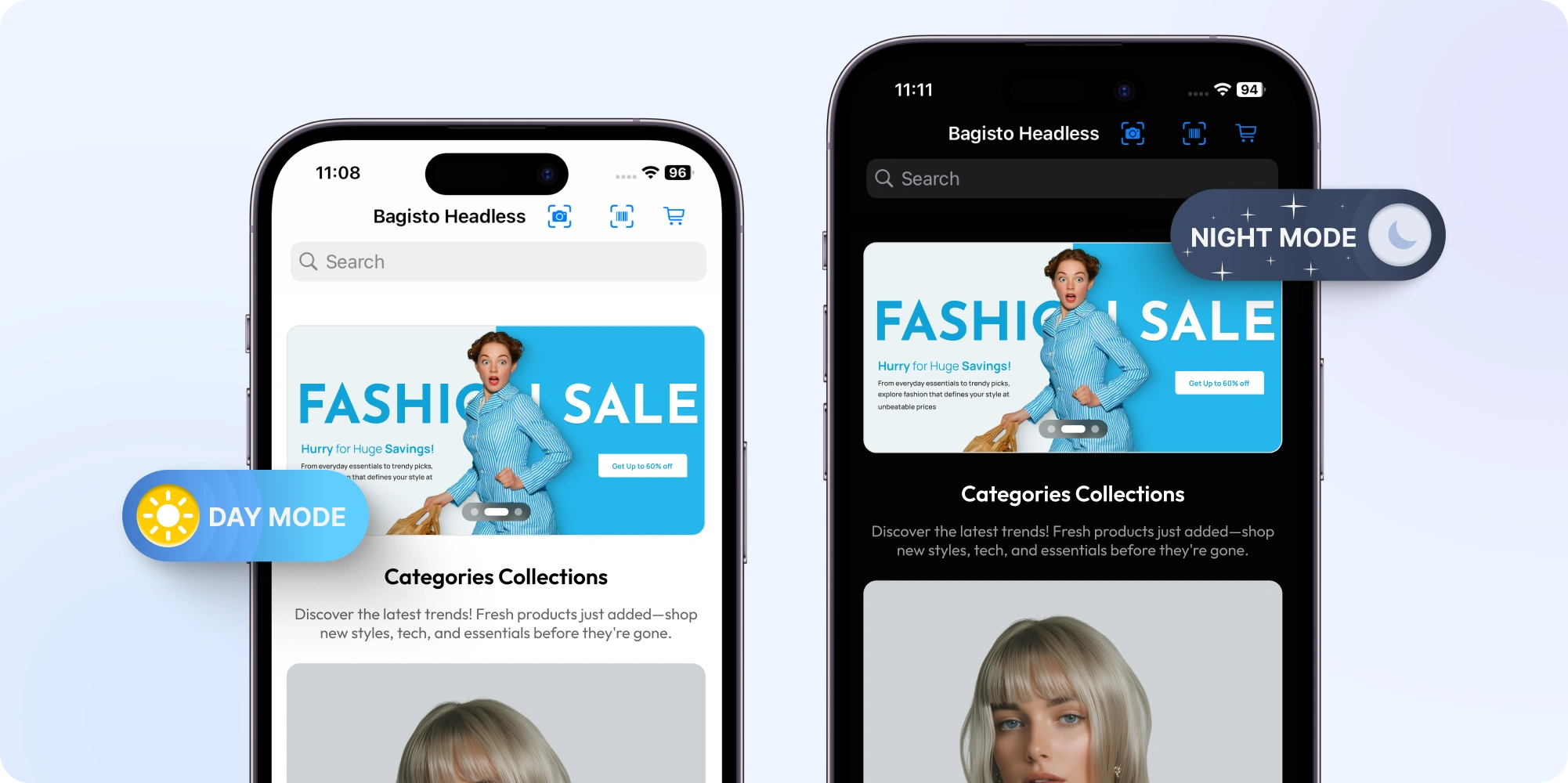
Light and Dark Theme Toggle
|
1 2 3 4 5 6 7 8 9 10 11 12 13 14 15 16 17 18 |
import React, { useState, useEffect } from "react"; export default function ThemeModeToggle() { const [theme, setTheme] = useState("light"); useEffect(() => { document.body.className = theme; }, [theme]); return ( <button onClick={() => setTheme(theme === "light" ? "dark" : "light")} style={{padding: 12, background: '#222', color: '#fff', borderRadius: 6, marginLeft: 8}} > Switch to {theme === "light" ? "Dark" : "Light"} Mode </button> ); } |
This works for both web and native mobile apps.
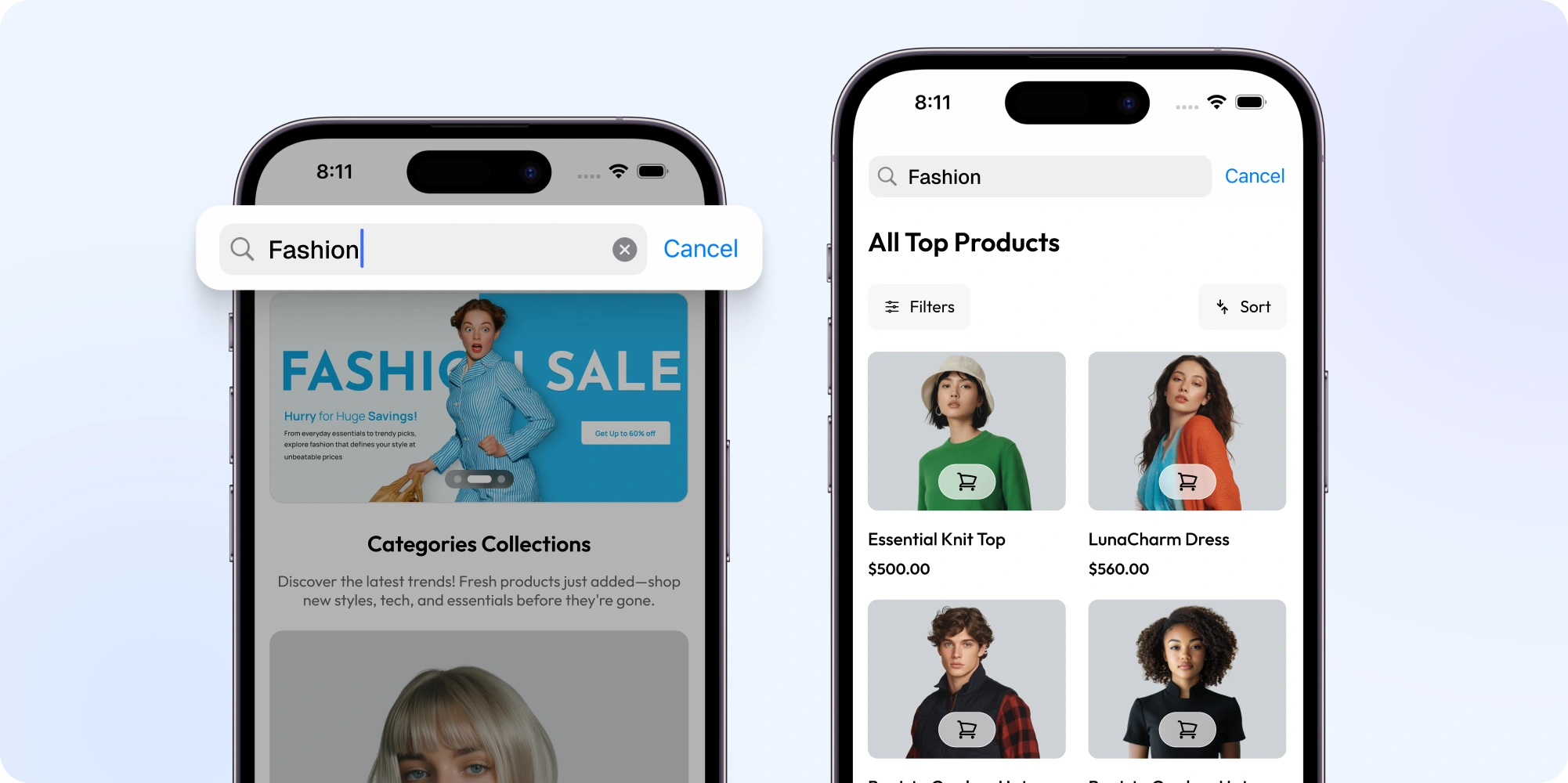
Search Component with BagistoNative Integration
The following search component supports both web and native mobile search events.
|
1 2 3 4 5 6 7 8 9 10 11 12 13 14 15 16 17 18 19 20 21 22 23 24 25 26 27 28 29 30 31 32 33 34 35 36 37 38 39 40 41 42 43 44 45 46 47 48 49 50 51 52 53 54 55 56 57 58 59 60 61 62 63 64 65 66 67 68 69 70 71 72 73 74 75 76 77 78 79 80 81 82 83 84 85 86 |
"use client"; import { MagnifyingGlassIcon, ArrowLeftIcon, } from "@heroicons/react/24/outline"; import { useRouter, useSearchParams } from "next/navigation"; import { createUrl } from "@/lib/utils"; import { useEffect, useRef } from "react"; import HotwireAppSearchComponent from "@/components/hotwire/components/HotwireAppSearchComponent"; export default function Search({ search = false, setSearch, }: { search: boolean; setSearch?: (value: boolean) => void; }) { const router = useRouter(); const searchParams = useSearchParams(); const inputRef = useRef<HTMLInputElement>(null); function onSubmit(e: React.FormEvent<HTMLFormElement>) { e.preventDefault(); setSearch && setSearch(false); const val = e.target as HTMLFormElement; const search = val.search as HTMLInputElement; const newParams = new URLSearchParams(searchParams.toString()); if (search.value) { newParams.set("q", search.value); } else { newParams.delete("q"); } router.push(createUrl("/search", newParams)); } useEffect(() => { if (search && inputRef.current) { const input = inputRef.current; input.focus(); // Move cursor to the end of content const length = input.value.length; input.setSelectionRange(length, length); } }, [search]); return ( <> {/* This enables native search integration with bagistonative */} <HotwireAppSearchComponent /> <form className="w-max-[550px] relative w-full md:min-w-[386px] xl:min-w-[516px]" onSubmit={onSubmit} > {setSearch && ( <button onClick={() => setSearch(!search)} type="button" className="absolute bottom-0 left-1 top-0 flex w-9 cursor-pointer items-center justify-center border-r border-neutral-200 dark:border-neutral-700 md:hidden" > <ArrowLeftIcon className="size-5 stroke-neutral-500" /> </button> )} <input ref={inputRef} key={searchParams?.get("q")} autoComplete="off" className="input w-full rounded-lg border border-neutral-200 bg-white py-2 pl-12 pr-4 text-sm text-black outline-none placeholder:text-neutral-500 focus:ring-2 focus:ring-neutral-300 dark:border-neutral-800 dark:bg-transparent dark:text-white dark:placeholder:text-neutral-400 md:pl-4" defaultValue={searchParams?.get("q") || ""} name="search" placeholder="Search for products..." type="text" /> <button aria-label="Search" type="submit" className="absolute bottom-0 right-1 top-0 flex w-9 cursor-pointer items-center justify-center border-l border-neutral-200 dark:border-neutral-700 md:border-0" > <MagnifyingGlassIcon className="size-5 stroke-neutral-500 dark:stroke-white md:stroke-black" /> </button> </form> </> ); } |
This component integrates smoothly with BagistoNative search events.
Switch UI for Native Mobile
|
1 2 3 |
<div className={isTurboNativeUserAgent() ? 'native-mobile-class' : 'web-class'}> {/* ... */} </div> |
This allows you to customize layouts for mobile users.
Connect Web and Native Mobile App
Cart Modal Bridge
|
1 2 |
import TurboCartModalBridge from "../hotwire/TurboCartModalBridge"; <TurboCartModalBridge onOpen={onOpen} /> |
Search Router Bridge
|
1 2 |
import TurboSearchRouterBridge from "../hotwire/TurboSearchRouterBridge"; <TurboSearchRouterBridge /> |
These bridges allow native apps to trigger UI actions in your Next.js app.
Bagisto Native Framework provides a wide range of built-in native components that you can easily use in your Next.js applications.
Explore all the available components here in detail.
Run and Test Your Native Mobile App
Start the development server:
|
1 2 |
pnpm dev |
Now test your app:
- In a web browser
- Inside the iOS Turbo Native app
- Inside the Android Turbo Native app
Generate the APK and IPA of the Next.js app
After your Next.js app is ready, you can connect it to real native iOS and Android apps in just a few steps!
Step 4: Determine Your Project URL
Your native apps will talk to your Next.js project using a Project URL.
Use your local network URL (like http://localhost:3000) or your custom domain.
⚠️ Make sure your phone/simulator and your computer are on the same network if running locally. Do NOT use Vercel preview links for local development.
iOS: Set Up for iOS App
- Clone the iOS App Repository:
|
1 2 3 |
git clone https://github.com/SocialMobikul/BagistoNative_iOS.git cd BagistoNative_iOS |
- Open the Project in Xcode:
|
1 2 |
open BagistoNative.xcodeproj |
- Configure Base URL in iOS App: In Xcode, find the line:
|
1 2 |
let base_url = "https://your-headless-base-url" |
Change it to your Next.js project URL, for example:
|
1 2 3 4 |
let base_url = "http://localhost:3000" // or your custom domain let base_url = "https://your-custom-domain.com" |
- Build & Run the iOS Application:
- Select a simulator or your connected iPhone in Xcode.
- Click Run.
- Test products, cart, checkout, and API connectivity.
Android: Set Up for Android App
- Clone the Android App Repository:
|
1 2 3 |
git clone https://github.com/SocialMobikul/BagistoNative_android.git cd BagistoNative_android |
- Open the Project in Android Studio:
- Open Android Studio, select “Open an existing project”, and choose the
BagistoNative_androidfolder.
- Configure Base URL in Android App:
- In Android Studio, search for the line:
12public static String base_url = "https://your-headless-base-url"; - Change it to your Next.js project URL, for example:
1234public static String base_url = "http://localhost:3000";// or your custom domainpublic static String base_url = "https://your-custom-domain.com";
- Build & Run the Android Application:
- Select a simulator or your connected Android device.
- Click Run.
- Test products, cart, checkout, and API connectivity.
Congratulations! Your native iOS and Android apps are now connected to your Next.js project and ready to use
Conclusion
Using Next.js, build true native iOS and Android apps. If you’re new to BagistoNative Framework, check the detailed documentation.
With a single Next.js codebase, you can build:
-
A modern web application
-
A native iOS application
-
A native Android application
All three platforms share the same code and logic.
This approach allows you to build iOS and Android apps with Next.js, faster and with less complexity.
It is flexible, scalable, and ready for production use.

