A shopper photographs a jacket they spotted on the street.
Ten seconds later, they’re looking at three like it – in bagisto using that image.
That feature sounds like it would require an ML team, a vector database, and a budget with commas in it – but it doesn’t.
Bagisto Image Search has no embeddings pipeline, no API key.
It’s switched on by default on a fresh install, and it still works when your AI provider goes down.
The whole thing rests on one idea – and once you see it, you can build the same feature.
How Bagisto Image Search Becomes Text Search
Here is the design decision that makes the whole feature affordable:
Bagisto does not do visual search. It does image-to-text, then text search.
When a shopper uploads a photo of a red t-shirt, Bagisto asks a model “what is in this picture?”,
It gets back the words – “red cotton t-shirt, casual wear, crew neck”,
Then runs that string through the exact same search pipeline a typed query uses.
That’s a shortcut. It’s also a very good one, because of what it buys you for free:
-
- Filters, sorting, pagination, and “load more” continue to work without any changes.
- Image search uses the merchant’s configured search engine, whether Elasticsearch or database search.
- No additional infrastructure is required – nothing new to deploy, index, or keep synchronized with the product catalog.
Architecture at a glance

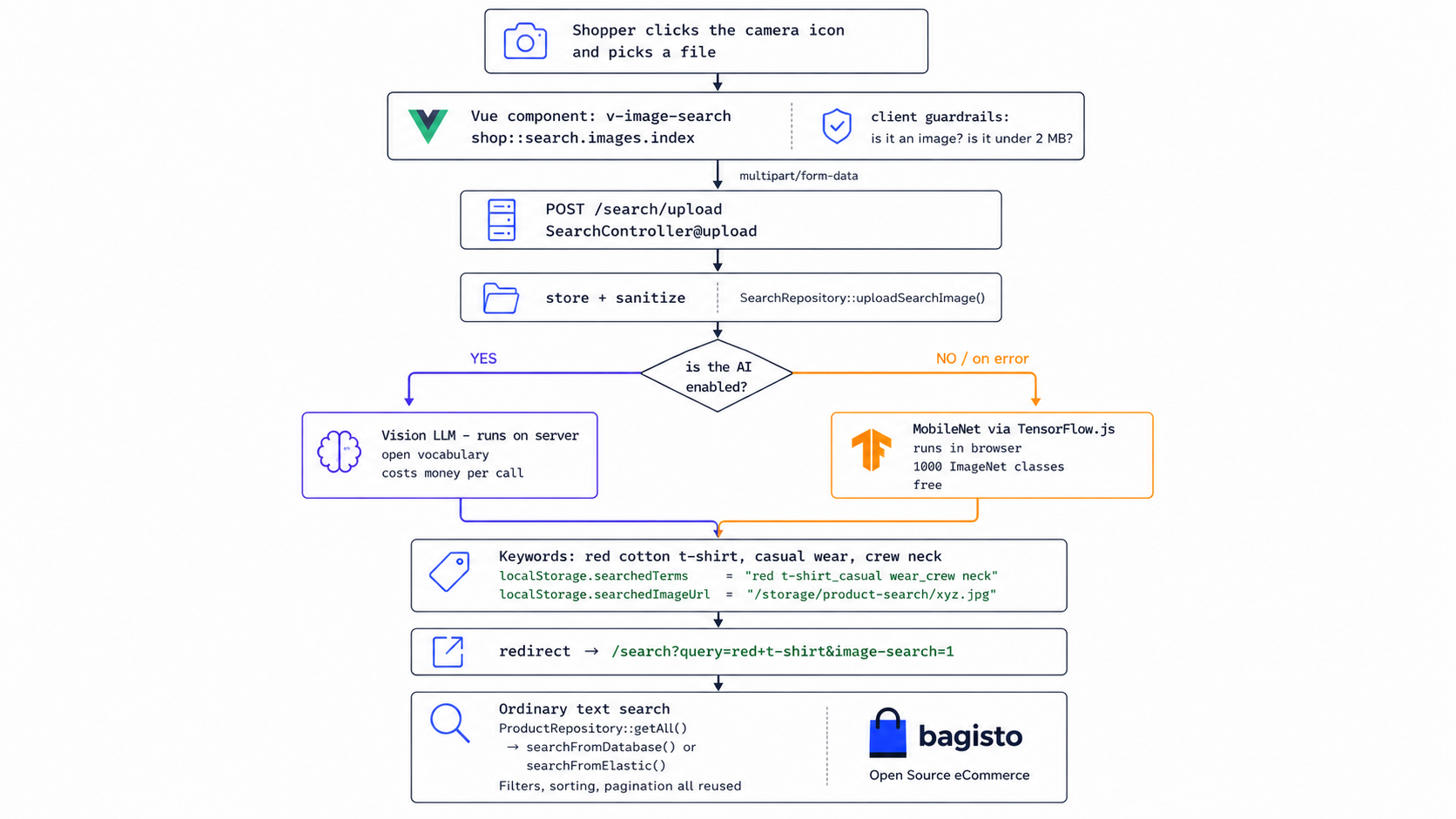
Where the Image Becomes a Search Query
Everything else in this post is plumbing around these two lines.
|
1 2 3 |
if (! empty($params['query'])) { $params['name'] = $params['query']; } |
That’s the whole trick. Because the image query becomes an ordinary name filter.
It inherits filters, sorting, pagination, and relevance scoring without a single line of duplication.
Elasticsearch match queries and database ‘LIKE’ clauses both operate on the same abstraction.
Now let’s walk the path that produces that keyword.
From Configuration to Camera Icon
The camera icon lives inside the header search box, on both desktop and mobile.
It renders only if the merchant enabled it:
|
1 2 3 |
@if (core()->getConfigData('catalog.products.settings.image_search')) @include('shop::search.images.index') @endif |
The component behind the icon holds four things:
A hidden file input, the camera icon itself, a spinner, and one hidden ‘img’ tag.
|
1 2 3 4 5 6 7 8 9 10 11 12 13 14 15 |
<input type="file" class="hidden" accept="image/*" ref="imageSearchInput" :id="'v-image-search-' + $.uid" @change="analyzeImage()" /> <img id="uploaded-image-url" class="hidden" :src="uploadedImageUrl" alt="uploaded image url" /> |
The ‘$.uid’ in the id matters: the header renders twice on some layouts (desktop and mobile).
Each copy needs a unique id or one camera icon would open the other’s file picker.
Before uploading, the browser rejects the two obvious problems:
|
1 2 3 4 5 6 7 8 |
if (! imageInput.files[0].type.includes('image/')) { /* reject */ } if (imageInput.files[0].size > 2000000) { /* reject */ } let formData = new FormData(); formData.append('image', imageInput.files[0]); this.$axios.post('{{ route('shop.search.upload') }}', formData); |
Behind the Endpoint: From Upload to Keywords
One route, no authentication:
|
1 2 3 4 5 |
Route::post('search/upload', [SearchController::class, 'upload'])->name('shop.search.upload'); returns { "image_url": string, "keywords": string, "engine": "ai" | "tensorflow" } |
Storage and SVG sanitization: the security layer
|
1 2 3 4 5 6 7 8 |
public function uploadSearchImage($data) { $path = request()->file('image')->store('product-search'); $this->sanitizeSVG($path, $data['image']->getMimeType()); return Storage::url($path); } |
The validation rules accept ‘svg’ – and an SVG is XML, which can carry ‘script’ tags.
Serving an untrusted SVG from your own domain can turn a simple upload into a stored XSS vulnerability.
Bagisto runs ‘enshrined/svg-sanitize’ with ‘removeRemoteReferences(true)’
which parses the XML, strips scripts and external hooks, and rewrites the file in place..
The dual-engine failover
|
1 2 3 4 5 6 7 8 9 10 11 12 13 14 15 16 17 18 19 20 |
$useAi = core()->getConfigData('magic_ai.general.settings.enabled') && core()->getConfigData('magic_ai.storefront_features.image_search.enabled'); if ($useAi) { try { $keywords = MagicAI::analyzeImage( request()->file('image')->getRealPath() ); } catch (\Exception $e) { report($e); $useAi = false; } } return response()->json([ 'image_url' => $imageUrl, 'keywords' => $keywords, 'engine' => $useAi ? 'ai' : 'tensorflow', ]); |
That catch block is not error handling – it is the degradation pathway.
It never returns a 500 and never shows the shopper an error.
Provider down, key expired, rate limited, image rejected: the search still works, and the shopper never finds out anything went wrong.
Engine A: the vision model, resolved at request time
|
1 2 3 4 5 6 7 8 9 10 11 12 13 14 15 16 17 |
$prompt = implode("\n\n", [ 'Analyze this image and identify the product(s) shown.', 'Return a comma-separated list of short, specific search keywords that would help find this product in an e-commerce store.', 'Focus on: product type, material, color, style, brand (if visible), and key features.', 'Return ONLY the comma-separated keywords, nothing else.', 'Example: red cotton t-shirt, casual wear, crew neck, solid color', ]); $model = $this->loadStorefrontModel('image_search'); $provider = $this->prepareProvider($model); $image = new LocalImage($imagePath); return trim( agent()->prompt($prompt, attachments: [$image], provider: $provider, model: $model)->text ); |
The prompt is load-bearing.
It never says “describe this image.” and fixes the output format.
Limits the vocabulary to things a catalog actually stores, bans prose, and shows one example.
The reply is consumed by a plain ‘split(‘,’)’ in the frontend – no cleanup, no validation, no retry.
So “Return ONLY the comma-separated keywords” is the parsing layer.
Delete that line and a chatty model answers “Sure! Here are some keywords: …” and the word “Sure” ends up in your search query.
Engine B: MobileNet in the browser, at zero cost
When the response says engine: 'tensorflow',
the frontend loads TensorFlow.js and MobileNet from a CDN and classifies the photo on the shopper’s own device:
|
1 2 3 4 5 6 7 8 9 10 11 12 13 |
let net = await mobilenet.load(); const result = await net.classify(document.getElementById('uploaded-image-url')); result.forEach(function (value) { let queryString = value.className.split(','); analysedResult = analysedResult.concat(queryString); }); localStorage.searchedTerms = analysedResult.join('_'); window.location.href = `{{ route('shop.search.index') }}?query=${query}&image-search=1`; |
This is where the hidden ‘img’ comes into play.
Vue binds the uploaded image URL to its src, and the browser loads the image.
MobileNet then reads and classifies the image directly from the DOM.
The two engines, side by side
MobileNet knows 1000 fixed categories: ‘running shoe, ‘sunglasses’, ‘coffee mug’, ‘Windsor tie’.
It does not know your brand or your catalog.
Show it a designer handbag and it may confidently say mailbag.
| Variable | AI vision model | MobileNet in the browser |
|---|---|---|
| Runs on | Your server → provider API | The shopper’s device |
| Cost per search | One API call | Nothing |
| Speed | One round trip to the provider | Model downloaded once, then cached |
| Understands | Brand, material, style, fit | 1000 fixed categories |
| Setup needed | API key + model choice | None |
| Breaks when | Provider is down or key is bad | JS is off, or the CDN is blocked |
The free engine isn’t the broken version – it’s a usable default that ships working
The AI is the upgrade a merchant buys when they want the store to understand “olive green utility jacket.”
State handoff: localStorage across the redirect
Both engines finish the same way – write, then redirect:
|
1 2 3 4 |
localStorage.searchedImageUrl = data.image_url; localStorage.searchedTerms = terms.join('_'); window.location.href = `/search?query=${encodeURIComponent(terms[0])}&image-search=1`; |
The search page then adds one line:
|
1 2 3 |
@if (request()->has('image-search')) @include('shop::search.images.results') @endif |
That included file pulls the keywords back out and turns each one into a button:
|
1 2 3 4 5 6 7 8 9 10 11 12 |
this.searchedTerms = localStorage.searchedTerms.split('_').map(term => ({ name: term, slug: term.split(' ').join('+'), })); search(term) { let url = new URL(window.location.href); url.searchParams.set('query', term.name); window.location.href = url.href; }, |
Bagisto image search puts every guess on screen.
The best one runs on its own, and the rest are one tap away.
If ‘running shoe’ finds nothing, ‘sneaker’ and ‘trainer’ are already sitting there.
Search execution: database or Elasticsearch
The keyword now goes into whichever search engine the store is set up with:
|
1 2 3 4 5 6 7 8 |
public function getAll(array $params = []) { if (core()->getConfigData('catalog.products.search.engine') == 'elastic') { return $this->searchFromElastic($params); } return $this->searchFromDatabase($params); } |
Database: runs a ‘LIKE ‘%keyword%” on the product table.
Because the wildcard is at the front, the database can’t use an index and has to check every row.
Fine for a small catalog, slow once you grow.
Elasticsearch: runs a proper ‘match’ query on the ‘name’ field.
It also passes the keyword through the “did you mean” spell-check.
So image search gets spelling correction for free, just by being text search.
Conclusion
That’s the whole bagisto image search feature, a photo goes in, a model turns it into words.
Those words go through the search you already had.
A few ideas worth knowing:
- Make the AI optional, never required.
- Let the browser do the work when it can.
- Don’t hide the model’s guessing – show it: Every guess becomes a button the shopper can tap.
If you have questions, suggestions, or feedback, we’d love to hear from you.
Leave a comment below, and we’ll be happy to help.
You can also explore our Bagisto Extensions.
If you are planning to build with Laravel, consider hiring laravel

